Going Online
The process of “Going Online” with a system reconciles the state of software and hardware. While online, you are able to meter the audio passing through the hardware and control the system in real time. There are two ways to go online with the system: Push and Pull. Pushing the currently open Site File to the hardware is the most direct and common way to go online.
Going Online by Push
There are three ways to start a Push operation:
- Select the icon in the Tool Bar that looks like a hardware unit with a green arrow pointing down towards it.
- Press the "F4" hot key.
- Select "Go On-line (Push Design to Hardware)" in the Hardware Menu.
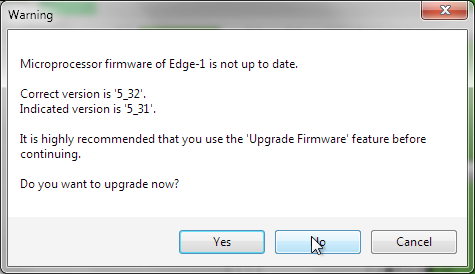 Immediately upon initiating this process, if all hardware is present, one of two dialogs may appear. If the hardware has a version of firmware that doesn't match the version of Composer you are using, you will be prompted to upgrade the firmware.
If you choose to upgrade the firmware, you will be taken to the Upgrade Firmware/Hardware Settings dialog.
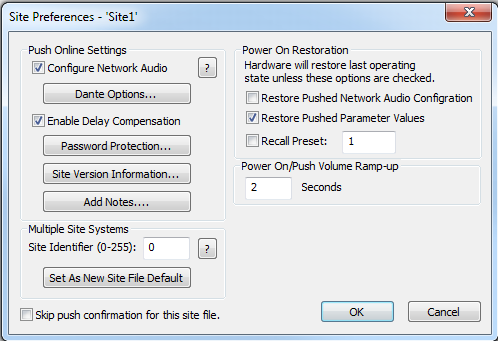 The second dialogue that may appear is the Site Preferences dialog. Click here for more explanation of all options within this dialog.
Note: This confirmation may be disabled by unchecking Skip push confirmation for this site file. **Or from the Application Preferences by unchecking Show Site Preferences for new site files.
A progress bar will appear as Composer pushes the Site File to the hardware. Each unit is done consecutively until the push is complete.
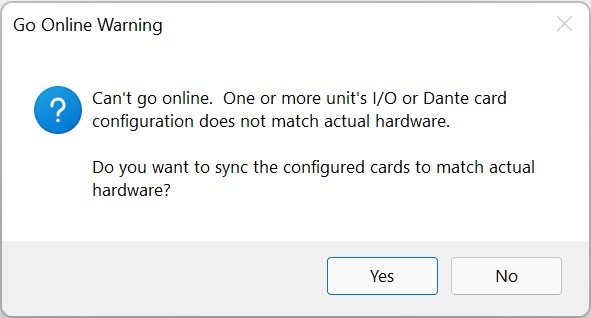
A check will be performed to make sure the USB, IO Card and Clock Card/Dante Card configuration for each device in the design matches the corresponding hardware. A warning will be shown if any devices don't match.
Choose Yes to have Composer automatically change the design to match the hardware. You will need to Push again.
Choose No to cancel pushing and fix the mismatch manually.
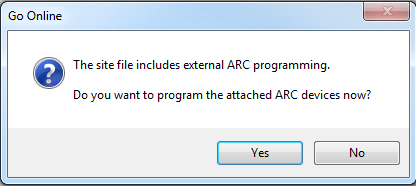
At the end of the push, if there are any remote control devices in the Site File, Composer will ask you if it can program the attached devices at this time.
Choose Yes, if you wish to program your remotes.
Going Online by Pull
In order to Pull a design from a unit you can either select the following button:

This will open up the system manager, or you can select the System Manager from the Hardware Menu. Pulling a Site File will retrieve the Site File as it was last archived in the hardware. Additionally, you may choose to synchronize any run-time changes that may have taken place since the Site File was archived in order to have all parameter settings as they are currently in the hardware.
In the System Manager, click on the Hardware tab:
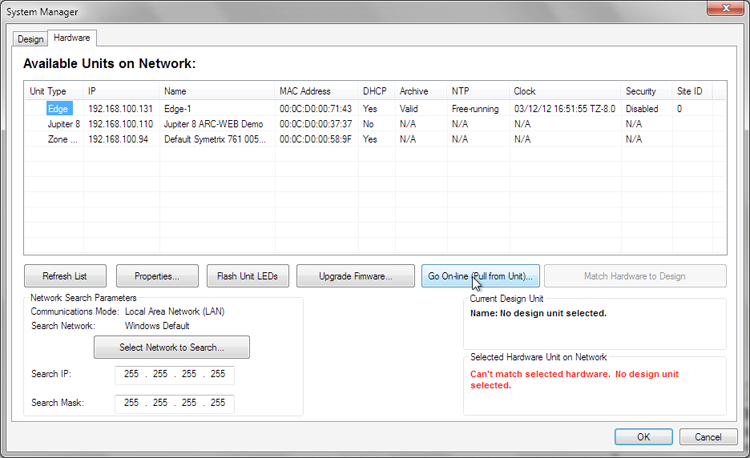
Assuming that the hardware you wish to pull from has been located, select it from the list.
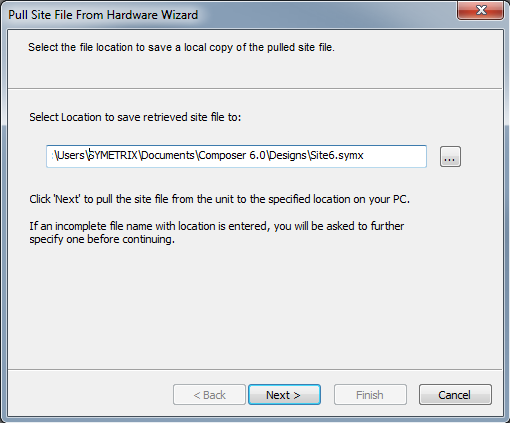
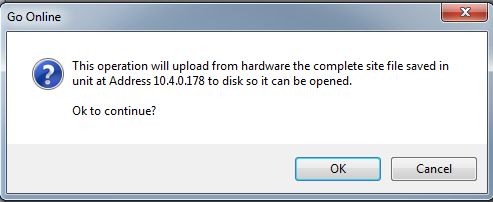
Click the “Go Online (Pull from Unit)” button will transfer the Site File to your computer. The Pull Site File From Hardware Wizard appears. The first step is to select a name and location for the Site File on your PC:
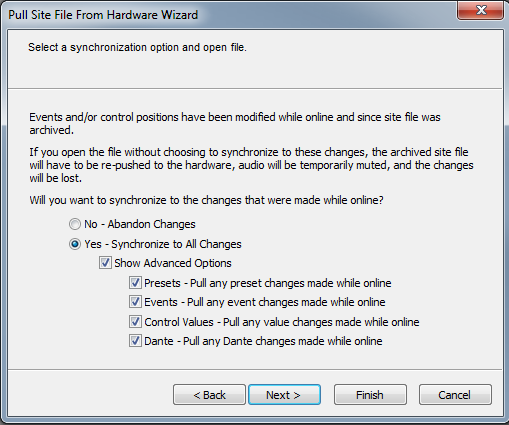
Now you must choose to Synchronize to Changes that the user has made using the controllers available or Abandon Changes. These are the run-time changes made since the last time that the Site File was archived. Choosing “Yes” will bring those changes into Composer. Advanced options can be chosen when syncing to only pull select changes that may have been made since the site file was last archived. Choosing “No” will bring the archived Site File into Composer as it was last archived.
In the final step, click finish to initiate the Pull process:
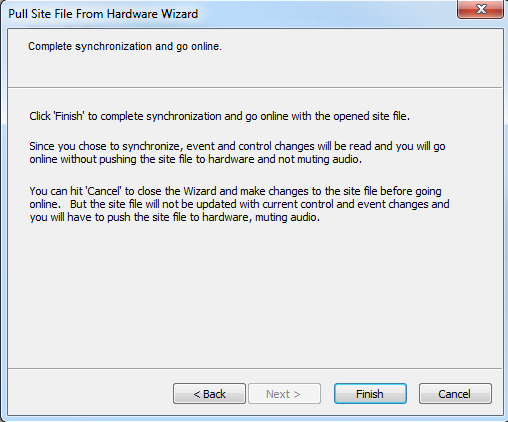
You can now go On-line.
Note: In order to go on-line with a unit once you have pulled from hardware, you may need to push back to the hardware. There is a hidden file marker associated with the Site File which identifies the computer from which the archived Site File was sent. If your computer is not the computer that last pushed the archived Site File, you will not be able to go on-line until the Site File is pushed from your computer.