USB Audio Card
Hardware: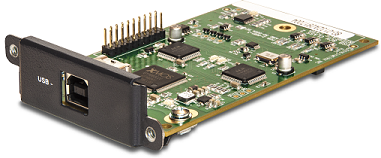
Software:
Important: In order to use the USB card's Line 8x8 configuration with PCs running Windows 10 or newer, the drivers included with Composer 5.6+ must be installed on the PC. The drivers can be found in the install folder for Composer, default location: C:\Program Files (x86)\Symetrix\Composer x.x\Drivers\USB
Radius NX units with the optional built in USB configured, operates the same as the USB card described here.

ASIO Driver Technology by Steinberg Media Technologies
Specifications
USB:
- Interface: 2.0
- Class: Audio Device Class 1.0 and 2.0
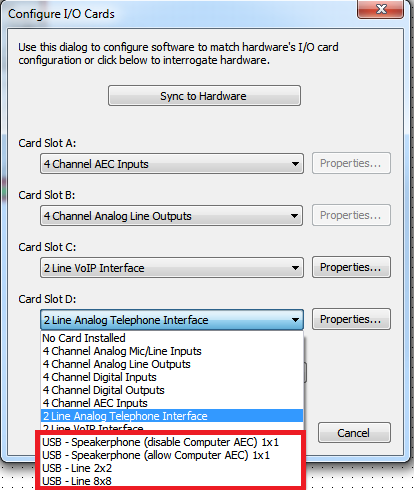
- Mode: Speakerphone (disable Computer AEC) 1x2, Speakerphone (allow Computer AEC) 1x1, Line 2x2, or Line 8x8
- Connector: One (1) high-retention Type B female
Performance:
- Sample Rate: Internally 48 kHz. Externally, 48 kHz in legacy modes (speakerphones, 2x2), 16KHz to 96KHz in 8x8 mode
- Bit Depth: 16-bit in legacy modes (speakerphones, 2x2), 16 or 24-bit in 8x8 mode
- Environmental: Environmental specifications same as hosting unit
User Control:
- Inputs: Gain, Invert, Mute, Meter, Channel Name
- USB Status: Connected, Streaming (Active)
- Outputs: Gain, Mute, Meter, Channel Name
Mechanical Specifications
- Shipping Weight: 1.0 lbs (0.45 kg)
- Certifications or Compliance: EN 55103-1, EN 55103-2, FCC Part 15, RoHS
- Form Factor: Standard Symetrix DSP I/O card form factor
- What Ships in the Box: Symetrix I/O card, card bracket, 2 black 4-40 Phillips head screws, 3 stainless steel 4-40 Phillips head screws, a quick start guide
External Connection

Using a standard Type A to Type B Male USB 2.0 or higher cable, connect the Type B Male connector to the USB Audio Card and the Type A Male connector to your computer. Refer to the help module included in all Symetrix software for more information on the USB Audio Card.
Setting USB card I/O Configuration
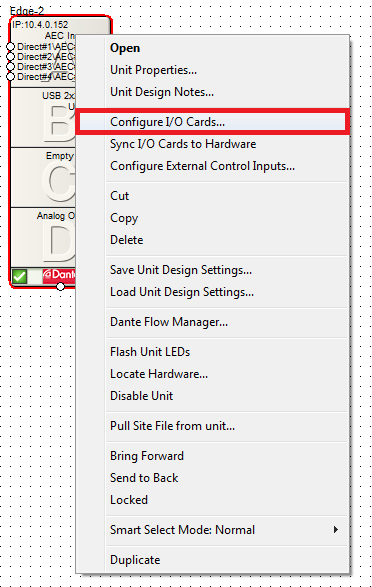
1. After placing the unit with the USB card installed, right-click the DSP module and select 'Configure I/O Cards...'.
2. Depending on the DSP, use the corresponding dropdown for the slot in which the USB card is installed and select the channel configuration desired.
Note: In order to use the USB card's Line 8x8 configuration with PCs running Windows 10 or newer, the drivers included with Composer 5.6+ must be installed on the PC. The drivers can be found in the install folder for Composer, default location: C:\Program Files (x86)\Symetrix\Composer x.y\Drivers\USB
Note: Sometimes when switching the USB mode, the host OS only partially loads the drivers for the new configuration. If this happens, simply reconnecting the USB cable to the USB Audio Card will finish loading the drivers.
GUI
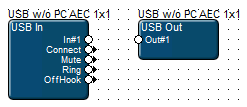
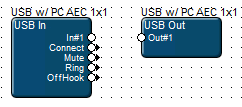
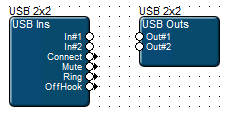
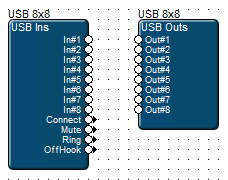
Below the audio outputs on the USB In module, there are 4 Control Signal outputs for USB HID control functionality described below.
USB Input Modules
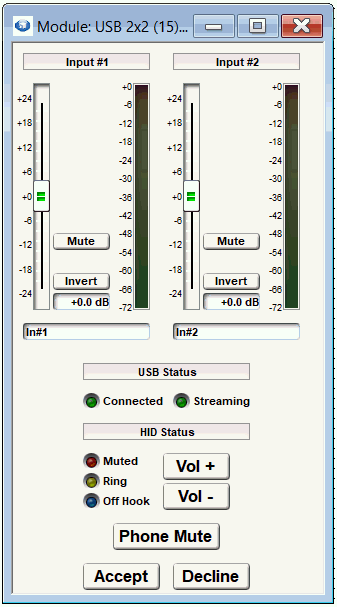
(Input modules reflect the number of inputs depending on the configuration chosen for the USB card.)
Trim (fader): Adjusts the gain of the signal. It provides fine gain control between +/- 24 dB in 0.1 dB steps and can be used to optimize signal levels and dynamic range.
Mute (button): When depressed, this channel will be muted.
Invert (button): When depressed, inverts the polarity of the signal on the channel. The inversion is equivalent to reversing the hot and cold wires on a balanced signal or pressing the so-called "phase" button found on many analog mixing consoles.
Trim Display (readout): Shows a numeric readout of the Trim fader's current position. Double-clicking in this field allows direct text entry of values.
Channel Label (user-editable field): Double-clicking in this field allows direct text entry of a user-specified label for the channel.
Meter (bar graph): Shows the level output from the USB Ins module (post Trim but pre Mute).
Connected (LED): Indicates that the USB card is connected to an external USB device.
Streaming (LED): Indicates when there is an isochronous data flow present. It is controlled by the host OS or application when this flow is established.
HID Status - BETA: This section displays LEDs and buttons related to HID (Human Interface Device) Connection Status. Symetrix DSPs with a USB interfaces or Cards support the ability to communicate with UC (Universal Conferencing) applications using USB HID. This feature allows a PC that is connected to a Symetrix DSP through USB to control and monitor settings like mute, accepting an incoming call, and hanging up a call. This feature is often called Mute Sync for this reason.
There are both Status LEDs and buttons on the USB module for this application. These controls are typically assigned control numbers or copied to control screens to allow control and monitoring the of the UC application from a Symetrix Remote or Touchscreen.
This functionality is released as a BETA feature in composer 8.4 because it is not yet supported by all major UC applications. Other UC applications will require additional certification and/or a Composer update for full functionality. The certification process is unique for each UC service, therefore we cannot commit to a completion timeline nor can we guarantee completion.
Muted (LED): On when conferencing software microphone is muted. Off when unmuted.
Ring (LED): On when there is an incoming call that has not been answered.
Off Hook (LED): On when there is an active call. Off otherwise.
Vol + (button): Increases the connected PCs volume.
Vol – (button): Decreases the connected PCs volume.
Phone Mute (button): Mutes the microphone on the conferencing software while in a call. The audio will be transmitted.
Accept (button): Answers a ringing call from supported UC software.
Decline (button): Declines an incoming call/meeting request AND/OR hangs up an active call.
For the USB HID controls to sync with a UC application, set the application settings so that the input and the output are the Symetrix DSPs USB in and out. Typically the USB Status Connected and Streaming LEDs must be lit for the HID Controls to function.
The descriptions above describe the typical functionality for these controls. The exact operation will depend on the specific UC software being used. The table below shows which controls function with common UC applications (functionality may change based on platform, OS and version of the application). Some of the supported applications may require additional configuration to sync the controls.
| MS Teams | Zoom | Google Meet | WebEx Meeting | Tencent Voov | |
|---|---|---|---|---|---|
| Muted(LED) | ✅ | ✅ | |||
| Ring (LED) | ✅ | n/a | |||
| Off Hook (LED) | ✅ | ✅ | |||
| Phone Mute (Button) | ✅ | ✅ | |||
| Accept (Button) - Incoming | n/a | ||||
| Decline (Button) - Incoming | n/a | ||||
| Decline (Button) - Hang Up | ✅ | ||||
| Vol + (Button) | ✅ | ✅ | ✅ | ✅ | ✅ |
| Vol - (Button) | ✅ | ✅ | ✅ | ✅ | ✅ |
USB Output Modules
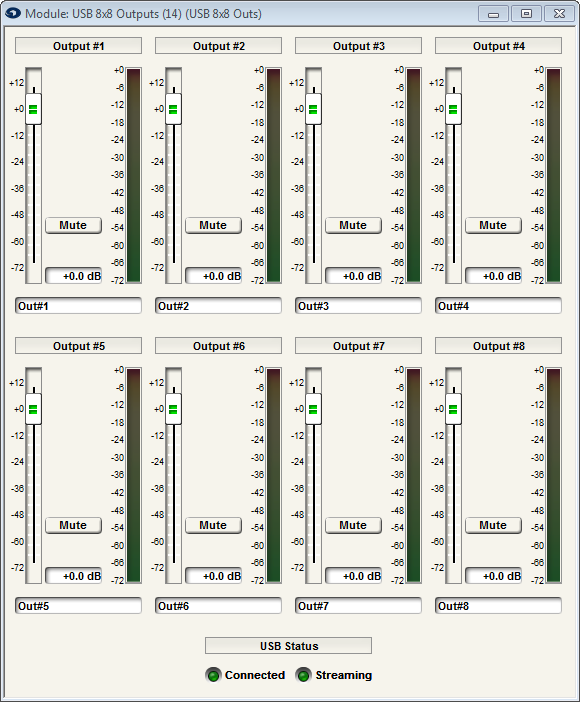
(Output modules reflect the number of outputs depending on the configuration chosen for the card.)
Gain (fader): Adjusts the gain of the signal. It provides fine gain control between +12 dB to Off in 0.1 dB steps and can be used to optimize signal levels and headroom. Set this according to the signal level expected by the downstream device.
Mute (button): When depressed, this channel will be muted.
Gain Display (readout): Shows a numeric readout of the Gain fader's current position. Double-clicking in this field allows direct text entry of values.
Channel Label (user-editable field): Double-clicking in this field allows direct text entry of a user-specified label for the channel.
Meter (bar graph): Shows the level output from the Analog Ins module (post Gain and Mute).
Connected (LED): Indicates that the USB card is connected to an external USB device.
Streaming (LED): Indicates when there is an isochronous data flow present. It is controlled by the host OS or application when this flow is established.