AV-Ops Center Manager
What is it?
The Remote Monitoring and Management solution is a simple-to-use monitoring and management cloud platform that is built with secure web technologies to assist in the fundamental support needs of IT/AV system administrators. It allows easy sign up, configuration, monitoring, and management, this hosted service provides clear understandable, and actionable system information.
Remote monitoring and management capabilities are included in Composer version 8.5 and later. This feature is a licensed service available from Symetrix. To use the Symetrix Remote Monitoring and Management System a subscription is required.
To add devices to a remote management subscription they must be configured in Composer to register with the Remote Management System. Once the configuration has been completed in Composer, the devices can be claimed and Configured on the Remote Management web service. The devices will then communicate directly with AV-Ops Center, sending their status and receiving commands.
Composer Configuration
-
Ensure all devices are located and the firmware on all devices in the site are updated to Composer 8.5 or later.
-
Signup to create a new Organization for Symetrix AV Ops Center: https://symetrix.on-xyte.com/auth/sign-up If your business already has an Organization configured, use the steps below to add them to your Organization account.
-
Create an Organization API key from the subscribed to Remote Monitoring and Management System and copy it.
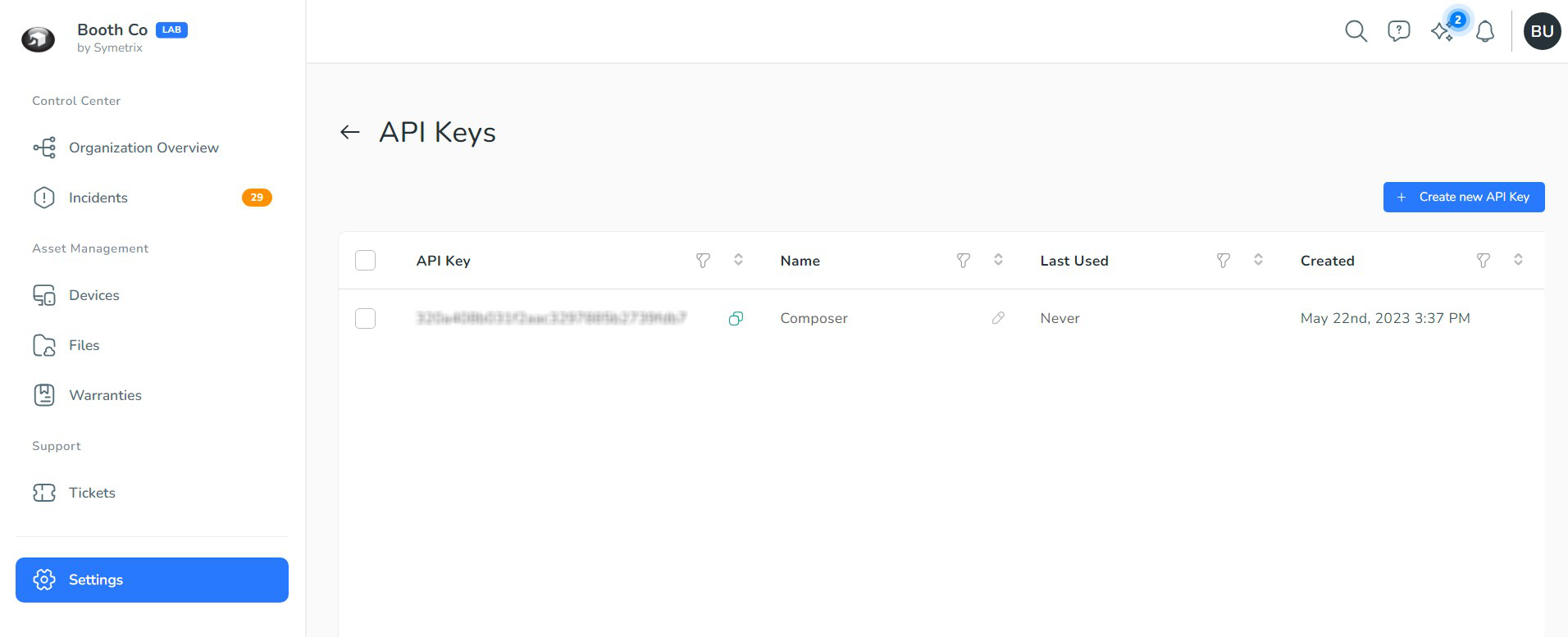
-
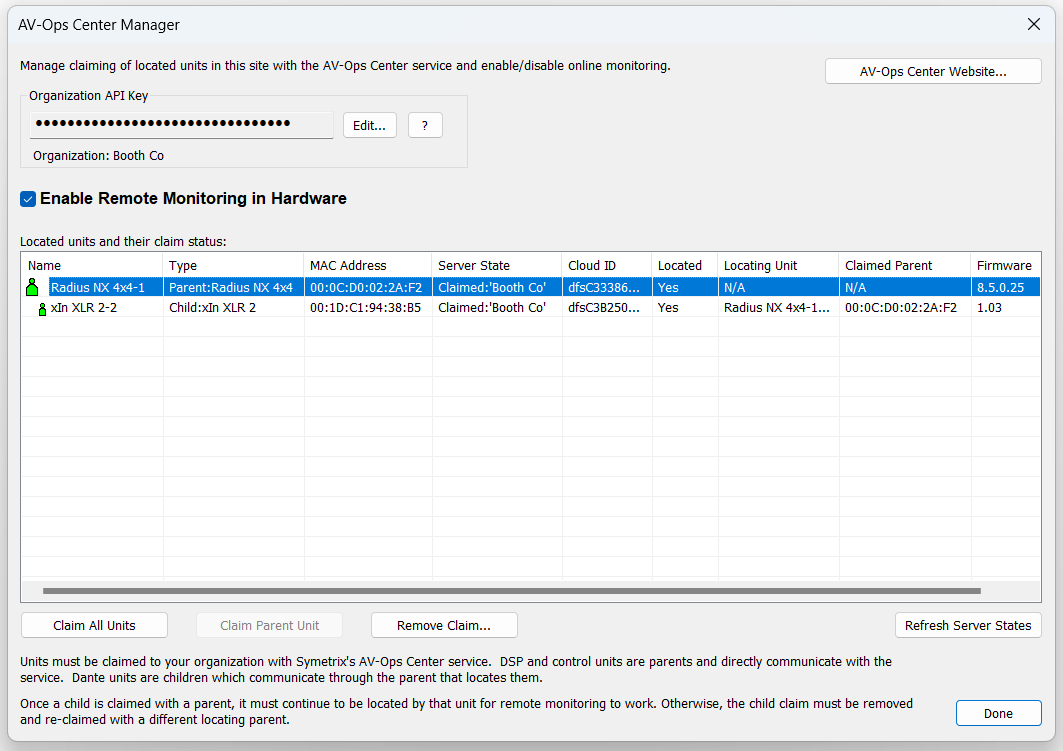
In Composer, go to the Tools>AV-Ops Center Manager (Ctrl + Shift +M)
-
Click "Edit..." and enter the Organization API Key. Click OK. You will see the Organization's name appear when Composer when successfully validates the key with AV-Ops Center.
-
Click "Claim All Units" that are to be included in your organization’s remote monitoring service. Registration/Claiming requires internet access.
-
Click the check box to "Enable Remote Monitoring in Hardware".
-
Click Done.
-
Push the Site to the hardware which will enable remote monitoring in the hardware. All Parent devices require internet access to communicate with the remote monitoring server.
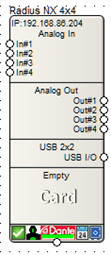
Units that have been claimed display a remote monitor icon at the bottom when viewed in Composer site view.
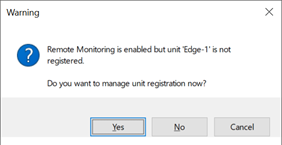
On pushing, if any units have not been successfully claimed but Remote Monitoring is enabled, a warning is shown.
Located Units Table
When opening the manager, the table is populated with the located units in the site. For each it shows the following information:
-
Parent/Chile Icon
-
- Icon indicating if it is a parent or child. It will be colored white for devices not yet located, green for located devices, and yellow for Child devices with location issues.
-
Name
-
- Device Name
-
Type
-
- Device Type
-
MAC Address
-
- Device MAC Address
-
Server State
-
- AV-Ops Center registration status. All devices should display "Claimed" when they are ready for use in AV Ops Center. This is the place to look for information on registration issues.
-
Cloud ID
-
- ID created to identity the deivice in AV-Ops Center and used by the device to communicate status to the server.
-
Locating Unit
-
- Name of parent device used to locate the child Dante device in composer. Will display "N/A" for parent devices that composer locates directly.
-
Claimed Parent
-
- MAC address of the child device's parent. Will display "N/A" for parent devices that composer locates directly.
-
Firmware
-
- Firmware version number. Registration only works if the firmware supports it, so the firmware version is checked before registration to see if a firmware upgrade is required before registration.
Additional Controls
Remote Monitoring Website
Opens the Remote Monitoring Website

Server State
This displays the current claimed state as known by the remote monitoring server and the information locally available. The server state is updated after every operation which may change it. To to see a change in state initiated from the server, the “Refresh Server States” button can be pressed.
The proceeds to interrogate the server state for all units displayed as possible and update the list view.
Remove Claim
The AV-Ops Center Manager dialog allows individual units and devices to have their claiming erased. Select a unit and if it is registered the “Remove Claim” button will be available.
Resilience
If anything goes wrong in the claiming or un-claiming of a device, such as due to a communication or power failure, the system is designed to allow continuing with the process by hitting the claim or remove claim button again. If this is the case, the server state displayed will indicate an incomplete claiming state.
Erase Memory Dialog
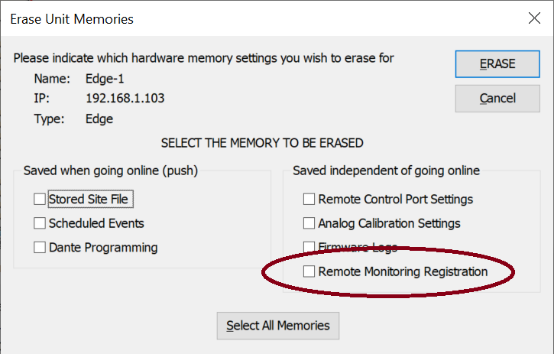
The Erase Memory dialog is available from the Update Firmware dialog accessed from the Unit Properties dialog. It adds a new memory selector to allow selectively erasing the registration information for DSP/control units. If selected and erased, the unit will have to be re-registered. The user will first have to delete the device from the customer’s remote monitoring website before it can be re-claimed as a given MAC address can only be claimed once. If they don’t, an error message will be presented when attempting to claim the device.
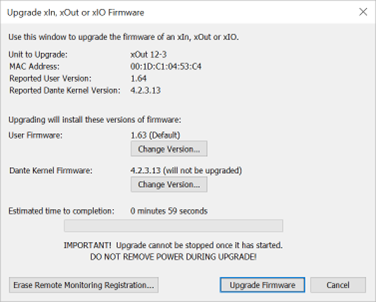
The Upgrade xIO Firmware dialog is modified to add a button to erase the registration information:
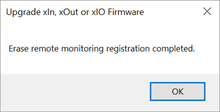
After erasing a confirmation message appears:
Remote Monitoring Status
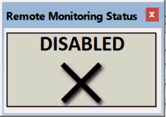
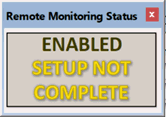
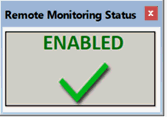
A new control bar is provided to show the state of the remote monitoring system. In can be enabled or disabled from the main “View” menu as with other control bars.
It has the following states:
-
Disabled – Remote monitoring is not enabled.
-
Enabled Setup Not Complete - Remote Monitoring is enabled but there is an error that would prevent use.
-
Enabled – All devices are succesfully claimed and ready for remote monitoring.
Once configured, utilize thew new Remote Monitoring Control Modules to send and receive custom Data from AV-Ops Center.
AV-Ops Center Operation
Adding Users
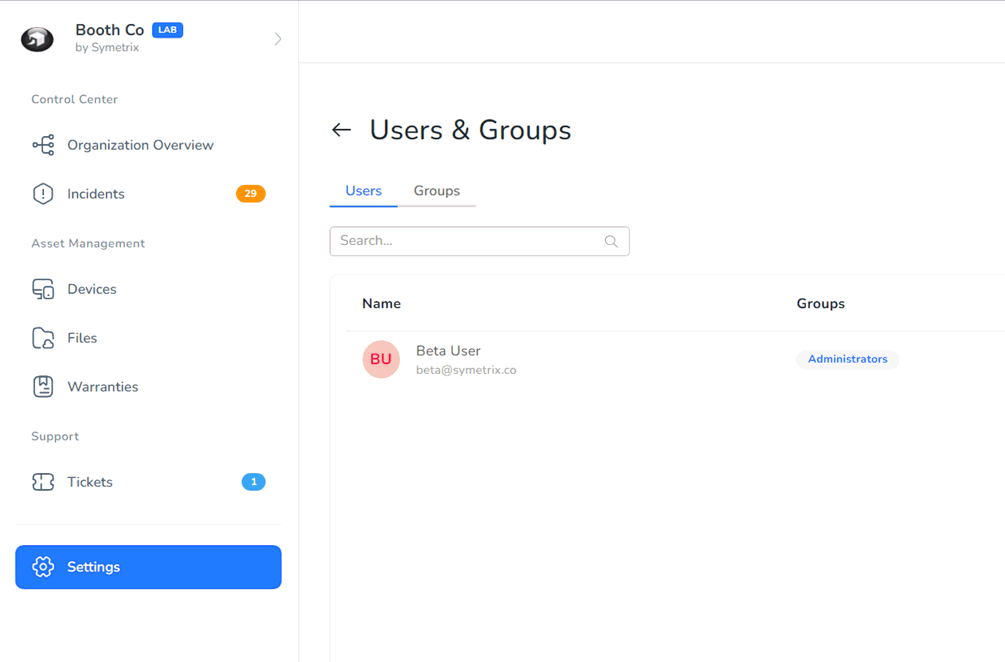
If you need to add a more than one user from your Business or Organization to your account, do NOT have them sign up using the link provided above. This will create a new Organization and you won’t be able to share devices. Instead once the first person creates an account and Organization for your company, invite other members of your company to join through the Settings>Users and Groups page.
https://symetrix.on-xyte.com/settings/users_and_groups/users?page=1
Device and Space Organization
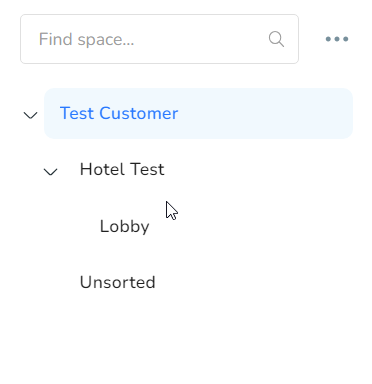
Once claimed, devices will appear in the "unsorted" space in AV-Ops Center. Additional spaces can be created and nested to allow convenient organization of devices. Devices can be dragged and dropped between spaces. It is generally recommended that all devices from the same Composer Site be placed in a corresponding space. But these child spaces can easily be nested in parents spaces as needed. Spaces can be assigned locations allowing all enclosed devices to appear on the map. For more information, see the Xyte documentation here:
https://docs.xyte.io/quick-starts/portal-overview/dashboard
Supported Devices
The following devices can be monitored by AV-Ops Center.
- Server D100
- Radius NX
- Radius AEC
- Prism
- Edge
- W-Series
- T-Series
- Control Server
- xIO Rack Series
- xIO Bluetooth Series
- xIO XLR Series
- 3rd Party Dante Devices
The following older Composer based devices can not be monitored by AV-Ops Center (although any device with Dante can be monitored as a 3rd party Dante Device).
- Solus NX
- Radius 12x8
- Radius 12x8 EX
Additional Help
Additional information for AV-Ops Center can be found in the Xyte docs page: