Network Diagnostics
Using a Packet Sniffer to help troubleshoot connection issues
By far, the most useful tool in troubleshooting Network issues is a packet sniffer. The benefit of installing a packet sniffing application would be to help Symetrix engineers and Technical Support troubleshoot and understand any connection issues you may be experiencing with your Symetrix units. In most cases, a very short recording will capture and display enough information for a Symetrix engineer to scrutinize and begin diagnosing a problem, if not fix it outright.
If you do not have Administrative rights on the machine you are working on, either go to a machine you do have Admin rights on, or please let your Network Administrator know what you are about to do.
Installing Wireshark
Start by going to http://www.wireshark.org and clicking on the DOWNLOAD link.
Please click the download appropriate for your operating system.
During installation, it may be necessary to install WinPcap, if the target PC does not already have it installed.
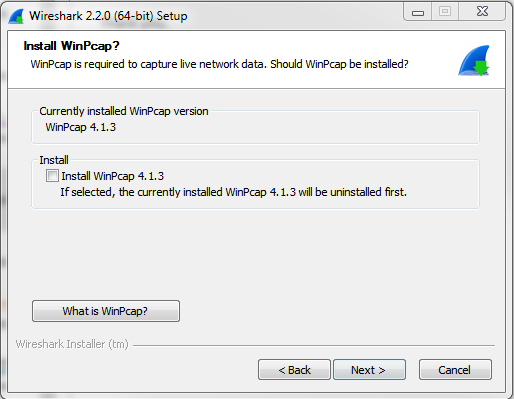
Complete the installation process.
The following is an example of how to sniff network traffic for troubleshooting the Symetrix VoIP Interface Card.
Using Wireshark to capture packets
To capture network traffic between the Symetrix VoIP Interface Card and the SIP PBX, a secondary managed Ethernet switch that supports port mirroring will be used. If a secondary managed Ethernet switch is not available, then arrange for a port to be mirrored on the main Ethernet switch that connects back to the SIP PBX.
-
First setup port mirroring on the managed switch. Port mirroring setup is performed differently for different makes of switches and directions on setting up a mirrored port should be directed to the switch manufacturer.
-
Connect the computer running Wireshark to the port to which traffic is mirrored.
-
Connect the Symetrix VoIP Interface Card to the port of the switch from which traffic is mirrored.
-
Connect a port from the main Ethernet switch that connects back to the SIP server to the Ethernet switch being used for the port mirroring.
Proceed to "Capture a Wireshark Trace"
There are just a few more steps to complete before we begin recording network traffic with Wireshark.
-
We recommend closing all other applications at this time, especially any connections to the network. This helps to keep the enormous number of packets recorded to a minimum and makes it simpler to read the traffic.
-
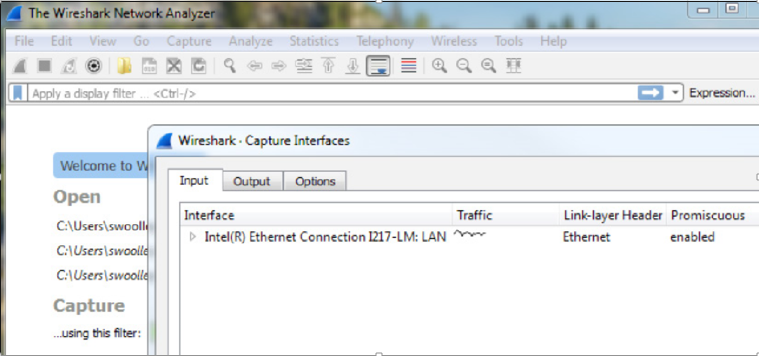
Wireshark needs to know where to look for packet traffic. At the main window of the Wireshark Network Analyzer, click Capture on the Menu Bar and select Interfaces from the list of options. (Capture > Options: Interface drop-down, promiscuous mode).
-
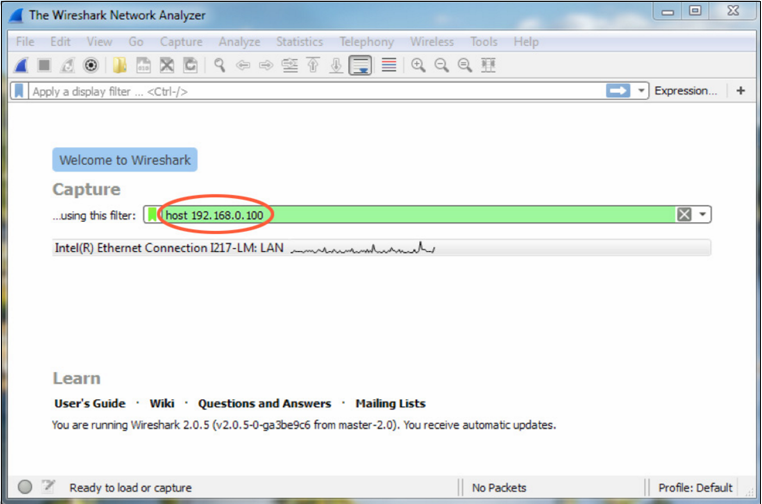
Set the capture filter to only capture network traffic to and from the VoIP Interface Card by typing "host" followed by the IP address of the VoIP Interface Card in the "Capture ...using this filter." box.
-
Power down the Symetrix DSP which hosts the VoIP Interface Card.
-
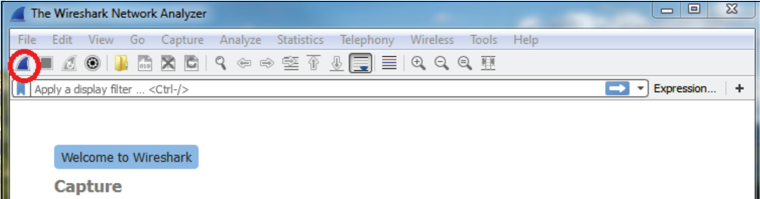
Start the Wireshark capture by clicking the Start Capture icon in the Tool Bar.
-
Next, power up the DSP and leave the capture running until the DSP has completed boot-up. This will cause the VoIP interface to start the registration process with the SIP PBX.
-
Once the DSP has completed booting, check in Composer and verify if the VoIP interface is registered.
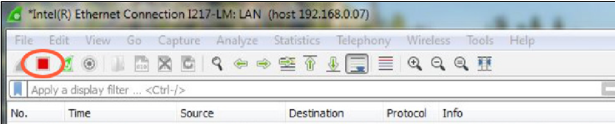
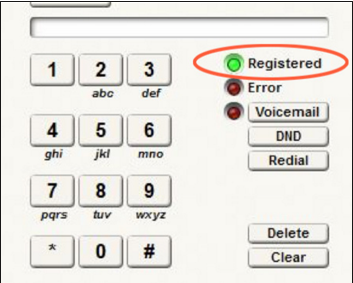 If it is not, stop the capture by clicking the Stop Icon on the Wireshark Tool Bar.
 If it is registered, while the capture is still running make a call from the Symetrix DSP to another extension and answer the call at the other extension if it rings. Then hang up the call at the extension. Next, call the Symetrix DSP from another extension and answer the call if it rings.
Depending on the problem, additional calls may need to be made for troubleshooting.
If it is registered, while the capture is still running make a call from the Symetrix DSP to another extension and answer the call at the other extension if it rings. Then hang up the call at the extension. Next, call the Symetrix DSP from another extension and answer the call if it rings.
Depending on the problem, additional calls may need to be made for troubleshooting. -
Once the capture is completed, stop the capture by clicking the Stop Icon on the Wireshark Tool Bar.
-
Wireshark's top window should be populated with packet information. Verify that the data needed has been captured by typing the word "sip" (lowercase) in the display filter box.
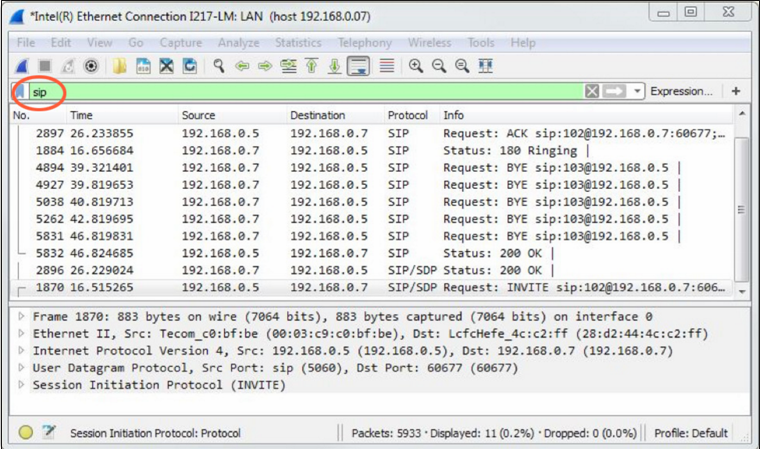 If there are no SIP packets shown, the capture was not correctly performed and will need to be redone once correct capture settings have been set.
 -
Save the information in a file that can be e-mailed to Symetrix. Click on File in the Menu Bar and choose Save from the list of options. When the Save File As dialog window appears, leave all fields at their default settings (Packet Range information and File Type) and enter a memorable name for the .pcap file. It might be useful to include your company name or some other unique identifier for association. In addition, make sure you know where this file is being saved so that you can retrieve it for e-mail attachment (the desktop is always easy to find, for example).
Wireshark can also be used to capture packets for providing information to technical support to assist in troubleshooting network or communication problems such as; WAN/LAN or control issues as well as VoIP.