ARC-3 Programming
First, make sure you have assigned one or more parameters or presets to an ARC-3 as detailed in the Assigning Parameters to ARCs and Presets Manager. Then open the Remote Control Manager from the Tools Menu and double-click on the desired ARC-3 device in the RS-485 Remote Control section to bring up the Edit ARC-3 dialog:
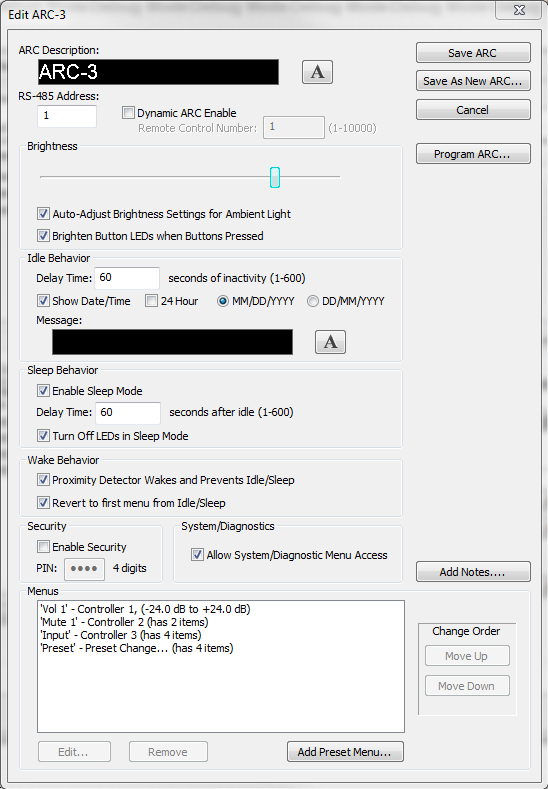
ARC Description- Displays the ARC-3 Description and a 239x24 pixel monochrome image when the device boots.
 - Opens Edit ARC-3 Image Menu for the description:
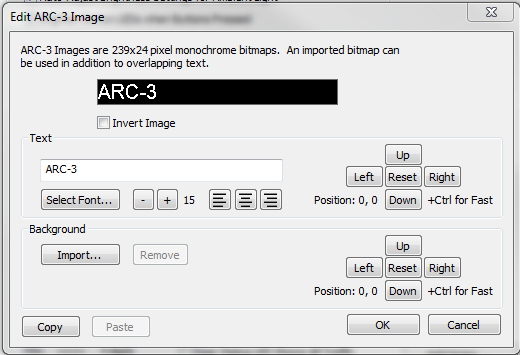
Invert Image -Check this box to flip the color scheme. Normally a black background with white font becomes a white background with black font.
Text- Type a descriptive name to help remember the ARC's main purpose or location, for example.
Select Font...- Choose the display font for the ARC-3 description. See the Font Selection Tips section for more information.
- / +- Decrease (-) or increase (+) the size for the font for the ARC-3 description. The default size font is 15.
 - Choose to align the text from the left side, center, or right side.
Up, Down, Left, Right, Reset- Use these buttons to adjust the placement of the ARC-3 description on the display. Reset will bring the description back to its default position of 0, 0. Holding down Ctrl while pressing one of the four placement buttons will increase the position in larger increments.
Background Import- Select an image to display as the background. The OLED only displays images as monochrome. For larger images, a 239x24 crop of the image will be displayed and can be repositioned to the area of the image desired. For smaller images, a black border will be displayed around the edges of the image.
Remove -Removes the imported background image.
Up, Down, Left, Right, Reset- Use these buttons to adjust the placement of the ARC-3 background image on the display. Reset will bring the image back to its default position of 0, 0. Holding down Ctrl while pressing one of the four placement buttons will increase the position in larger increments.
Copy -Copies the settings of the Edit ARC-3 Image Menu.
Paste -Pastes the settings of the Edit ARC-3 Image Menu that was copied.
RS-485 Address- Every RS-485 device connected to the same RS-485 bus must be uniquely identified. The ARC-3 device address is displayed upon initial power-on. It can be changed from 0-99 here. The setting here must match the address of the actual ARC-3. Matching the addresses is how a particular physical ARC is matched to its programming.
Dynamic Menu Enable -Check the box to enable an ARC or individual menus with control numbers. Example: In a room-combine scenario, choose to display a separate set of menus when the room is combined and another when it is uncombined.
Remote Control Number -Choose a remote control number from 1-10,000. ARC disables when remote control number’s value is 0.
Brightness
 - Slide this left and right to adjust the brightness level for the remote.
Auto-Adjust Brightness Settings for Ambient Light- Check this box to enable the ARC to automatically adjust to a room’s brightness. If it's a brighter room, the ARC will make itself brighter. If's it's a darker room, the ARC will make itself darker.
Brighten Button LEDs when Buttons Pressed -Check this box to enable the button LEDs to brighten when they are pressed.
Idle Behavior
Delay Time -Enter the amount of seconds of inactivity, between 1 and 600, should pass before the ARC-3 goes into Idle mode. The default delay time is 60 seconds.
Show Date/Time -Check this box to display the date and time in idle mode.
24 Hour -Check this box to display the time with a 24 hour clock.
MM/DD/YYYY or DD/MM/YYYY -Select the format of the displayed date.
Message - Displays the ARC-3 idle message.
- Opens the ARC-3 Edit Image Menu for the idle message:
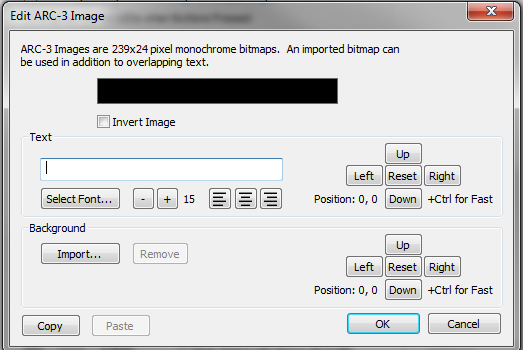
Invert Image -Check this box to flip the color scheme. Normally a black background with white font becomes a white background with black font.
Text- Type the text message to display while the ARC is in idle mode.
Select Font...- Choose the display font for the ARC-3 idle message. See the Font Selection Tips section for more information.
- / +- Decrease (-) or increase (+) the size for the font for the ARC-3 message. The default size font is 15.
-Choose to align the text from the left side, center, or right side.
Up, Down, Left, Right, Reset- Use these buttons to adjust the placement of the ARC-3 description on the display. Reset will bring the description back to its default position of 0, 0. Holding down Ctrl while pressing one of the four placement buttons will increase the position in larger increments.
Background Import- Select an image to display as the background. The OLED only displays images as monochrome. For larger images, a 239x24 crop of the image will be displayed and can be repositioned to the area of the image desired. For smaller images, a black border will be displayed around the edges of the image.
Remove -Removes the imported background image.
Up, Down, Left, Right, Reset- Use these buttons to adjust the placement of the ARC-3 background image on the display. Reset will bring the image back to its default position of 0, 0. Holding down Ctrl while pressing one of the four placement buttons will increase the position in larger increments.
Copy -Copies the settings of the Edit ARC-3 Image Menu.
Paste -Pastes the settings of the Edit ARC-3 Image Menu that was copied.
Sleep Behavior
Enable Sleep Mode -Check this box to enable Sleep Mode. The ARC will have no display in this mode.
Delay Time- Enter the amount of seconds of inactivity, between 1 and 600, should pass before the ARC-3 goes into Sleep Mode. The default delay time is 60.
Turn Off LEDs in Sleep Mode -Check this box to disable the LEDs in Sleep Mode.
Wake Behavior
Proximity Detector Wakes and Prevents Idle/Sleep -Check this box to enable the ability for the ARC to detect if you are in front of the remote. This will prevent the ARC from going into Idle or Sleep Mode.
Revert to first menu from Idle/Sleep -Check this box to have the ARC go back to the first menu when the remote wakes up.
Security
Enable Security -Check this box to enable the security feature. A pin must be entered.
PIN -Enter the security PIN.
System/Diagnostics
Allow System/Diagnostic Menu Access -Check this box to enable access to the Setup/Menu Diagnostics.
Save ARC -Saves the ARC currently being edited and commits any changes.
Save As New ARC -Saves the ARC with current edits as a new ARC. Remember to give
the ARC a unique RS-485 Address before clicking this button.
Cancel -Closes the Edit ARC-3 menu discarding any unsaved changes.
Program ARC... -Pushes the current programming to the ARC over the RS-485 network.
Add Notes... -Opens the Notes dialog box allowing you to enter or edit notes for the ARC currently being edited.
ARC Menus
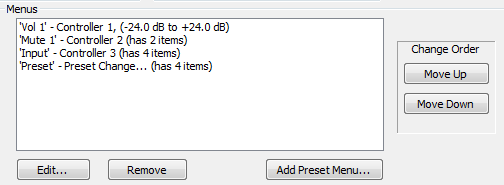
Edit... -Edits the selected menu.
Remove -Deletes the selected menu.
Add Preset Menu... -Creates a new Preset Menu.
Change Order -Use the Move Up and Move Down buttons to reposition the currently selected Menu.
Volume/Fader Menus
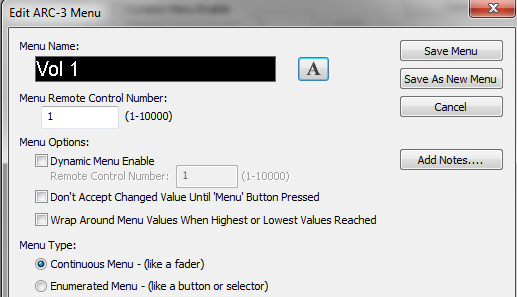
Menu Name- Displays the ARC-3 menu name.
- Opens Edit ARC-3 Image Menu for the menu name:
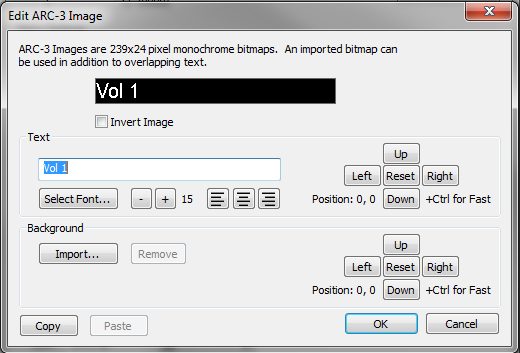
Invert Image -Check this box to flip the color scheme. Normally a black background with white font becomes a white background with black font.
Text- Type a descriptive name to help remember the what the menu is controlling.
Select Font...- Choose the display font for the ARC-3 menu name. See the Font Selection Tips section for more information.
- / +- Decrease (-) or increase (+) the size for the font for the ARC-3 menu. The default size font is 15.
-Choose to align the text from the left side, center, or right side.
Up, Down, Left, Right, Reset- Use these buttons to adjust the placement of the ARC-3 description on the display. Reset will bring the description back to its default position of 0, 0. Holding down Ctrl while pressing one of the four placement buttons will increase the position in larger increments.
Background Import- Select an image to display as the background. The OLED only displays images as monochrome. For larger images, a 239x24 crop of the image will be displayed and can be repositioned to the area of the image desired. For smaller images, a black border will be displayed around the edges of the image.
Remove -Removes the imported background image.
Up, Down, Left, Right, Reset- Use these buttons to adjust the placement of the ARC-3 background image on the display. Reset will bring the image back to its default position of 0, 0. Holding down Ctrl while pressing one of the four placement buttons will increase the position in larger increments.
Copy -Copies the settings of the Edit ARC-3 Image Menu.
Paste -Pastes the settings of the Edit ARC-3 Image Menu that was copied.
Menu Remote Control Number - Set the control number that menu will control.
Menu Options
Dynamic Menu Enable -Check the box to enable an ARC or individual menus with control numbers. Example: In a room-combine scenario, choose to display a separate set of menus when the room is combined and another when it is uncombined.
Remote Control Number -Choose a remote control number from 1-10,000.
Don't Accept Menu Changed Value Until 'Menu' Button Pressed -Check this box to force the Menu button to be presses to accept the change.
Wrap Around Menu Values When Highest or Lowest Values Reached -Example: If the menu goes from 1-10, after you reach 10, the menu will wrap back around to 1 instead of having to scroll from 10 down to 1.
Menu Type -See the Continuous Menus or Enumerated Menus sections for more information.
Mute/Button Menus
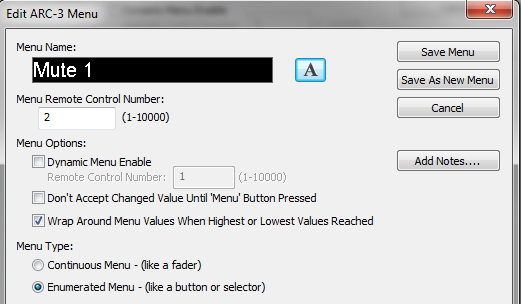
Menu Name- Displays the ARC-3 menu name.
- Opens Edit ARC-3 Image Menu for the menu name:
Invert Image - Check this box to flip the color scheme. Normally a black background with white font becomes a white background with black font.
Text- Type a descriptive name to help remember what the menu is controlling.
Select Font...- Choose the display font for the ARC-3 menu. See the Font Selection Tips section for more information.
- / +- Decrease (-) or increase (+) the size for the font for the ARC-3 menu. The default size font is 15.
-Choose to align the text from the left side, center, or right side.
Up, Down, Left, Right, Reset- Use these buttons to adjust the placement of the ARC-3 description on the display. Reset will bring the description back to its default position of 0, 0. Holding down Ctrl while pressing one of the four placement buttons will increase the position in larger increments.
Background Import- Select an image to display as the background. The OLED only displays images as monochrome. For larger images, a 239x24 crop of the image will be displayed and can be repositioned to the area of the image desired. For smaller images, a black border will be displayed around the edges of the image.
Remove -Removes the imported background image.
Up, Down, Left, Right, Reset- Use these buttons to adjust the placement of the ARC-3 background image on the display. Reset will bring the image back to its default position of 0, 0. Holding down Ctrl while pressing one of the four placement buttons will increase the position in larger increments.
Copy -Copies the settings of the Edit ARC-3 Image Menu.
Paste -Pastes the settings of the Edit ARC-3 Image Menu that was copied.
Menu Remote Control Number - Set the control number that menu will control.
Menu Options
Dynamic Menu Enable -Check the box to enable an ARC or individual menus with control numbers. Example: In a room-combine scenario, choose to display a separate set of menus when the room is combined and another when it is uncombined.
Remote Control Number -Choose a remote control number from 1-10,000.
Don't Accept Menu Changed Value Until 'Menu' Button Pressed -Check this box to force the Menu button to be presses to accept the change.
Wrap Around Menu Values When Highest or Lowest Values Reached -Example: If the menu goes from 1-10, after you reach 10, the menu will wrap back around to 1 instead of having to scroll from 10 down to 1.
Menu Type -See the Continuous Menus or Enumerated Menus sections for more information.
Input Selector Menus
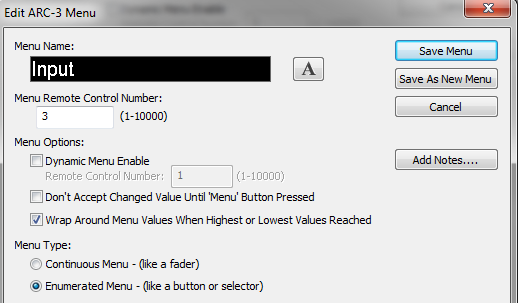
Menu Name- Displays the ARC-3 menu name.
- Opens Edit ARC-3 Image Menu for the menu name:
Invert Image -Check this box to flip the color scheme. Normally a black background with white font becomes a white background with black font.
Text- Type a descriptive name to help remember what the menu is controlling.
Select Font...- Choose the display font for the ARC-3 menu. See the Font Selection Tips section for more information.
- / +- Decrease (-) or increase (+) the size for the font for the ARC-3 menu. The default size font is 15.
-Choose to align the text from the left side, center, or right side.
Up, Down, Left, Right, Reset- Use these buttons to adjust the placement of the ARC-3 description on the display. Reset will bring the description back to its default position of 0, 0. Holding down Ctrl while pressing one of the four placement buttons will increase the position in larger increments.
Background Import- Select an image to display as the background. The OLED only displays images as monochrome. For larger images, a 239x24 crop of the image will be displayed and can be repositioned to the area of the image desired. For smaller images, a black border will be displayed around the edges of the image.
Remove -Removes the imported background image.
Up, Down, Left, Right, Reset- Use these buttons to adjust the placement of the ARC-3 background image on the display. Reset will bring the image back to its default position of 0, 0. Holding down Ctrl while pressing one of the four placement buttons will increase the position in larger increments.
Copy -Copies the settings of the Edit ARC-3 Image Menu.
Paste -Pastes the settings of the Edit ARC-3 Image Menu that was copied.
Menu Remote Control Number - Set the control number that menu will control.
Menu Options
Dynamic Menu Enable -Check the box to enable an ARC or individual menus with control numbers. Example: In a room-combine scenario, choose to display a separate set of menus when the room is combined and another when it is uncombined.
Remote Control Number -Choose a remote control number from 1-10,000.
Don't Accept Menu Changed Value Until 'Menu' Button Pressed -Check this box to force the Menu button to be presses to accept the change.
Wrap Around Menu Values When Highest or Lowest Values Reached -Example: If the menu goes from 1-10, after you reach 10, the menu will wrap back around to 1 instead of having to scroll from 10 down to 1.
Menu Type -See the Continuous Menus or Enumerated Menus sections for more information.
Continuous Menus
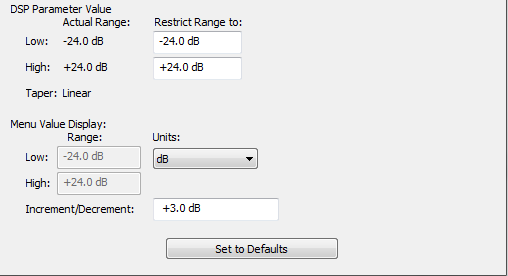
DSP Parameter Value
Restrict Range To
Low - Specify a lower limit to restrict the user's range of control.
High - Specify a higher limit to restrict the user's range of control.
Menu Display Limits
Range
Low - Specify a lower limit to restrict the user's range of control.
High - Specify a higher limit to restrict the user's range of control.
Units - Select unit of measurement.
Increment/Decrement - The amount of steps the control should increment or decrement.
Enumerated Menus
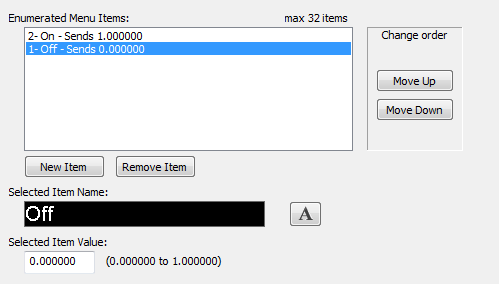
Enumerated Menu Items -List of items or enumerations in the Menu currently being edited.
New Item -Adds an item to the Menu Items list.
Remove Item -Deletes the currently selected Menu Item.
Selected Item Name -Give your Menu Item a friendly or descriptive name. This name will appear on the ARC's display.
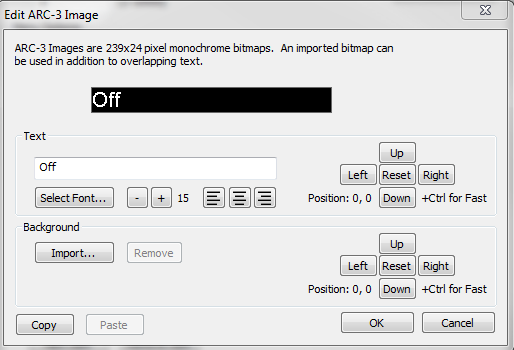
Invert Image - Check this box to flip the color scheme. Normally a black background with white font becomes a white background with black font.
Text- Type a descriptive name to help remember what the menu is controlling.
Select Font...- Choose the display font for the ARC-3 menu. See the Font Selection Tips section for more information.
- / +- Decrease (-) or increase (+) the size for the font for the ARC-3 menu. The default size font is 15.
-Choose to align the text from the left side, center, or right side.
Up, Down, Left, Right, Reset- Use these buttons to adjust the placement of the ARC-3 description on the display. Reset will bring the description back to its default position of 0, 0. Holding down Ctrl while pressing one of the four placement buttons will increase the position in larger increments.
Background Import- Select an image to display as the background. The OLED only displays images as monochrome. For larger images, a 239x24 crop of the image will be displayed and can be repositioned to the area of the image desired. For smaller images, a black border will be displayed around the edges of the image.
Remove -Removes the imported background image.
Up, Down, Left, Right, Reset- Use these buttons to adjust the placement of the ARC-3 background image on the display. Reset will bring the image back to its default position of 0, 0. Holding down Ctrl while pressing one of the four placement buttons will increase the position in larger increments.
Copy -Copies the settings of the Edit ARC-3 Image Menu.
Paste -Pastes the settings of the Edit ARC-3 Image Menu that was copied.
Selected Item Value -Specifies the value (or position) of the Menu Item.
Change order -Use the Up and Down buttons to reposition the currently selected Menu Item.
Preset Menus
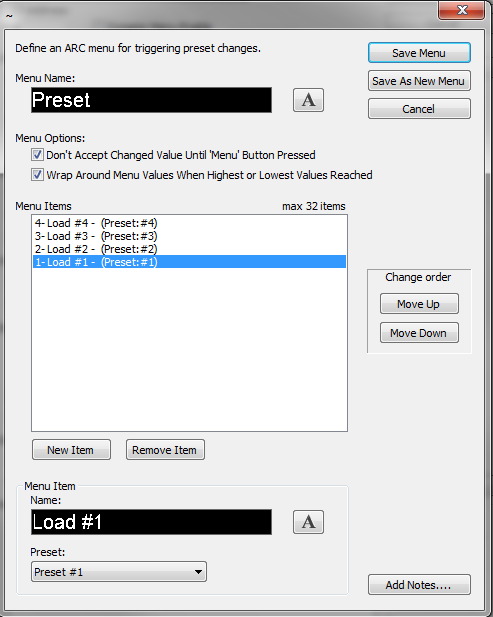
Menu Name- Displays the ARC-3 menu name.
- Opens Edit ARC-3 Image Menu for the menu name:
Invert Image - Check this box to flip the color scheme. Normally a black background with white font becomes a white background with black font.
Text- Type a descriptive name to help remember what the menu is controlling.
Select Font...- Choose the display font for the ARC-3 menu. See the Font Selection Tips section for more information.
- / +- Decrease (-) or increase (+) the size for the font for the ARC-3 menu. The default size font is 15.
-Choose to align the text from the left side, center, or right side.
Up, Down, Left, Right, Reset- Use these buttons to adjust the placement of the ARC-3 description on the display. Reset will bring the description back to its default position of 0, 0. Holding down Ctrl while pressing one of the four placement buttons will increase the position in larger increments.
Background Import- Select an image to display as the background. The OLED only displays images as monochrome. For larger images, a 239x24 crop of the image will be displayed and can be repositioned to the area of the image desired. For smaller images, a black border will be displayed around the edges of the image.
Remove -Removes the imported background image.
Up, Down, Left, Right, Reset- Use these buttons to adjust the placement of the ARC-3 background image on the display. Reset will bring the image back to its default position of 0, 0. Holding down Ctrl while pressing one of the four placement buttons will increase the position in larger increments.
Copy -Copies the settings of the Edit ARC-3 Image Menu.
Paste -Pastes the settings of the Edit ARC-3 Image Menu that was copied.
Don't Accept Menu Changed Value Until 'Menu' Button Pressed -Check this box to force the Menu button to be presses to accept the change.
Wrap Around Menu Values When Highest or Lowest Values Reached -Example: If the menu goes from 1-10, after you reach 10, the menu will wrap back around to 1 instead of having to scroll from 10 down to 1.
Menu Items -List of items or enumerations in the Menu currently being edited (0-32).
Change order -Use the Up and Down buttons to reposition the currently selected Menu Item.
New Item -Adds an item to the Menu Items list.
Remove Item -Deletes the currently selected Menu Item.
Menu Item Name -Give your Menu Item a friendly or descriptive name. This name will appear on the ARC's display.
Preset -Specifies the Preset number of the Menu Item.
Add Notes... -Opens the Notes dialog box allowing you to enter or edit notes for the ARC Menu currently being edited.
System Menu
To access the System menu, press and hold the left arrow, right arrow, and fader for 3 seconds.
Address -Every RS-485 device connected to the same RS-485 bus must be uniquely identified. The ARC-3 device address is displayed upon initial power-on. It can be changed here.
Unit Description -Displays text entered in the Edit ARC-3 Image text field and image uploaded to the ARC.
Information -Lists the ARC's Address, firmware revision, and PCB revision. Internal Voltages- Lists the VIN, 5V, 3.3 V, and OLED voltages. The VIN will decrease with more devices and longer cables. It must be above 6 V for proper operation, with a recommended minimum voltage of 8V to allow overhead. .
Exit -Touch the slider to return to the ARC menus.
Save Factory Firmware -Touch the slider to copy the currently loaded firmware to the ARC. When the unit is rebooted to its factory defaults, the firmware will always revert back to what was copied here.
Reboot Unit -Touch the slider to power cycle the ARC.
Font Selection Tips
Bitmapped or Raster fonts tend to look better on the ARC-3 than TrueType or Vector fonts. This is because TrueType fonts use smoothing, also called anti-aliasing. The smoothing makes these fonts look great on full-color displays, but tends to make them blurrier on monochrome devices such as the ARC-3. Here is an example:

The difference is even more noticeable with small font sizes:

Most fonts included with Windows are TrueType, but there are several bitmapped fonts as well. Here are some recommended bitmapped fonts that are included in the standard Windows installation:
MS Sans Serif – recommended for point sizes 9-16
Small Fonts – recommended for point sizes 6-9
MS Serif
System
Courier (not Courier New)
Fixedsys
Terminal
Note that bitmapped fonts are designed for specific sizes and may not look good at all sizes, especially larger ones. You may also find that Bold styles work better than Normal. Also, some fonts from older Windows versions may not be available with newer Windows versions. Composer will pick the first available font it does recognize.