Upgrade Firmware/Hardware Settings
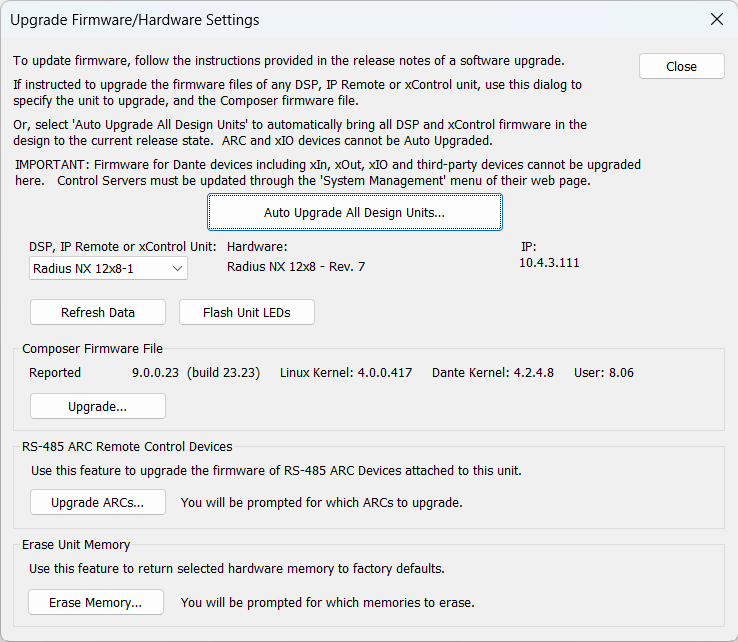
The Upgrade Firmware/Hardware Settings dialog inspects and upgrades firmware on the hardware, can Erase Memory of the hardware and sets the Remote Control Port Settings on the hardware.
- Auto Upgrade All Design Units - Updates the Firmware in all located DSP units.
- Unit: - Drop-down menu that allows you to navigate a system to inspect versions on each unit and verify that Composer can communicate them.
- Refresh Data - Queries the selected unit again for its versions. Useful if a unit was just connected to the network or to verify a firmware upgrade took place.
- Flash Unit LEDs - Flashes the LEDs on the front of the selected unit to help determine if you are operating on the correct unit.
- Upgrade... - Opens a standard Windows File Open dialog allowing you to select the firmware file manually to write to the unit.
- Erase Memory... - The Erase Unit Memories function is provided for trouble shooting purposes. It provides a handy way to delete certain parameters stored in the hardware. Some items may be grayed out depending on the selected hardware. This should generally only be done with direction from Tech Support.
TODO: replace missing screenshot.
Upgrading Firmware
The firmware version in the hardware must be matched with the version of Composer software you are using. The correct firmware for the version of Composer you are using is always distributed with Composer and installed on your hard drive by Composer's installer. If there is ever any doubt, follow these instructions to check your firmware version or to upgrade the firmware.
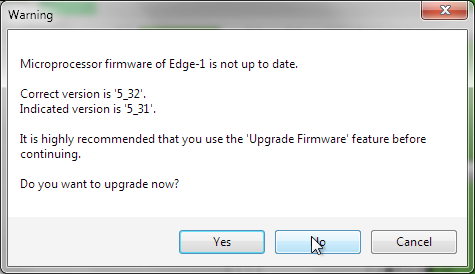 Additionally, the software will notify you when you attempt to go on-line if a newer version of firmware is available than what is currently on the hardware.
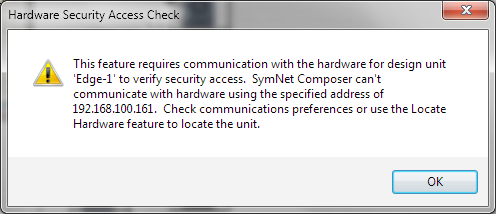 Open the Upgrade Firmware/Hardware Settings from Composer's Hardware Menu. Composer will show an error message if the software is unable to connect with the device similar to when no units have been previously located.
Click the Auto Upgrade button to automatically update the firmware on each device in the system.
Tip: Auto Upgrade All Design Units checks the Firmware version each unit reports. If the correct version is reported, it moves to the next unit without re-writing the Firmware. Only the manual upgrade process re-writes the firmware regardless of version. To manually upgrade, click the Upgrade button and select the most recent firmware file shown in the dialog that opens and click OK.