System Menu
SymVue's System Menu is located in the upper-left hand corner of the application in the title bar. Clicking the icon will bring up the System Menu, which gives the user access to the following features:
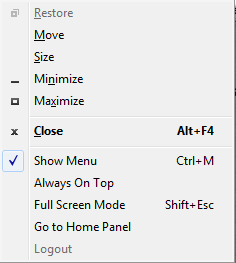
- Restore: This feature will restore a full screen Panel to its regular size. It is only available when the Panel is in full screen mode.
- Move: This allows the user to move a Panel window to a desired location of the screen using the arrow keys on the peripheral keyboard. While the window is in move mode, controls within the Panel cannot be accessed or manipulated. Once the Panel is at the desired location, pressing the ENTER key will dock the window and regular use may continue.
- Size: This feature allows the user to resize the open Panel using the arrow keys of the peripheral keyboard. While in size mode, controls within the Panel cannot be accessed or manipulated. Once the Panel is at the desired size, pressing the ENTER key will dock the window and regular use may continue.
- Minimize: Sends the Panel to the taskbar.
- Maximize: Opens the Panel to full screen mode.
- Close: Exits the SymVue application.
- Show Menu: Brings up a Menu Bar to access additional application features.
- Always On Top: Keeps the Panel at the forefront of the Windows screen and does not allow it to be covered by other open windows.
- Full Screen Mode: Opens the Panel to full screen mode (same as Maximize).
- Go to Home Panel: Returns the user to the Initial Panel designated in the SymVue Export Wizard. Use this feature when deep inside Panel layers.
- Logout: Logs out, requiring the password to be re-entered to access security-enabled Panels. This item is grayed out when not logged in.
Main Menu Enabling
The Main Menu (access to the File, View and Help Menus can be enabled in one of two ways:
- Click on the System Menu icon in the upper-left hand corner of the Panel and select Show Menu.
- By pressing CTL+M, the Menu Bar may be toggled on and off.