T-5, T-7 and T-10 Touchscreen Software
The Symetrix T-Series Touchscreens can be added to the Site View. There are three models T-5, T-7, and T-10.
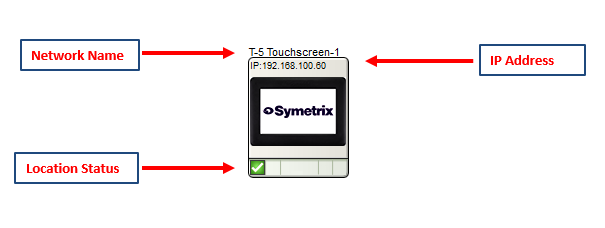
All of the following features, except for the Location Status, are managed in the Unit Properties dialog. To access the Unit Properties, right-click on the unit module in the Site View and choose “Unit Properties...”
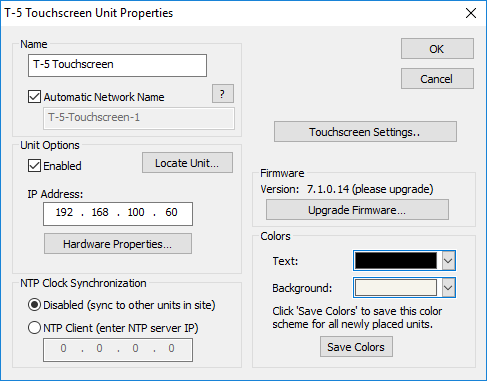
-
Name- It is recommended to assign a unique unit name for each unit in the design based on the unit's purpose or location. Composer will always append a unique numeric identifier to this name.
-
Network Name- When Automatic Network Name is checked, the network name is auto-generated from the unit name. Network names cannot contain special characters or spaces and must be unique.
-
Enabled- When the enabled box is checked, the unit must be physically present on the network for a Push of the site file to the hardware. When the enabled box is unchecked, an X will appear on the unit module in the Site View, and the unit will not be required to be physically present for the Push of the site file.
-
IP Address- If the unit is assigned to a static IP address, it can entered in the IP Address field and if the unit can located on the network at this address, a green check indicating the unit has been located should appear in the lower left corner of the unit module on the Site View. If the unit’s IP address is unknown, run the location process and the IP address field will be filled in once the unit has located and link to the unit module on the Site View.
-
Hardware Properties- When the unit is located, this button opens the Hardware Properties dialog. More on this dialog can be found here.
-
NTP Clock Synchronization- The unit’s internal clock has two modes of operation: Disabled means the unit will attempt to sync its time to other units in the site. If it is unable to do so, the unit’s clock is free running and internally derived. NTP Client allows the unit to sync to an NTP server and receive network time.
-
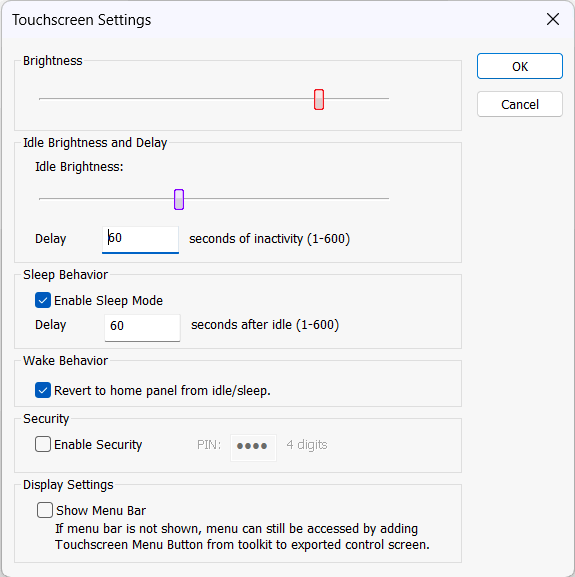
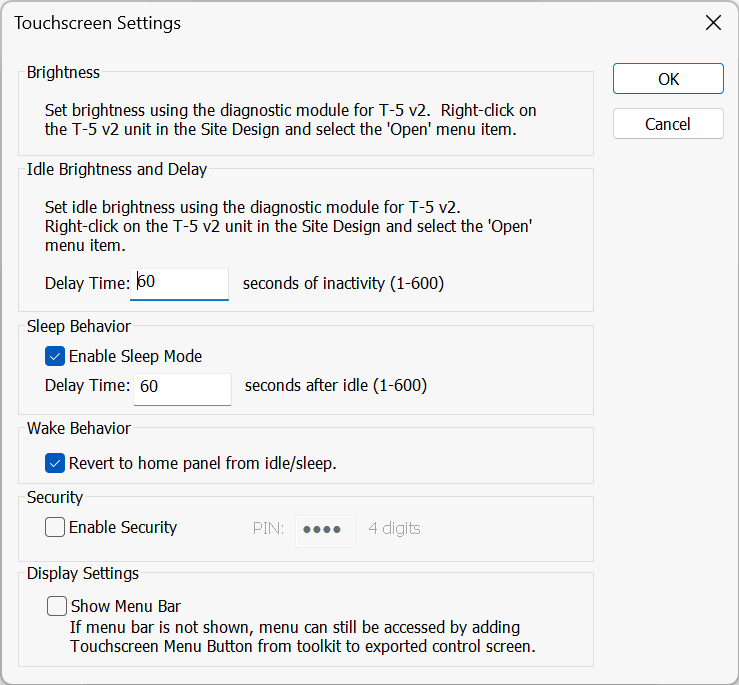
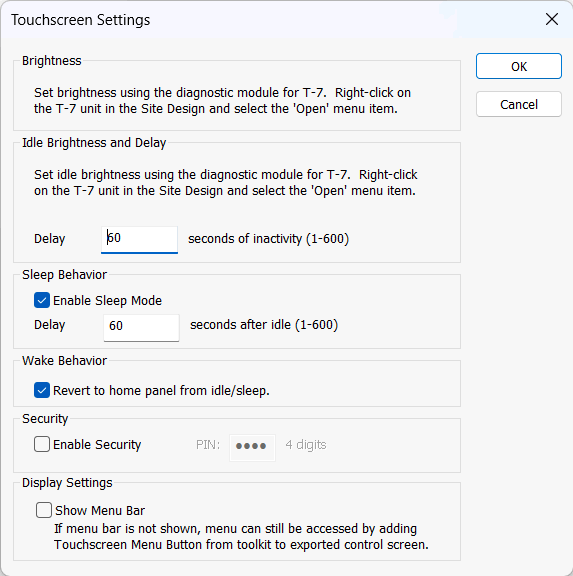
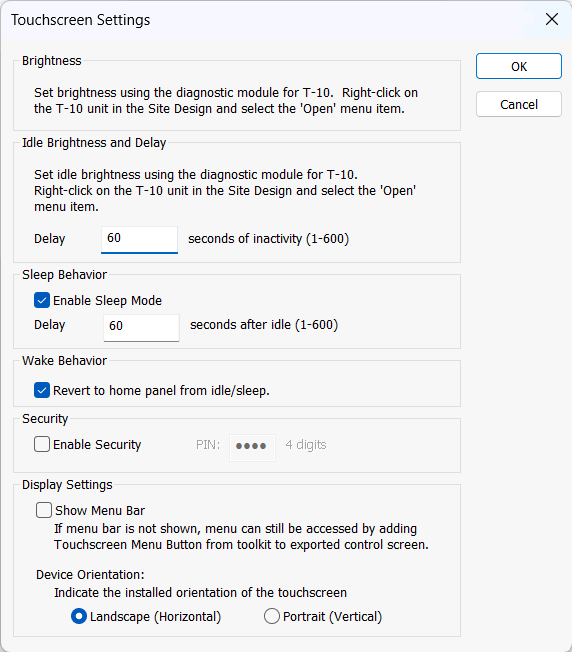
Touchscreen Settings- Opens the Link Touchscreen Settings dialog. This dialog allows the user to change the touchscreen settings such as; Brightness (T-5), Idle Brightness (T-5) and Idle Delay, Sleep Behavior, Wake Behavior, Security and Display Settings. ForT-5 v2, T-7 and T-10, Brightness and Idle Brightness are set in the diagnostics view described below. T-10 also allows adjustment of the orientation to match the device's configuration on the wall (note the T-10 will restart when pushing a Site that changes the orientation).
T-5
T-5 v2
T-7
T-10
- Upgrade Firmware- Opens the Upgrade Firmware/Hardware Settings dialog.
- Colors -The text color and background color for the unit module shown in Composer can be customized. To save custom color settings made here as defaults for future units placed in Composer, click the Save Colors button.
Diagnostics
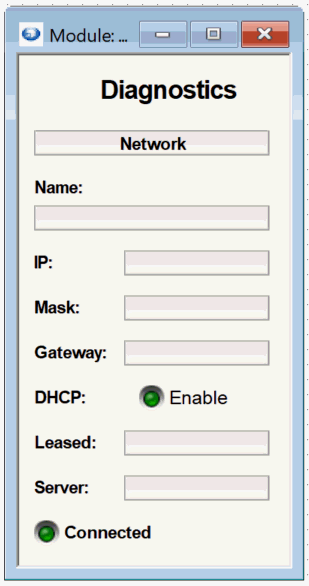
The Diagnostics window can be viewed by choosing Open from the right click menu. This allows monitoring a variety of items for the device. These items can be copied to control screens as needed.
The Diagnostics Content differs slightly between the T-5, T-7 and T-10.
T-5 Diagnostics:
T-5 v2, T-7 and T-10 Diagnostics:
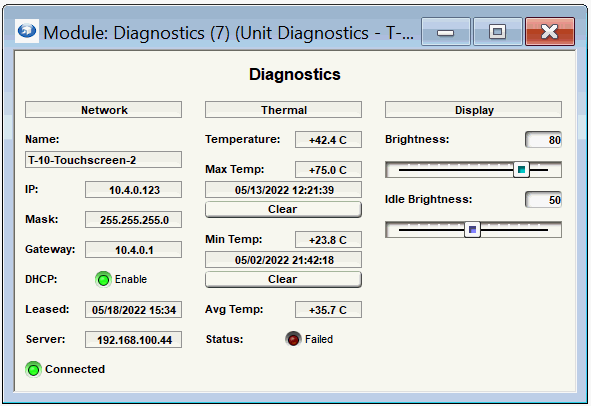
The T-5 v2, T-7 and T-10 Diagnostics adds the ability to control and monitor the brightness settings. These can be copied to a Control Screen and edited live on the device.
Note the T-5 v2, T-7 and T-10 has an automatic brightness setting based on internal temperature limits. If the limits are exceeded, the screen brightness will automatically dim until the unit to cools to a safe operating temperature. If this regularly occurs, it is recommended to decrease the brightness and idle brightness, and to ensure that sleep mode is enabled.