Matrix Mixer
Overview
A Matrix Mixer implements an M by N mix of its inputs to its outputs. Composer provides custom matrices which can be configured for up to 80 mono inputs by 80 mono outputs or 40 stereo inputs by 40 stereo outputs.
For every output, there are M input controls that allow any of the M inputs to contribute to that output. Repeat this N times. Stated another way, at every mix node (intersection of an input line with an output line) there is a level control and a connect button.
*For information on setting up matrices in controls screens click here.
Place Custom Matrix
To add the Matrix Mixer to the design, double click "Custom..." in the Toolkit under "Matrix Mixer". The "Place Custom Matrix" window will pop up:
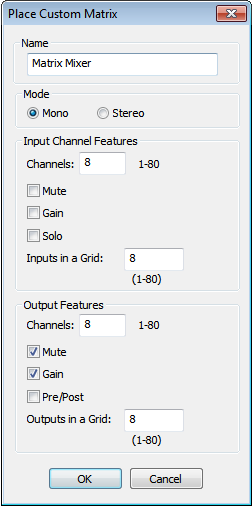
Name - Type the name of the Matrix Mixer module here.
Mono/Stereo - Select whether the mixer will be mono or stereo.
Input Channel Features
Channels- Select the number of input channels for the matrix (1-80) mono, (1-40) stereo.
Mute -Check this box to include mute buttons for the input channels in the matrix.
Gain -Check this box to include gain controls for the input channels in the matrix.
Solo- Check this box to include solo controls for the input channels in the matrix.
Inputs in a Grid -Select the number of input channels per grid in the mixer (1-80) mono, (1-40) stereo.
Output Features
Channels -Select the number of output channels for the matrix (1-80).
Mute -Check this box to include mute buttons for the output channels in the matrix.
Gain -Check this box to include gain controls for the output channels in the matrix.
Pre/Post- Check this box to include pre/post controls for the output channels in the matrix.
Outputs in a Grid -Select the number of output channels per grid in the mixer (1-80) mono, (1-40) stereo.
Module View
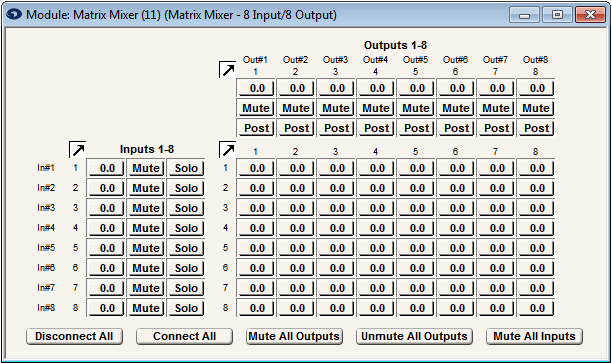
Global Buttons
Disconnect All - This momentary button disconnects all of the inputs from all of the outputs. Cannot be exported to SymVue.
Connect All - This momentary button connects all of the inputs to all of the outputs. Cannot be exported to SymVue.
Mute All Outputs - This momentary button mutes every output. Cannot be exported to SymVue.
Unmute All Outputs - This momentary button unmutes every output. Cannot be exported to SymVue.
Mute All Inputs - This momentary button mutes every input. Cannot be exported to SymVue.
Input Controls
 * Channel Label - User editable field to label the input channel. Click and hold to edit the label.
 Gain - Press and hold the button. Move the mouse up to raise the input gain and down to lower it.
Mute - This is a latched button that toggles to red when the channel is muted.
Solo - This latched button toggles to flashing yellow when the channel is soloed.
Output Controls
 Channel Label - User editable field to label the output channel. Click and hold to edit the label.
Gain - Press and hold the button. Move the mouse up to raise the output gain and down to lower it.
Mute - This is a latched button that toggles to red when the channel is muted.
Pre/Post - This is a latched button that toggles blue when the channel is Pre. This determines wether the output is effected Pre the input fader or Post the input fader.
Crosspoint Controls
Gain - Press and hold the button. Move the mouse up to raise the submix gain and down to lower it. To change the level of multiple channels, click on the number of the channel (either input or output) and the column or row will highlight the text red. Move the mouse up to raise the submix gains and down to lower them.
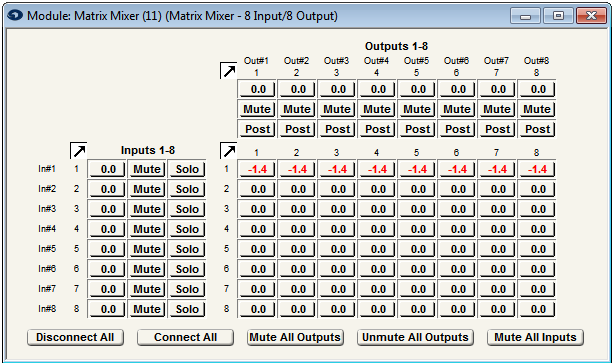
 ** Connect Buttons - Selecting these latched buttons will highlight the button green and connect the row's input channel to the corresponding columns output channel.
Matrix Input Options
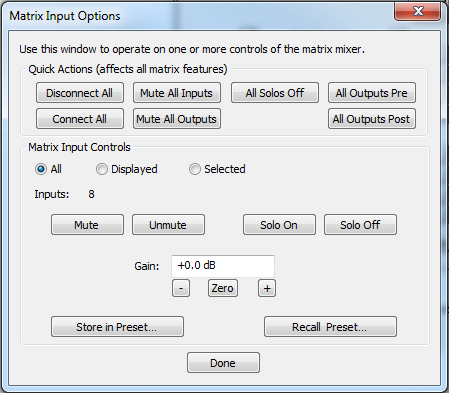
Global Buttons
*Disconnect All* - ** This momentary button disconnects all of the inputs from all of the outputs.**
Connect All - This momentary button connects all of the inputs to all of the outputs.
Mute All Inputs - This momentary button mutes every input.
Mute All Outputs -** This momentary button mutes every output.
All Solos Off- This momentary button turns Solo off for every input.
All Outputs Pre- This momentary button turns all outputs to Pre.
All Outputs Post- This momentary button turns all outputs to Post.
Input Controls
All/Displayed/Selected - Choose which inputs are affected:
All -Affects all inputs.
Displayed -Affects only the input channels displayed in the grid which launched the popup.
Selected -Affects only the input channels selected.* *
Inputs - Lists the number of inputs that are being affected.
Mute - This is a momentary button that mutes the input channels.
Unmute - This is a momentary button that unmutes the input channels.
Solo On- This is a momentary button that turns the selected input channel(s) solo on.
Solo Off- This is a momentary button that turns the selected input channel(s) solo off.
Gain - This is a user editable field to manually enter the desired gain setting. 'Various' will be displayed if multiple input channels have different gain settings and a warning will pop-up to confirm changing multiple channels to one setting.
- - Lowers the gain by 3 dB decrements.
Zero -Sets the gain to 0 dB.
+ -Increases the gain by 3 dB increments.
Store in Preset... - Press this button to store settings in a preset.
Recall Preset... - Press this button to select a preset to recall.
Matrix Output Options
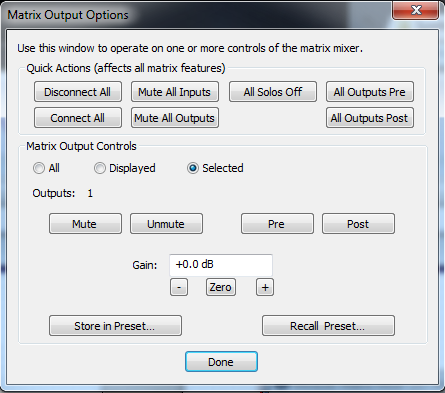
Quick Actions
*Disconnect All* - ** This momentary button disconnects all of the inputs from all of the outputs.**
Connect All - This momentary button connects all of the inputs to all of the outputs.
Mute All Inputs - This momentary button mutes every input.
Mute All Outputs -** This momentary button mutes every output.
All Solos Off- This momentary button turns Solo off for every input.
All Outputs Pre- This momentary button turns all outputs to Pre.
All Outputs Post- This momentary button turns all outputs to Post.
Matrix Output Controls
All/Displayed/Selected -Choose which outputs are affected:
All -Affects all outputs.
Displayed -Affects only the output channels displayed in the grid which launched the popup.
Selected -Affects only the output channels selected.* *
Outputs - Lists the number of outputs that are being affected.
Mute - This is a momentary button that mutes the output channels.
Unmute - This is a momentary button that unmutes the output channels.
Pre- This is a momentary button that changes the output channel(s) to Pre.
Post -This is a momentary button that changes the output channel(s) to Post.
Gain - This is a user editable field to manually enter the desired gain setting. 'Various' will be displayed if multiple output channels have different gain settings and a warning will pop-up to confirm changing multiple channels to one setting.
- - Lowers the gain by 3 dB decrements.
Zero -Sets the gain to 0 dB.
+ -Increases the gain by 3 dB increments.
Store in Preset... - Press this button to store settings in a preset.
Recall Preset... - Press this button to select a preset to recall.
Matrix Crosspoint Options
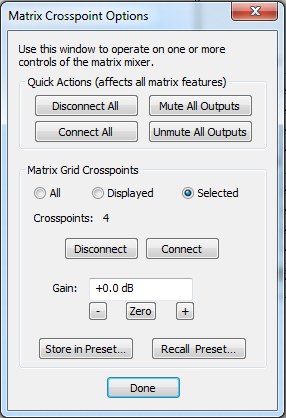
Quick Actions
Disconnect All - This momentary button disconnects all of the inputs from all of the outputs.
Connect All - This momentary button connects all of the inputs to all of the outputs.
Mute All Outputs - This momentary button mutes every output.
Unmute All Outputs - This momentary button unmutes every output.
Crosspoint Controls
All/Displayed/Selected -Choose which crosspoints are affected:
All -Affects all crosspoints.
Displayed -Affects only the crosspoints displayed in the grid which launched the popup.
Selected -Affects only the crosspoint channels selected.
Crosspoints - Lists the number of crosspoints that are being affected.
Disconnect - This is a momentary button that disconnects the crosspoints.
Connect - This is a momentary button that connects the crosspoints.
Gain - This is a user editable field to manually enter the desired submix gain setting. 'Various' will be displayed if multiple crosspoints have different gain settings and a warning will pop-up to confirm changing multiple channels to one setting.
- - Lowers the gain by 3 dB decrements.
Zero -Sets the gain to 0 dB.
+ -Increases the gain by 3 dB increments.
Store in Preset... - Press this button to store settings in a preset.
Recall Preset... - Press this button to select a preset to recall.
Assigning Control Numbers
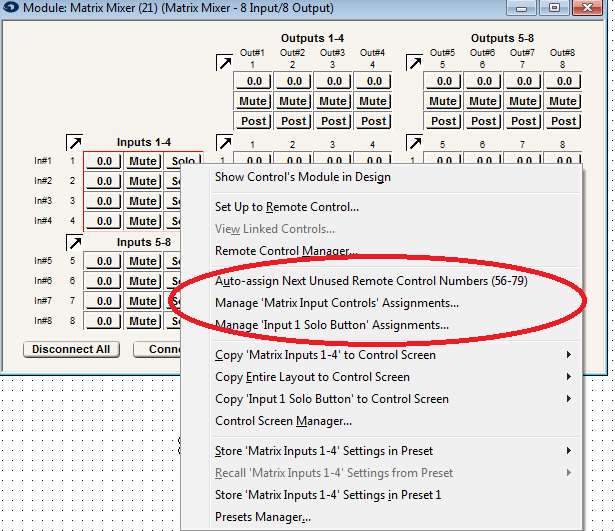
Inside of the Matrix Mixer Module, you have the option to either automatically or manually assign sequential control numbers to the input, output, or crosspoint groups. By selecting "Auto-assign Next Remote Control Numbers" you will automatically assign the numbers listed in the parentheses. If you select "Manage Assignments..." you can manually select the group of sequential numbers you would like to assign. For more information on Assigning Parameters for Control, click here.
Keyboard and Mouse Options
Tab– Changes selection to the next control group. When a Matrix control group is initially selected, its sub-control selection is cleared.
Shift + Tab– Changes selection to the previous control. When a Matrix control group is initially selected, its sub-control selection is cleared.
Right arrow– Changes selection to the next similar control type. For example, if a Matrix Input control group is selected, the next Matrix Input control group is selected. When a Matrix control is initially selected, its sub-control selection is cleared. SymVue: Operation same as Tab.
Left arrow– Changes selection to the previous similar control. For example, if a Matrix Input is selected, the previous Matrix Input control is selected. When a Matrix control is initially selected, its sub-control selection is cleared. SymVue: Operation same as Shift + Tab.
Note: A mouse click outside a control group or in another control clears the selection of sub-controls in a control group.
Common Button, Fader and Combo Mouse and Keyboard Operations
Clickselects the sub-control.
Click + Holdopens the Popup dialog.
Ctrl + Clicktoggles the selection state for that sub-control.
Ctrl + Alt + Clicktoggles the selection state for that sub-control and de-selects all other sub-controls.
Ctrl + Click + Dragchanges the selection of all sub-controls dragged over to the opposite state of the sub-control clicked on.
Shift + Clickwith a sub-control already selected (Matrix Input or Output Only) selects all sub controls in a rectangle whose corners are the last sub control selected without a Shift and the currently clicked sub control.
Shift + Clickwith a sub-control already selected (Matrix Crosspoint Only) selects all sub controls in a rectangle whose corners are the last sub control selected without a Shift and the currently clicked control unless the clicked control is on a perfect diagonal in which case it only selects controls on that diagonal.
Ctrl + Left– If a Matrix Control (Matrix Input, Matrix Output and Matrix Crosspoint) is selected but no sub control is selected, selects the top left sub-control. If one or more sub controls are selected, the selection is transferred one sub-control to the left.
Ctrl + Right– If a Matrix Control (Matrix Input, Matrix Output and Matrix Crosspoint) is selected but no sub control is selected, selects the bottom right left sub-control. If one or more sub controls are selected, the selection is transferred one sub-control to the right.
Ctrl + Up– If a Matrix Control (Matrix Input, Matrix Output and Matrix Crosspoint) is selected and one or more sub controls are selected, the selection is transferred one sub-control up.
Ctrl + Down– If a Matrix Control (Matrix Input, Matrix Output and Matrix Crosspoint) is selected and one or more sub controls are selected, the selection is transferred one sub-control down.
Shift + Left– If a Matrix Control (Matrix Input, Matrix Output and Matrix Crosspoint) is selected and one or more sub controls are selected, all sub-controls to the immediate left of a selected sub-control are selected.
Shift + Right– If a Matrix Control (Matrix Input, Matrix Output and Matrix Crosspoint) is selected and one or more sub controls are selected, all sub-controls to the immediate right of a selected sub-control are selected.
Shift + Up– If a Matrix Control (Matrix Input, Matrix Output and Matrix Crosspoint) is selected and one or more sub controls are selected, all sub-controls immediately above a selected sub-control are selected.
Shift + Down– If a Matrix Control (Matrix Input, Matrix Output and Matrix Crosspoint) is selected and one or more sub controls are selected, all sub-controls immediately below a selected sub-control are selected.
Button Sub-Controls – Mouse and Keyboard Operations
Click + Releaseon an already selected button toggles all selected buttons in that control.
Click + Releaseon an unselected button clears any selection selects that button and toggles state.
Enter– The Boolean state of all selected sub-Controls are toggled. If no sub-controls are selected, the popup is opened for the Matrix Crosspoint Input or Output control (Except SymVue currently).
Fader Sub-Controls - Mouse and Keyboard Operations
Click + Dragmodifies the value of the selected fader sub-controls. If the fader was not already selected, just the clicked fader is selected and its value modified. If the fader was already selected, all selected faders are dragged holding their relative positions until their limits are reached. The relative values will be preserved until the mouse is released.
Up Arrow– Increases the value of all selected faders. Relative position is maintained until a limit is reached.
Down Arrow– Decreases the value of all selected faders. Relative position is maintained until a limit is reached.
Enter– If no sub-controls are selected, the popup is opened for the Matrix Crosspoint Input or Output control. (Except SymVue currently).
Combo Fader/Button - Mouse and Keyboard Operations
Click + Releaseon an already selected combo toggles button function of all selected combos in that control.
Click + Releaseon an unselected combo clears any selection selects that combo and toggles the button state.
Enter– The Boolean state of all selected sub-Controls are toggled. If no sub-controls are selected, the popup is opened for the Matrix Crosspoint Input or Output control (Except SymVue currently)..
Click + Drag- Modifies the value of the selected combo fader sub-controls. If the fader was not already selected, just the clicked fader is selected and its value modified. If the fader was already selected, all selected faders are dragged holding their relative positions until their limits are reached. The relative values will be preserved until the mouse is released.
Up Arrow– Increases the value of all selected combo faders. Relative position is maintained until a limit is reached.
Down Arrow– Decreases the value of all selected combo faders. Relative position is maintained until a limit is reached.