Server D100 Feature Licenses
Server D100 supports the following feature licenses to expand the capabilities of the hardware.
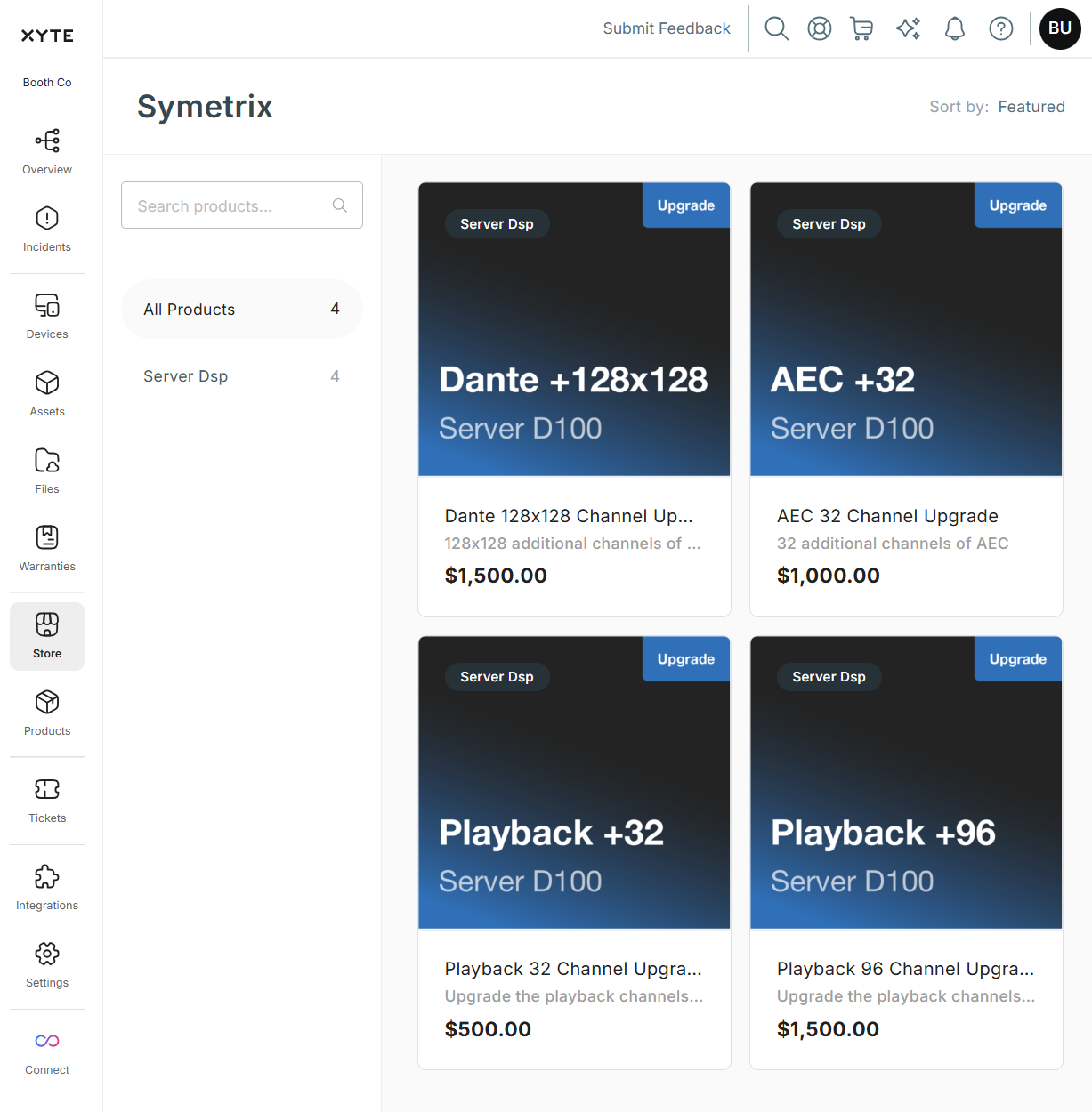
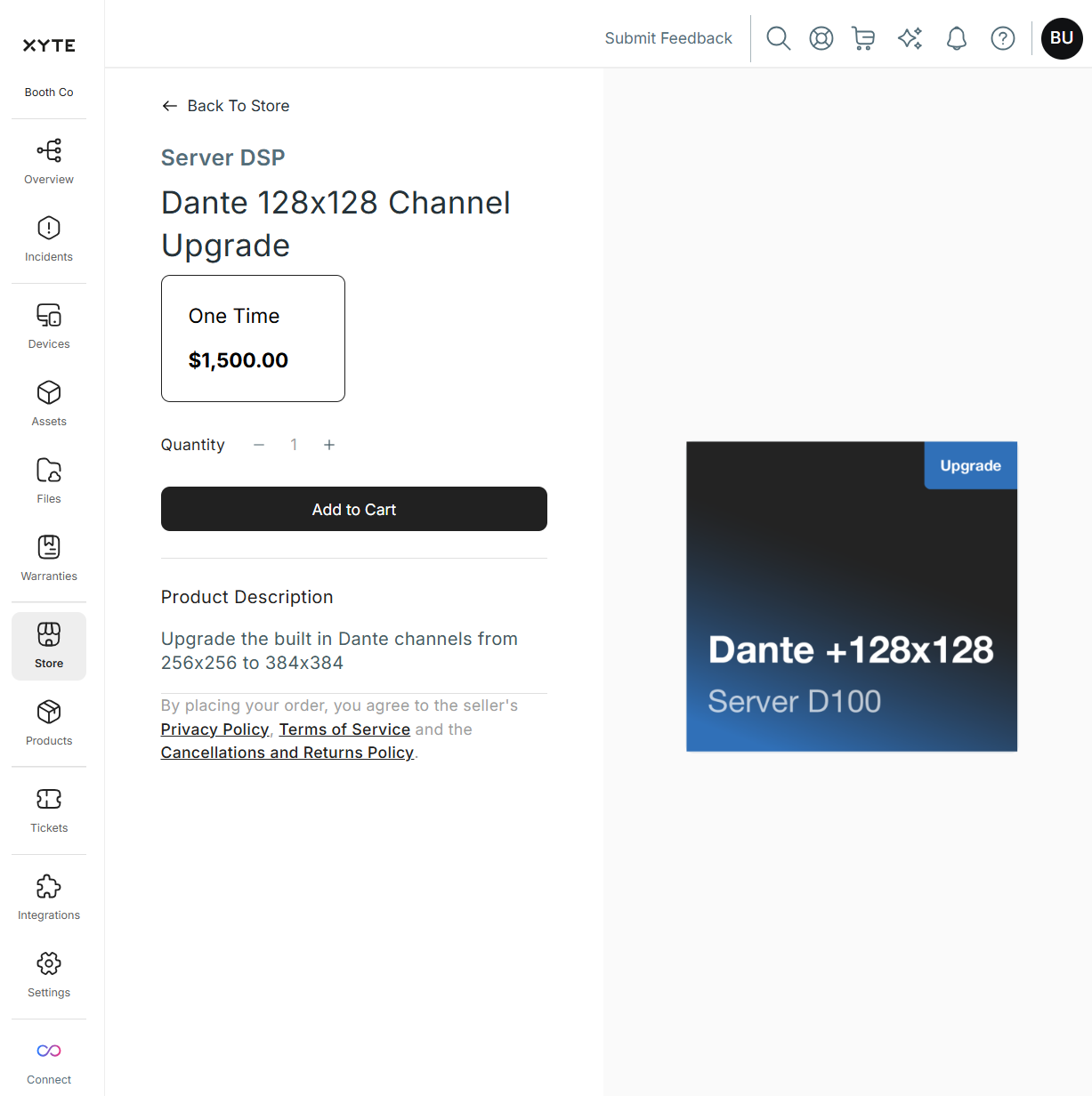
- Dante 128x128 Channel Upgrade: Upgrade the built in Dante channels from 256x256 to 384x384 via AV-Ops Center
- AEC 32 Channel Upgrade: Upgrade the built in AEC channels from 64 to 96 via AV-Ops Center
- Playback 32 Channel Upgrade: Upgrade the built in playback channels from 32 to 64 via AV-Ops Center
- Playback 96 Channel Upgrade: Upgrade the built in playback channels from 32 to 128 via AV-Ops Center
Purchasing Feature Licenses
These additional licenses can be purchased directly from Symetrix by an authorized dealer, or in the field through Symetrix AV-Ops Center.
To purchase directly, use the following steps:
- Create an AV-Ops Center account and log in.
- Select "Store" from the navigation sidebar and license you wish to purchase.
- Add it to the cart
- Repeat the process to add any additional licenses you may want to purchase at the same time.
- Complete the purchase by checking out, adding a billing address, and credit card information.
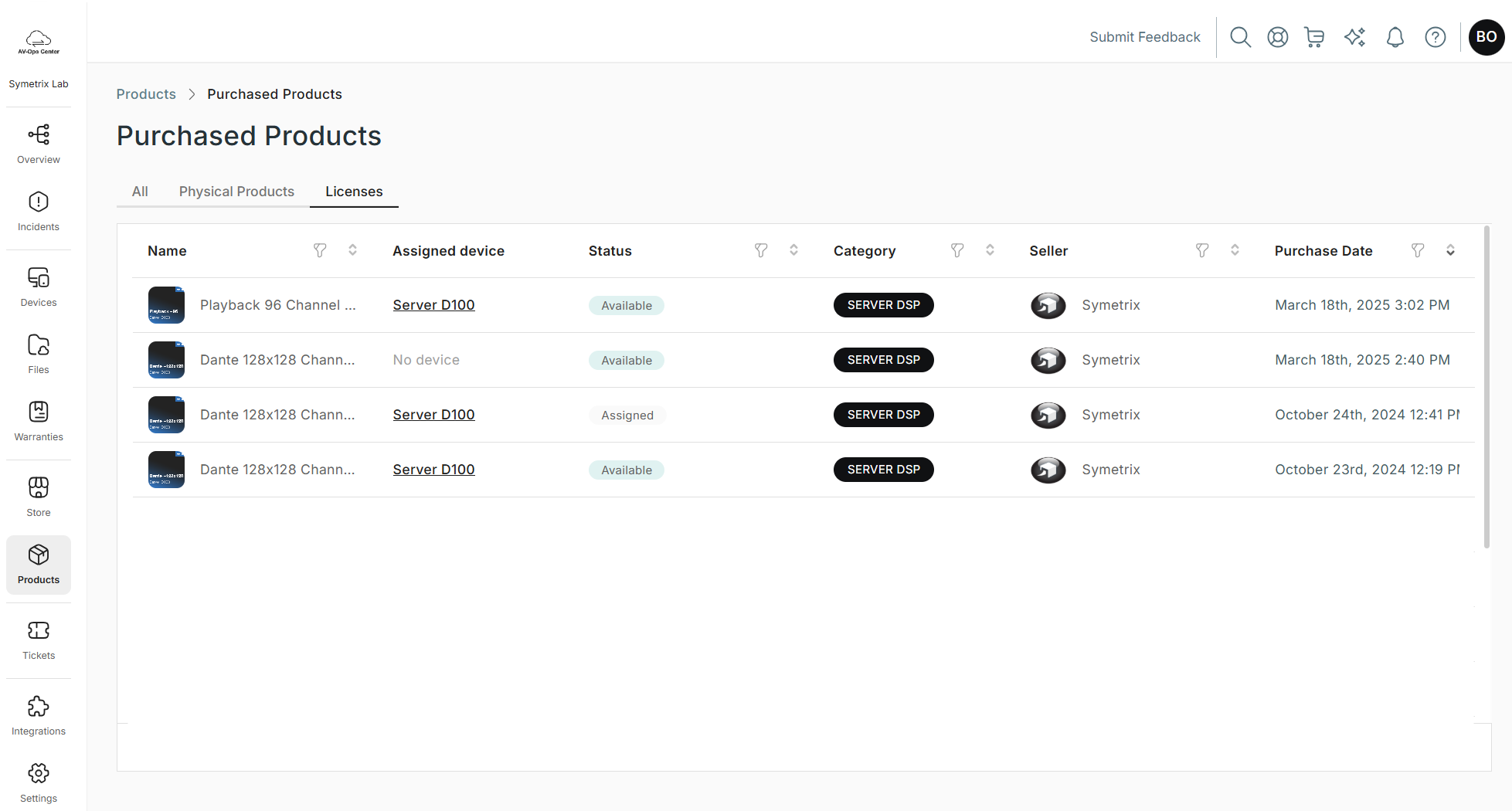
- After purchasing, you should see the license present in the Products section of the navigation sidebar
Adding Feature Licenses to Hardware
Once a license is purchased, weather through the Symetrix Sales channel, or directly in AV-Ops Center, it must be assigned to a device. At this time, the D100 must have internet access with ability to communicate with the AV-Ops Center service. Once the license has been installed, the DSP no longer needs to have internet access.
- Add your Server D100 to AV-Ops Center using the AV-Ops Center Manger in Composer
- Select the device and navigate to the License tab, and click the "Add New License" button. A version of the following screen will be shown.
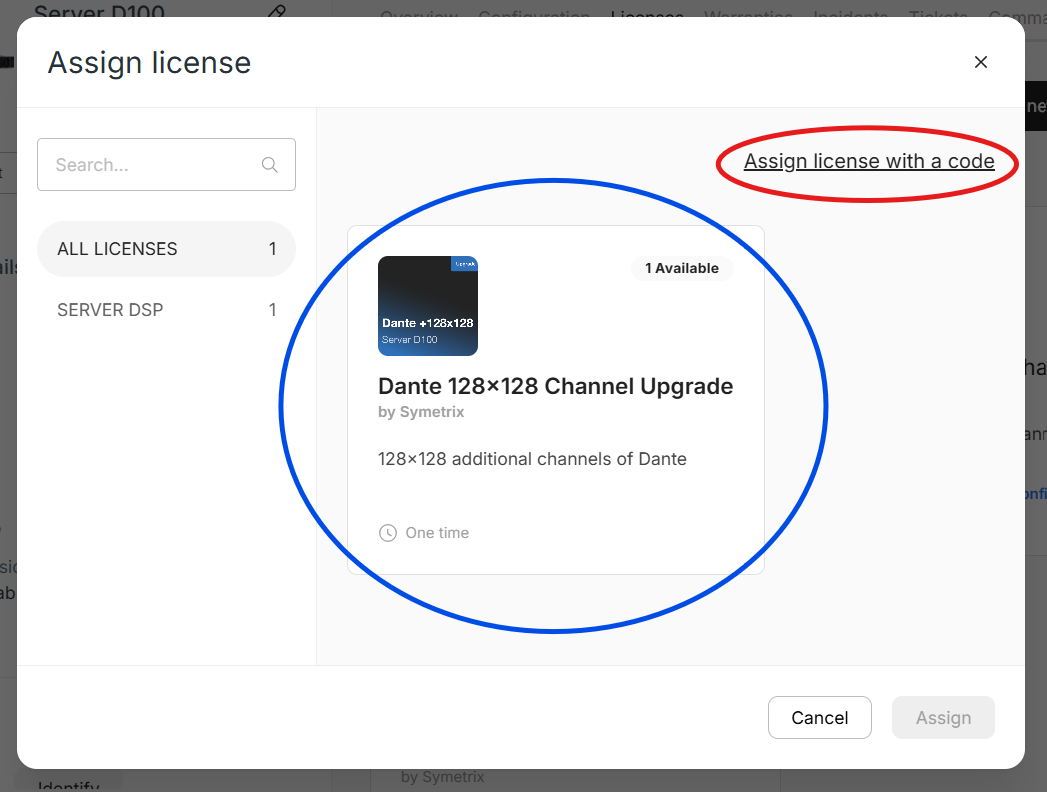
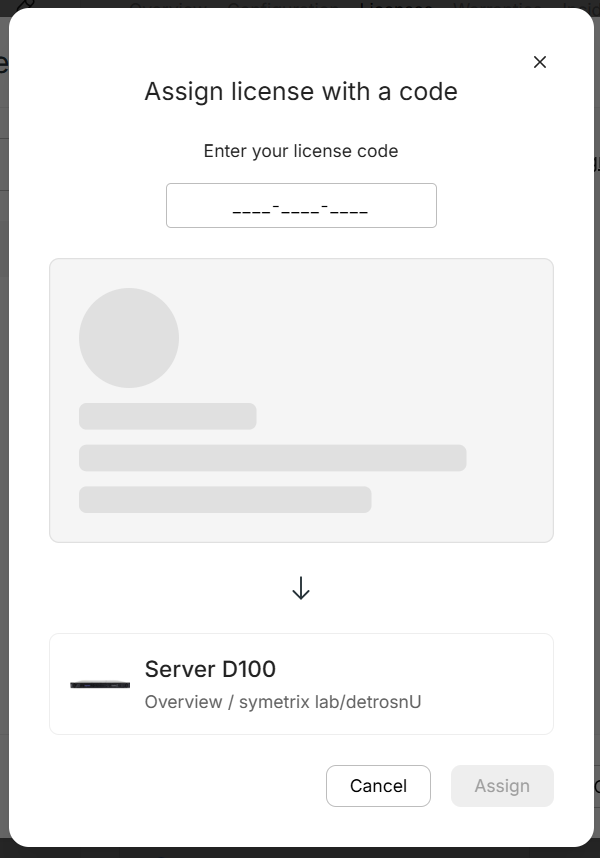
- If the license was purchased through the Symetrix Sales Channel, you will have received a license code. Click the "Assign license with a code" (red outline above) and enter the appropriate information and click "Assign"..
- If you purchased the license in AV-Ops Center directly, you will see the license listed as available (blue outline above). Select it and click "Assign".
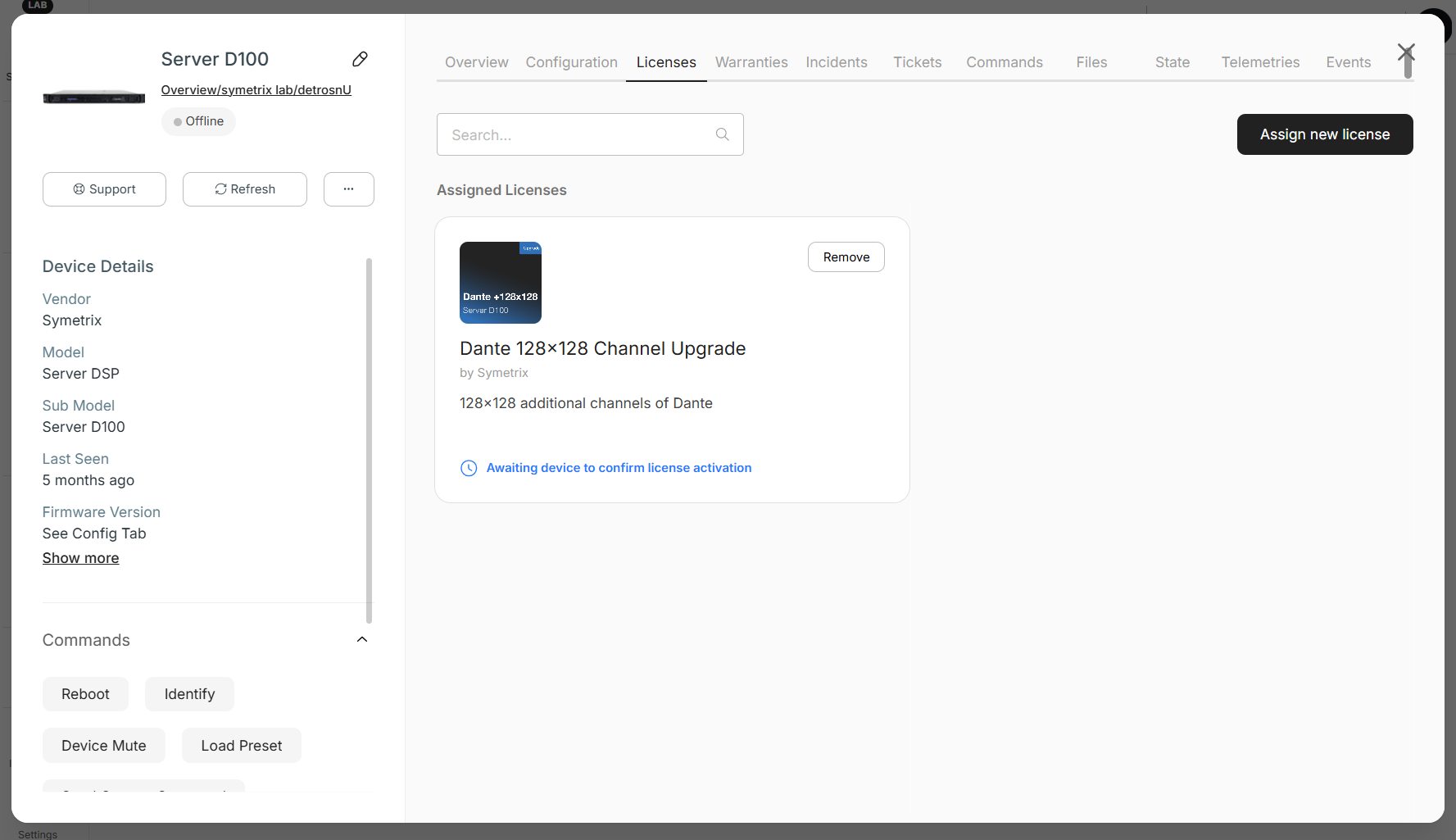
- The license will now be listed as assigned to the device and "Awaiting device to confirm license activation". Ensure the DSP is online and connected to the internet. AV-Ops Center will automatically connect and transfer the license. When complete (you may need to manually refresh the AV-Ops Center web page), the blue message will disapear inindicating the license has been transfered to the device and is ready for use.
Using the Capabilities of Feature Licenses in a Design
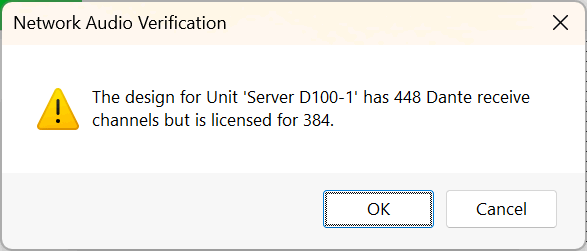
Once a license has been purchased and assigned to the device, and successfully transferred, its capabilities are ready for use. Simply design a site file using the new capabilities and push the site to the Device. If you see a warning when pushing saying a license isn't available, one of the above steps was not completed successfully.