Assigning Parameters for Control
Right-click Directly On a Parameter
Right-click in a Blank Space on a Module
Right-click Directly On a Module
Manage Remote Control Assignments Dialog
Selecting Group All Controls or Group All \
Parameters are designated for remote control use by assigning a Control Number to them, attaching them to an External Analog Control, or assigning them to an Internal Control Signal. There are several methods for doing this.
Right-click Directly On a Parameter:
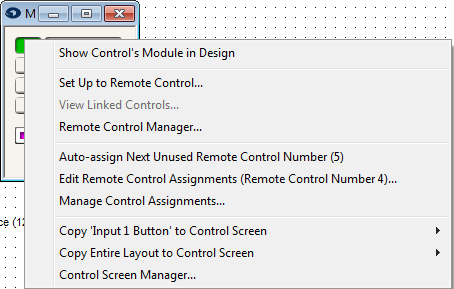
When you right-click directly on a parameter, the contextual menu to the right is shown. From here you can:
- Auto-Assign Next Unused Control Number - This will automatically assign the next available control number (shown in parenthesis) for 3rd party control or manual ARC programming later.
- Manage Control Assignments... - This will bring up the Manage Remote Control Assignments dialog box listing all assignable controls. More on this dialog below.
Right-click In a Blank Space of a Module:
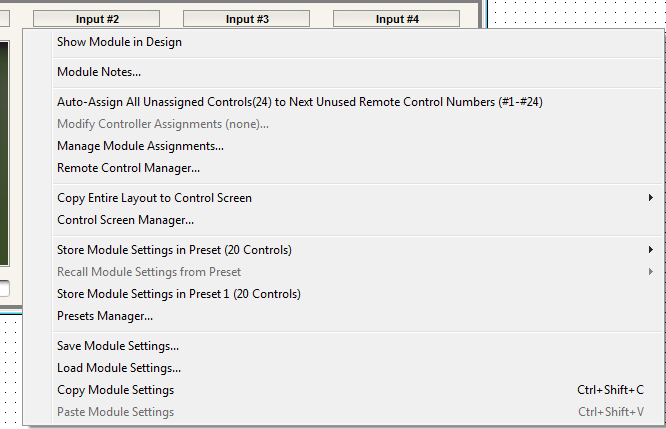
When you right-click in the blank space of a Module, the contextual menu to the right is shown. From here you can:
- Manage Module Assignments... - This will bring up the Manage Remote Control Assignments dialog box listing all assignable controls. More on this dialog below.
Right-click Directly On a Module:
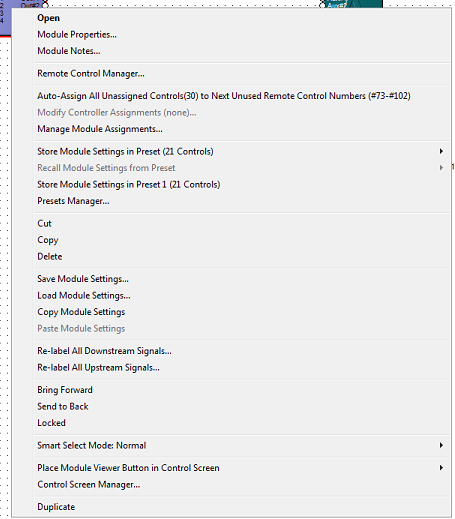
When you right-click directly on a Module, the contextual menu to the right is shown. From here you can:
- Auto-Assign All Unassigned Controls(#) to Next Unused Remote Control Numbers (#x-#y) - This will automatically assign the next available control number(s) (shown in parenthesis) for 3rd party control or manual ARC programming later.
- Modify Controller Assignments (x-y) - This will automatically assign the next available controller number (shown in parenthesis) for 3rd party control or manual ARC programming later.
- Manage Module Assignments... - This will bring up the Manage Remote Control Assignments dialog box listing all assignable controls. More on this dialog below.
Manage Remote Control Assignments Dialog
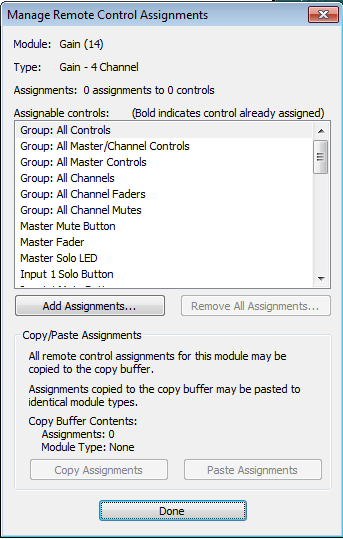 The Manage Remote Control Assignments dialog, allows you to assign all module parameters at once, certain classes such as all faders, all mutes, etc. or single parameters.
Selecting Group All Controls or Group All \
When you choose All Controls or a class of parameters such as All Faders, from the Manage Remote Control Assignments dialog box, then click the Add Assignments... button, the Assign Remote Control Number Group dialog appears:
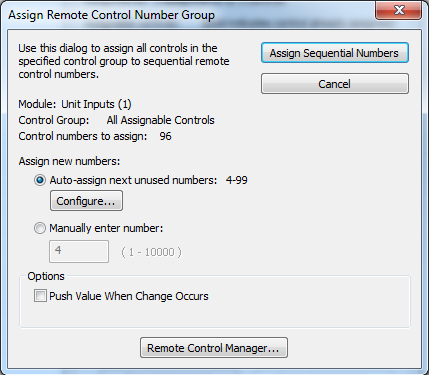
From here, you can designate the starting control number and assign all selected controls sequentially. Options to Remove All Assignments and to open the Remote Control Manger... from here are also provided.
Selecting a Single Parameter
When you choose a single parameter, from the Manage Remote Control Assignments dialog box, then click the Manage Assignments button, another Manage Remote Control Assignments dialog appears:
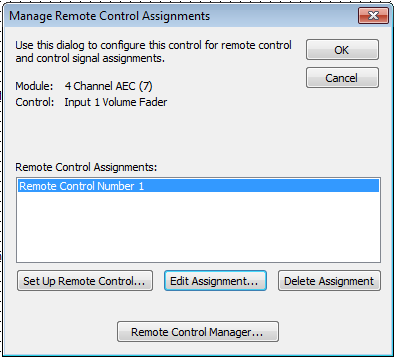
This dialog allows you to Set Up Remote Control, Edit, or Delete the currently selected assignment. You may also open the Remote Control Manger... from here. .Choosing to Edit Assignment will open the Edit Remote Control Number Assignment dialog:
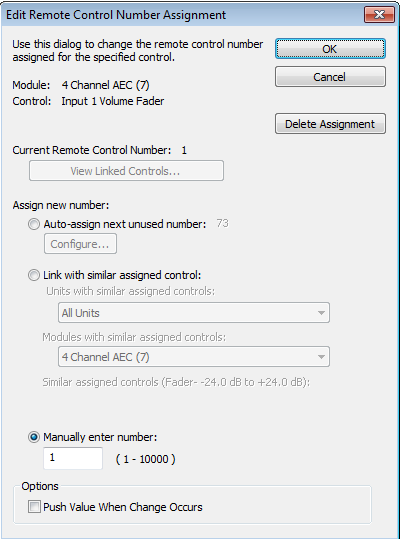
From here, you can designate a new controller number (Auto-assign, or Manually), Link with a similar assigned control, or add the option to push values when a change occurs. You can also Delete the assignment from this dialog.