Control Server User Dashboard
The User Dashboard is the home page when a user signs into the Control Server. It provides a graphical listing of all application configurations that the user has been given permission to control.
Note: If using Microsoft Edge for Control Server administration, it may be necessary to both specify the port at the end of the Control Server's IP address in the URL as well as adding an 's' to http. Example: https://192.168.1.50*:80 *Once you have tried to navigate to the former IP (it will fail), you may now enter the original IP normally (without the 's' and :80). Every time you clear your browser cache, this procedure will be necessary.
User Dashboard
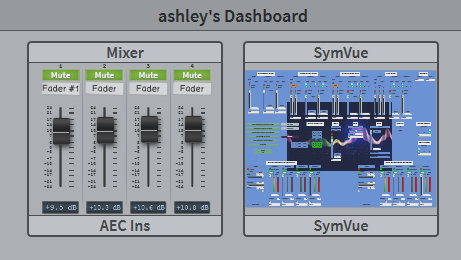
The User Dashboard consists of a window with previews of all the App Configurations available for use by the user. Clicking on any of the previews will direct the user to the page for the chosen app.
Dashboard Menu
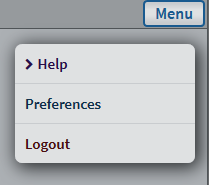
The Dashboard's Menu consists of the following options:
Help- Displays a list of help file descriptions for menu
Preferences- Provides a sub-menu of preferences.
Logout- Logs the user out of the Control Server.
Preferences
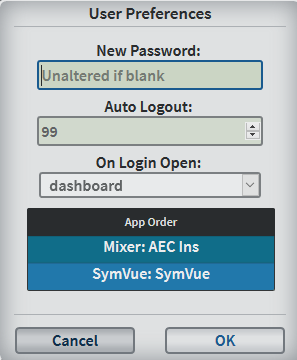
Preferences gives the user the option to change:
New Password- Changes the users account password.
Auto Logout- Change the time before the user is logged off the Control Server when idle.
On Login Open- Select to open the User Dashboard, or a specific app instance.
App Order- Revise the order that the apps appear on the dashboard.