xIO Updater/Configurator
Some users need to update or configure an xIO device when a DSP is not present. The xIO Updater/Configurator item in composer allows for this capability.
Instead of representing an external physical device, it is a virtual device which can’t be pushed or used in a site with actual DSP units. But it does allow browsing for xIO devices, configuring xIO devices, performing firmware updates on xIO devices, and developing independent or 3rd party Intelligent Modules.
This allows xIO devices to be used by customers who do not have any Symetrix DSP hardware which otherwise provided the only gateway to xIO devices over the Dante audio network. This requires Composer, and by extension the virtual xIO Updater/Configurator virtual device, to have access to the Dante network.
Site View
Toolkit
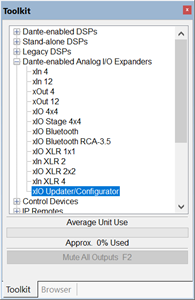
The xIO Updater/Configurator is found in the “Dante-enabled Analog I/O Expanders” section.
Placing Units
The xIO Updater/Configurator is placed in the site as with any other unit.
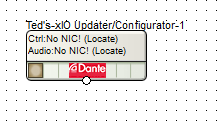
If the user has never configured Composer before, it will show as above with no Control or Audio IP shown and a message shown instead indicating the unit needs to be located.
Because the unit is not a physical unit but software running in the user’s PC, it should have the IP of the PC. But a PC can have many NICs and xIO devices can be connected to one or more of them. While xIO devices are only communicated by using the audio network, they are controlled using Intelligent Modules which are universally supported by the xIO Updater/Configurator. Intelligent Modules can use either network depending on what kind of device is being supported. The xIO Updater/Configurator must be configured for both networks so that both wlll be available as Lua scripts need them.
Locating
Locating the xIO Updater/Configurator is different than how DSP/Control units are located, which is different that how Dante I/O devices are located. Locating can be initiated through the right click menu, the main menu, the system manager, or the locate button in the lower left of the unit icon.
Locating brings up the Intelligent Module Options dialog. This is the same dialog that can be accessed through the Application Preferences dialog’s “Adjust Intelligent Module Options” button.
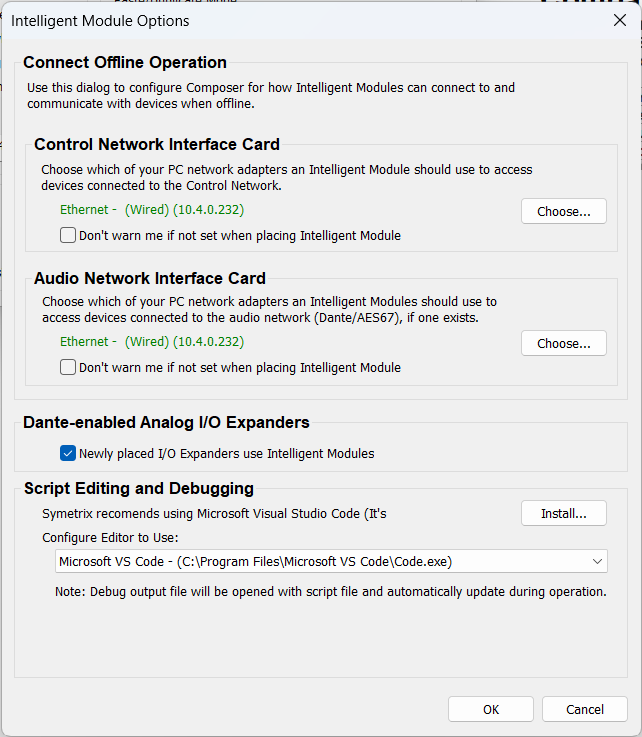
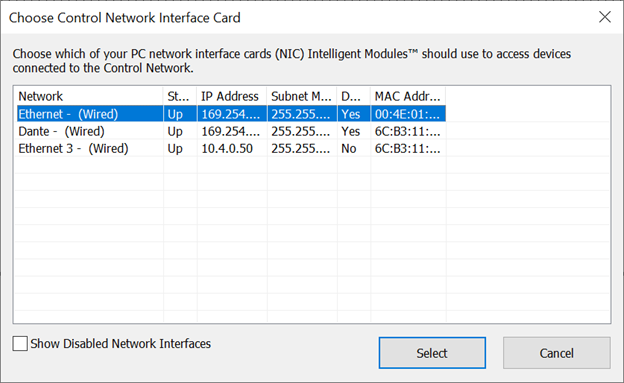
Selecting one of the two “Choose…” buttons allow selecting an existing NIC and its IP address using the Choose Control/Audio Network Interface Card dialog.
Once a control and audio NIC are chosen, the Intelligent Options dialog affirms valid selections with green text.
The xIO Updater/Configurator now shows the chosen NIC IP addresses and a check mark indicating valid location.
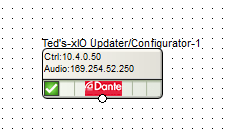
All future uses of the device will show located without needing to be reconfigured assuming the selected networks are still valid. Locating again allows changing the NIC IP addresses chosen.
DSP/Control Unit Placement
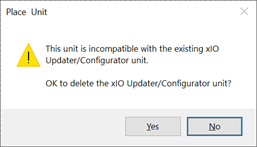
Trying to place a DSP or control unit after placing an xIO Updater/Configurator with result in an error message indicating the action will result in deleting the xIO Updater/Configurator. The xIO Updater/Configurator will be removed if accepted.
Placing an xIO Updater/Configurator unit after placing a DSP/Control unit will result in an error message disallowing the action.
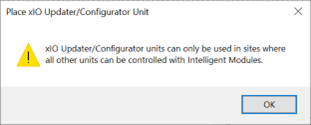
DSP/Control units need to be manually deleted to allow placing an xIO Updater/Configurator unit.
Placing an xIO Updater/Configurator unit after deleting DSP/Control units will show as already located as the control and audio NIC selections are application wide.
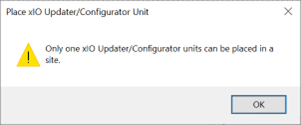
Trying to place a second an xIO Updater/Configurator unit will result in an error message. Only one is allowed in a site file.
Using cut paste to try to break these rules will cause xIO Updater/Configurator units to be deleted as needed to meet the rules, without warning.
Placing xIO Units
xIO devices to be updated or configured can be placed at anytime. Before or after xIO Updater/Configurator placement.
Locating xIO Units
Locating an xIO device with an xIO Updater/Configurator unit present is similar to with real hardware. The main difference is the selection of the xIO Updater/Configurator unit as the locating unit. There should never be a locating unit selection to be made as there can only ever be a single xIO Updater/Configurator unit available as a locator.
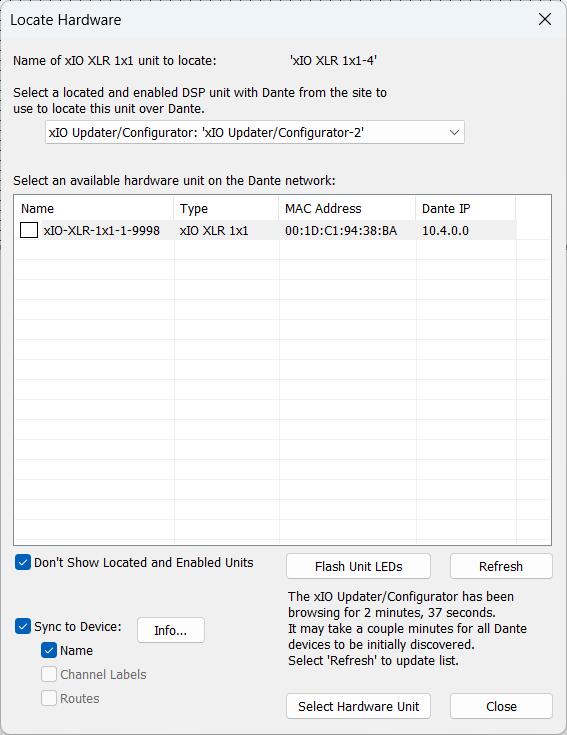
Browsing for xIO units does not start until there is a located xIO Updater/Configurator unit. It can take some time for Dante devices to show up, depending on the number of devices on the network. It may be necessary to use the “Refresh” button to update the available units as browsing progresses. When locating with DSP units, the DSP unit often has had a head start browsing, starting when the unit completes booting, which may be some time before a DSP unit and its xIO unit be located using Composer.
Note the “Channel Labels” and “Routes” check boxes are disabled. These features are not supported by xIO Updater/Configurator units.
Hardware Menu Items
Most hardware menu items are not available for xIO Updater/Configurator units. Many are available for the xIO devices managed by them, however.
With only an xIO Updater/Configurator present, only the hardware menu items for the system manager, pull, and locate hardware are available.
With xIO present but not located, only the mute all item is additionally available.
With located xIO present, the recall site in hardware is additionally available, but this may have limited use for xIO Updater/Configurator users. The item to flash all units is also available.
System Manager
The system manager interface is always available. It will show xIO Updater/Configurator units but dis-allow the properties and flash buttons if an xIO Updater/Configurator is selected in the design tab. The xIO Updater/Configurator will not appear in the hardware tab.
Device Properties
Device properties can be accessed for Dante xIO units but not all control adjustments are sent to the device. For example, the xIO Updater/Configurator does not have the ability to change the network name of an xIO device.
Design View
The xIO Updater/Configurator has a design view which can be accessed by double-clicking on the unit. It is similar to the design view of a DSP unit except all modules implemented in the DSP are disabled in the toolkit as the xIO Updater/Configurator has no DSP. Other features are present in the toolkit other than Intelligent Modules although they may be of little use. The primary use of the design view is to place intelligent modules for use to control xIO device. But any Intelligent Modules may be placed and developed as needed.
Placing an Intelligent Module is as with other unit’s design views.
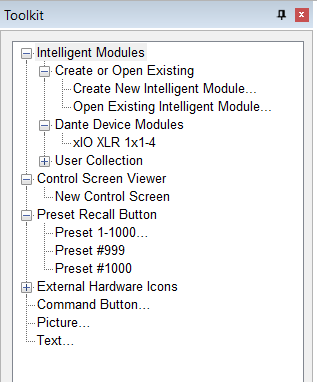
The Intelligent Module right click menus are as preserved as before although online options are not of use. Intelligent Module views can be opened by double-clicking on them in the xIO Updater/Configurator’s design view.
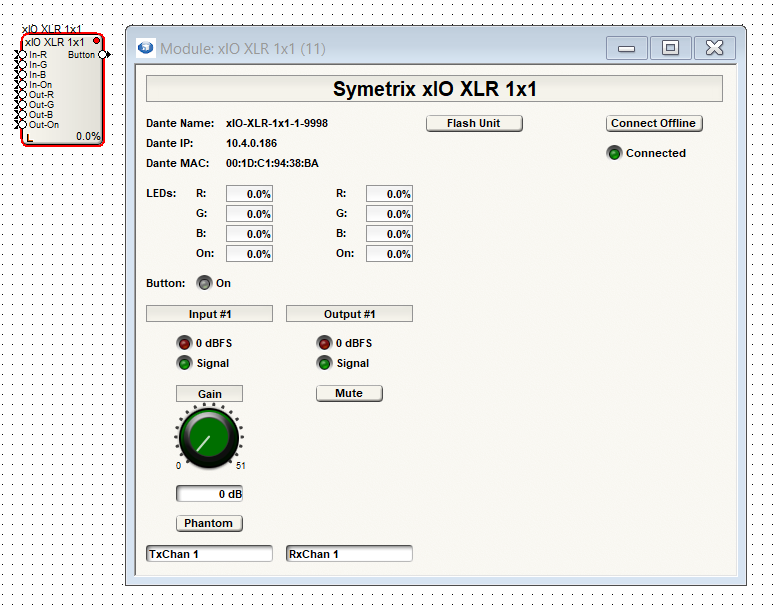
If located, the Dante IP and MAC are shown. The button to flash the unit or connect offline will function as well. Changes made to the module view while connected are sent to the physical unit.
Connecting
The “Connect Offline” button will allow connecting to the xIO and sending parameter changes.
Only those xIO features that can be controlled in the Intelligent Module are communicated to the xIO. Any presets or routing which may have been previously configured by a Composer push using a DSP unit will still be present in the xIO. It is advisable to do a factory reset on an existing xIO before using them in stand-alone operation or unwanted routes may return after a power cycle.