Using Custom Intelligent Modules
Symetrix provides many Intelligent Modules for 3rd party hardware that can be used in your designs. Using these are described in Built In Intelligent Modules . But what if you need to control a device for which Symetrix hasn’t created an Intelligent Module? Or you want some custom control logic that can’t be easily done with the control modules? Or you need to control another Symetrix Device using a separate Site file. This and more can be achieved with Custom Intelligent Modules.
At a high level, Intelligent Modules are comprised of a custom Control View and a Script written in Lua. The user interacts with the controls to trigger functionality in the Script. The Intelligent Module can also interact with other Modules in a design through input and output Control pins. Finally, the script can communicate with a third-party piece of hardware allowing a user to monitor and control that hardware.
Importantly, just like any other module, the controls on an Intelligent Module can be assigned remote control numbers and can be added to any Control Screen and thus a SymVue device like a T5. In many ways, this tight level of integration allows these third-party devices to act and behave as if they were built just for Composer.
And while creating Intelligent Modules require some additional skill and expertise, they are designed so that any Composer user can utilize them.
Using vs Creating
As noted above, creating Intelligent Modules requires knowledge in Lua scripting as well as potentially an understanding of how TCP or UDP networking works. We’ve tried to provide as much information as possible in this documentation to help anyone develop Intelligent Modules. But for some of you, you will simply want to use Intelligent Module developed by others and won’t be tackling creating them yourselves at this time. If that sounds like you, then this document is for you. It describes everything you need to know to use Intelligent Modules. If you are ready to start creating them, you should instead start with this page.
Two Types
There are two main types of Intelligent Modules: Stand Alone Modules and Modules Associated with User Library Dante Devices.
Stand Alone
Stand Alone Intelligent Modules are used to add additional controls, manipulate control signals and solve complex logic problems, all of which are difficult or impossible with other mechanisms within Composer.
Composer already has a huge number of Control Modules for building full featured logic and control mechanisms. But sometimes, working with individual Control Modules can be cumbersome because it requires so many Modules and connections. For example, if you look at many of the Super-modules that come bundled with Composer, you ‘ll see just how advanced these can get.
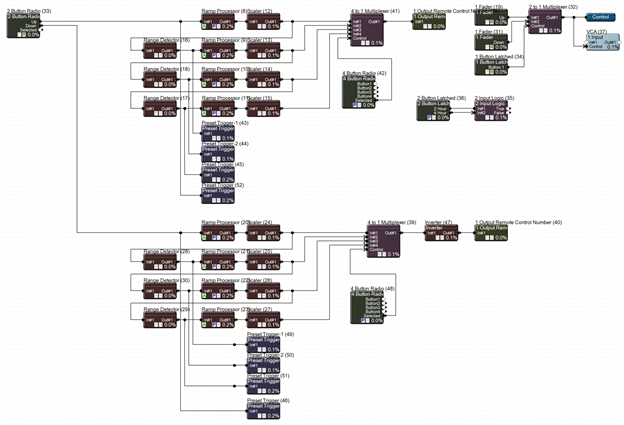
We’ve even seen some from users with hundreds of Control Modules and connections. Often, the same result can be achieved with much simpler Lua script within an Intelligent Module. And the Lua script is also more flexible and easier to change, while the Control Module based solutions often are fragile, making them hard to change. This solution may also free up DSP resources for other uses.
Another use of Stand Alone Intelligent Modules is to communicate with Non Dante devices that have an open TCP or UDP API. This could be hardware like a video switcher, projector or lighting control. A user interface can be created for the Intelligent Module that allows control of the device from Composer and SymView.
Associated with User Library Dante Devices
The most common use of an Intelligent Module is to allow control of a Dante device within Composer using a native user interface. This could be a paging station, Dante Microphone or Dante Loudspeaker to name a few.
The Intelligent Modules provided with Composer provide a good example of this. For example, you can add a device like the Alcorn McBride V-Page to your Site, and then add the Intelligent Module to the Design, resulting in a user interface to control and monitor the hardware settings on the unit.
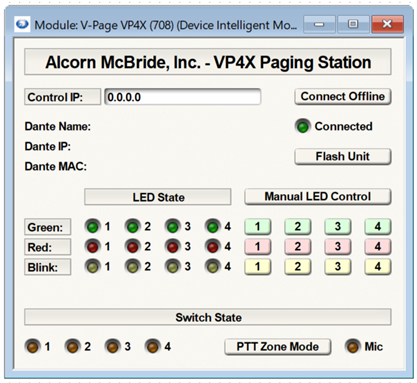
But there are many other devices on the market that do not have a Custom Intelligent Module from Symetrix. If there is a piece of hardware you absolutely need to control from your Symetrix DSP, and the device has an open TCP or UDP API, a Custom Intelligent Module can be created to add support the device.
This is similar to creating an Intelligent Module to control a non Dante device, but these Intelligent Modules get to take advantage of special features because they are connected to a Dante Device in the Composer User Library.
Importing Intelligent Modules
Whether you receive the Intelligent Module from the Symetrix forum, some other location on the web, or from someone else directly, you’ll need to import the Intelligent Module to use it.
The process for importing Intelligent Modules and using them in your design, is different for Stand Alone Intelligent Modules and for User Library Intelligent Modules. In both cases, the module may be locked or unlocked.
Unlocked vs Locked Intelligent Modules
Unlocked Intelligent Modules will have a “.mod” extension. Because it is unlocked, anyone with the .mod file can import it and edit all aspects of the Intelligent Module. This includes changing the control view layout and exporting the script it contains allowing it to be modified.
Locked Intelligent Modules will have a “.modx” extension. A locked Intelligent Module cannot be reconfigured in any way, the control view layout cannot be changed, and the script cannot be exported or importing thus it cannot be viewed or edited. But it can still be used by anyone with the .modx file. So all the controls will be fully functional and the input and output control pins can be connected and used. Therefore, this is the option to use for sharing the Intelligent Module with others who will need to use the module, but not edit it. A locked .modx file cannot be unlocked in the future.
If you are just using the Intelligent Module, and have no plans to edit it, there will be no functional difference between an unlocked or locked Intelligent Module. If editing of the module is needed, as described in the Creating Intelligent Modules page, than an unlocked Intelligent Module must be used.
Importing Stand Alone Intelligent Modules
A Stand Alone Intelligent Module can be imported by any user with the .mod or .modx file. This can be imported in two ways: opening the file making it available to a single Site, or by adding it the User Collection, making it available for all Sites.
To open an Intelligent Module, select “Open Existing Intelligent Module” from the Intelligent Modules>Create or Open Existing section of the Toolkit:
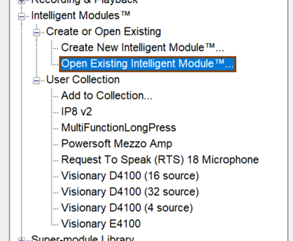
This will present a file browser to locate and select the module file (.mod or .modx) to Open. This will add an instance of the Intelligent Module to the current design. It can be added to other designs in the same fashion, but it won’t be added to the User Collection in Intelligent Modules section of the Toolkit.
To make an Intelligent Module available in the toolkit for all sites, select “Add to Collection…” from the “Intelligent Modules>User Collection” section of the Toolkit.
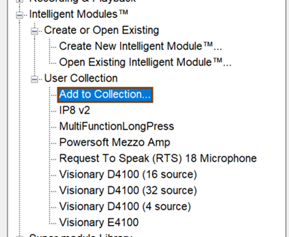
You will similarly be shown present a file browser for you to locate and select the module file (.mod or .modx) you wish to Add to the Collection. It will add an instance of the Intelligent Module to the current design and it will now be shown in the Toolkit:
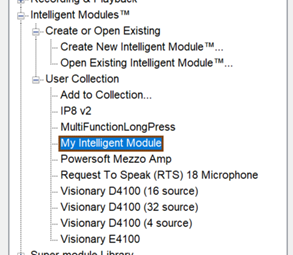
You can drag the module into other designs directly from the toolkit. Like other modules, dragging an Intelligent Module from the toolkit creates a unique instances of the Intelligent Module. For an unlocked .mod file, it will have all the same functionality as an Intelligent Module you created new in the current Site. The Control View layout can be edited as can the script which will not affect any other Sites using the same Intelligent Module. You can even have multiple Intelligent Module instances of the same Intelligent Module in a single Site.
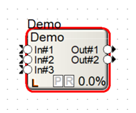
When adding a locked Intelligent Module to a design, whether through opening or the User Collection, it will show a much simplified right click menu (as described in the section below) that won’t allow any editing of the Control View layout or editing or viewing of the Lua script. Its locked state will also be indicated with an “L” Icon on the Intelligent Module:
Importing User Library Intelligent Modules
User Library Intelligent Modules cannot simply be added to the Site or added to the User Collection as described for Stand Alone Intelligent Modules. In fact, if you try to use that process, you will see an error:
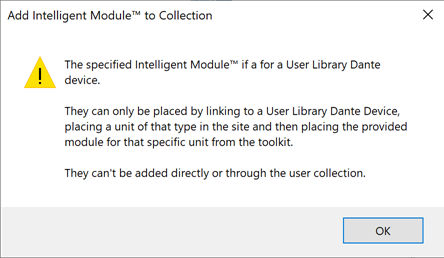
Instead, to use the Intelligent Module on a different installation of Composer on a different computer, do the following from the Dante Device User Library Manager:
-
Import the User Library XML File.
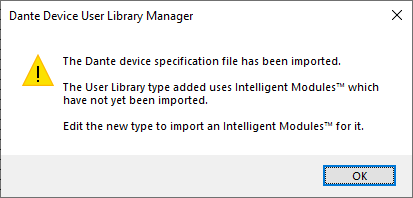
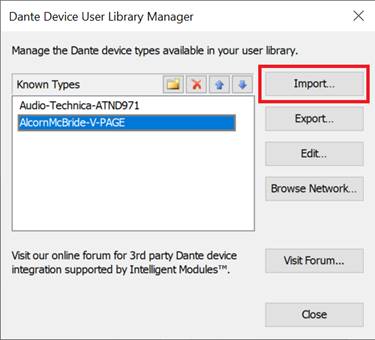 You will see this warning after importing if as expected, this computer does not yet have a .mod or .modx file for the new User Library device:
-
Import the .mod or .modx file into the newly created User Library Device
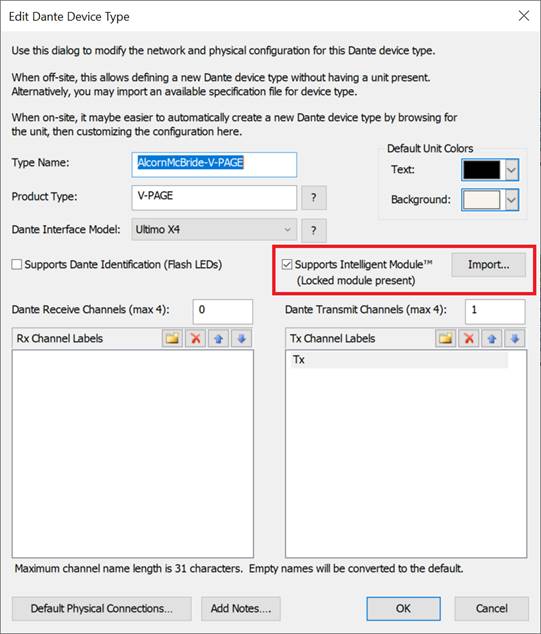
The User Library Device and the corresponding Intelligent Module will now be available for use.
Note there can only be one Intelligent Module file, locked or unlocked for a given Dante device, based on its Dante Product Type. As such if you import a new Intelligent Module file, and there already is a .mod or .modx file present for the associated Dante Device Product Type, you will see the following warning.
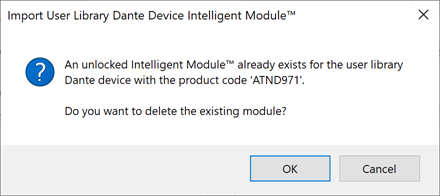
There is a similar message if a locked intelligent module already exists.
Intelligent Module Properties
Once imported, selecting an Intelligent Module will display its information in the Properties panel.
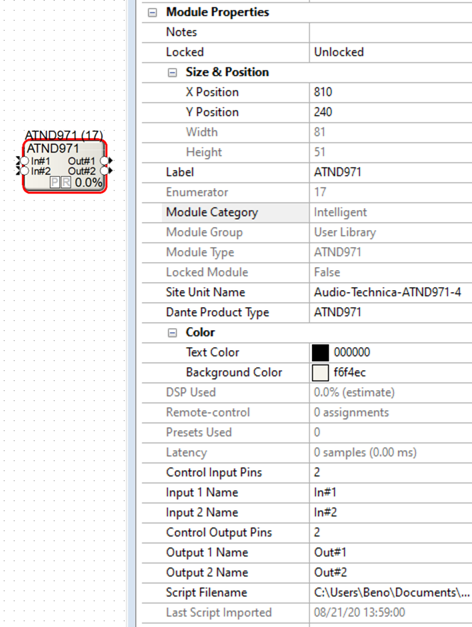
Many of the properties are like every other Module, but some are unique:
-
Notes - Notes for the Intelligent Module. These are good place to provide direction on how to use and connect the Intelligent Module.
-
Locked - Configures whether the module position in the Design is locked or unlocked. This is different then “Locked Module” property described below.
-
Size & Position - Configures the Size and Position of the Intelligent Module icon. The Size is not editable.
-
Label - This is the name of the Intelligent Module. It is initially set in the Configure Intelligent Module dialog but can be changed here. It will additionally be used during initial script creation and exporting.
-
Enumerator - Number assigned to all modules making them uniquely identifiable. This is used along with the script name to automatically name the Debug Output File (e.g. “MyScript-17.debug”)
-
Module Category - Displays the Category of the Module, in this case, “Intelligent”
-
Module Group - Displays the Module Group. For Intelligent Modules, you will see the following Groups:
-
User Library - Displayed for User Library Intelligent Modules.
-
Site - Displayed for Stand Alone Intelligent Modules that are only present in the site.
-
Collection - Displayed for Stand Alone Intelligent Modules that are present in the Toolkit User Collection.
-
Module Type - Displays the Module Type.
-
For Stand Alone Intelligent Modules, you will see the module Name
-
For User Library Intelligent Modules, you will see the module Dante Product Type
-
Locked Module - Displays whether the Intelligent Module is locked (true) or unlocked (false). As noted elsewhere in this document, locked Intelligent Module will display an “L” Icon as well, will have a limited Right Click Menu and cannot be unlocked,
-
Site Unit Name (only shown for User Library Intelligent Modules) -Lists the Site view name of the specific device associated with this instance of the Intelligent Module.
-
Dante Product Type (only shown for User Library Intelligent Modules) - Lists the User Library Dante Product Type associated with the Intelligent Module.
-
Color
-
Text Color
-
Background Color
-
DSP Used - Intelligent Module use up virtually no DSP. Instead they require CPU time. See Intelligent Module CPU Usage section for more information
-
Remote-control - Displays the number of remote control numbers assigned to the Intelligent Module
-
Presets Used - Displays the number of Presets assigned to the Intelligent Module
-
Latency - Displays the latency of the Intelligent Module. Since Intelligent Module don’t process audio, this will be 0.
-
Control Input Pins - Specifies the number of input control pins on the Intelligent Module.
-
Input 1-N Name - Specifies the name for input control pin 1-N
-
Control Output Pins - Specifies the number of output control pins on the Intelligent Module.
-
Output 1-N Name - Specifies the name for output control pin 1-N
-
Script Filename - Specifies the location and name of the Script file associated with the Intelligent Module.
-
Last Script Imported - Specifies the Date and Time the script file was last imported from the external file.
Right Click Menu
Right clicking on an Intelligent Module presents the following options.
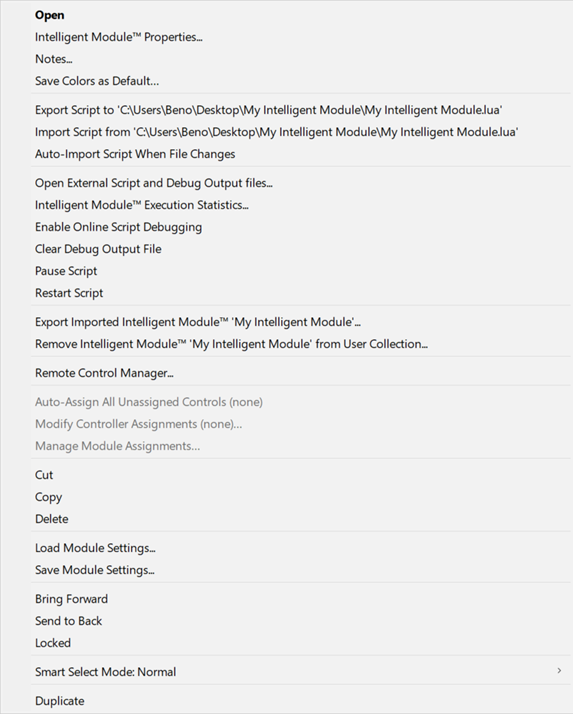
All of the Intelligent Module specific options are only needed when creating or editing an Intelligent Module, as such they are described in detail in the Creating Custom Intelligent Modules page.
The options will differ if the Intelligent Module is locked or unlocked. The above image shows an unlocked Intelligent Module while a locked Intelligent Module right click options are shown below, with none of script management, debug or exporting options being shown:
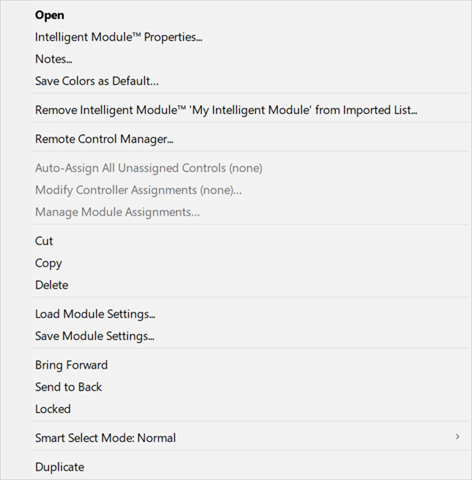
Again, see the Creating Custom Intelligent Modules page for more information.
Intelligent Module Options
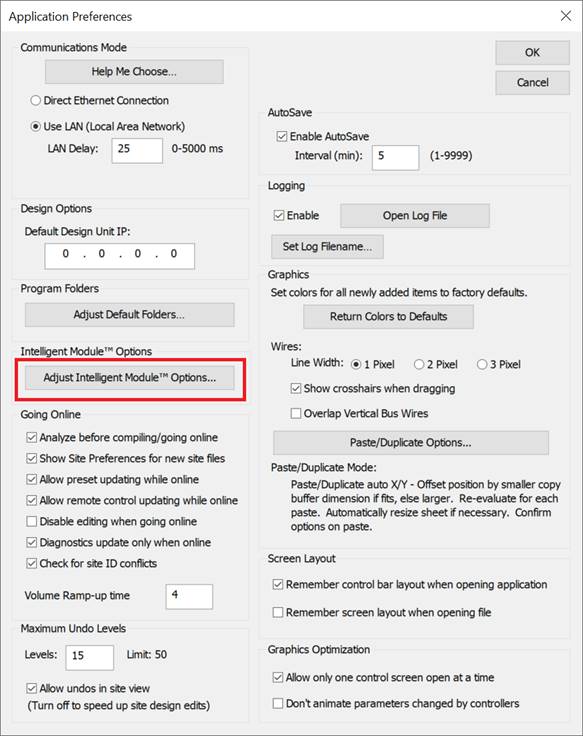
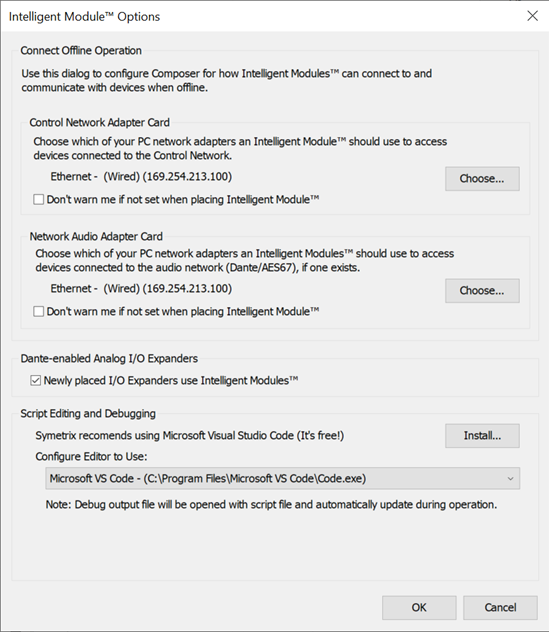
The following settings are available:
Connect Offline Operation
This option configures which network adapters Composer should use with offline Intelligent Modules.
-
Control Network Adapter Card - Click “Choose…” to select the network adapter that is connected to the Control Network.
-
Network Audio Adapter Card - Click “Choose…” to select the network adapter that is connected to the Dante Network
A pop-up window will be shown allowing selection of the adapter.
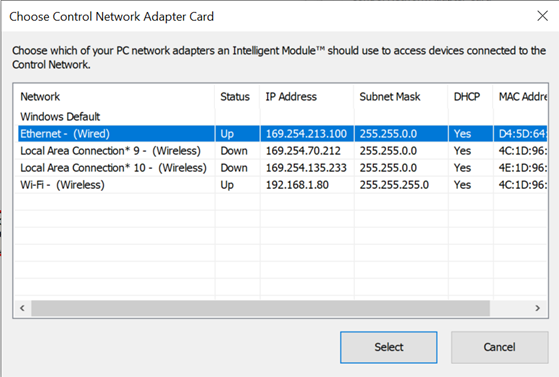
If these are not configured correctly, various aspects of Intelligent Modules will not work offline. Therefore, Composer will present a warning when placing an Intelligent Module if these options are not configured. This warning can be hidden for each network adapter by enabling the corresponding checkbox.
Dante-enabled Analog I/O Expanders
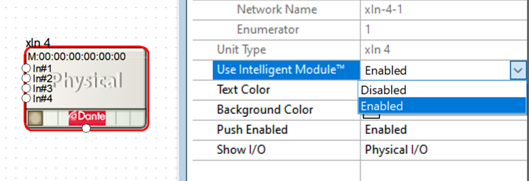
This option determines if newly placed Symetrix I/O Expanders (e.g. xin 4) use Intelligent Models for control. We highly recommend you leave this checked for the most flexible level of operation.
This option can be overridden on a per device basis from its Properties panel.
Script Editing and Debugging
This section allows you to configure which external text editor you wish to use to create your Intelligent Module scripts. It is only needed for creating and editing Intelligent Modules, so more information is provided in the Creating Custom Intelligent Modules page
Offline vs Online
Unlike most modules, Intelligent Modules have some amount of functionally when used offline. Understanding this capability is important for those developing the Intelligent Modules, but it can also be useful when simply using an Intelligent Module. Much of the offline behavior is the same as when online, but there are some differences to keep in mind.
Offline
When Offline, the Intelligent Module is running on the same computer as Composer, and any network communication is from the computer to the device via the configured ports (see Connect Offline Operation Options section). Depending on your network configuration, the Dante and Control networks may be separate or bridged.
Another important thing is that just like other modules, control signals do not flow through your Design while offline. While the controls in the Intelligent Module can function and the Intelligent Module can communicate to network devices Offline, control signals connected to and from your Intelligent Module will not be transmitted. Therefore, you will not be able to utilize functionality involving how the Intelligent Module interacts with the rest of your Design while offline.
But the key benefit to working offline, is that you can use much of the functionality without any hardware present. This is especially important if you are utilizing a new Intelligent Module for the first time as you can begin evaluation of the Intelligent Module and work on the design before all of the hardware is available.
Online
While online the Intelligent Module is running on your Symmetrix hardware, and any network communication is from that hardware to other network devices via the control port. Depending on your network configuration, the Dante and Control networks may be separate or bridged.
While online you will have the full functionality of your Intelligent Module and it will interact completely with other modules in your Design via the control pins.
The main drawback is that you must be on the same network as your device and you’ll need to take your device offline to iterate and debug the site design. This may be time consuming and inconvenient if the system is already deployed.
Given these differences, it is recommended you do any initial evaluation of a new Intelligent Module offline as much as possible. You will want to recreate as much of the dependent hardware as possible at the office, to be able to complete development and testing, before going to a client’s location for final commissioning.
Always On
Intelligent Modules always running, whether online or offline, unless they are explicitly paused (see the Right Click Menu section). Therefore, it is good practice for Intelligent Modules to provide users with control to disable offline operation if desired. All the Symetrix Intelligent Modules include this functionality.
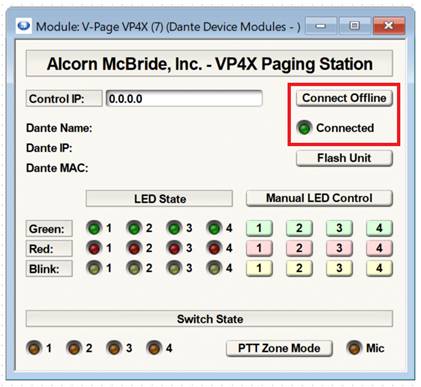
This is especially important if a device only permits one controller at a time. Otherwise, it is possible for an offline instance of Composer and a script running on a Symetrix DSP to simultaneously try to control a device. If the device allows multiple connections, this situation will often lead to unexpected hard to understand results. If you experience strange behavior, try disabling offline connection if possible.
Intelligent Module CPU Usage
The bulk of the work done by Intelligent Modules is not performed on the DSP, instead it is executed on the device’s CPU. This is the same processor that manages all non-audio processing aspects of your device, including communications, control, remotes, SymView and more. This is a hefty processor, but there is only so much available processing time, and just like with your computer, you can only run so many programs simultaneously. As such, Intelligent Modules can only occupy a certain percentage of a CPU’s processing time. In most cases, you won’t have to worry about this. But some Site files with many CPU intensive Intelligent Modules, may run into this limit. Therefore, Composer imposes limits on how much processing an Intelligent Module may consume and provides monitoring tools and warnings if you are nearing or crossing the limit.
To monitor usage, simply hover your mouse over an Intelligent Module to see the following:
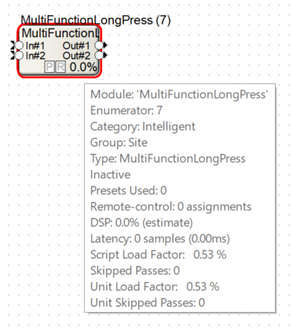
Put simply, the Script Load Factor conveys how much processing time the Intelligent Module is consuming compared to how much it is allowed. The Unit Load Factor is the total for all Intelligent Modules on the unit. If this reaches 100%, your site is using too much CPU time.
The Skipped Passes conveys how many times functionality of the Intelligent Module has been skipped because it took too long. You don’t want this to ever be higher than 0 for a module or the unit.
This same information can be found in the Execution Statistics accessed from the Intelligent Module Right Click Menu.
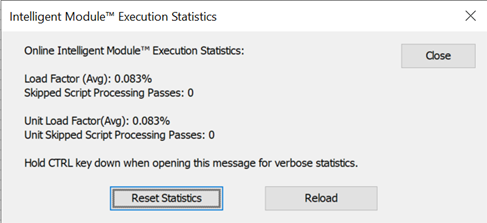
Here, you can Reset the statistics to restart the measurements used to calculate the values. In general, while the firmware can handle spikes here and there, you should target all the Unit Load Factor to be no more than 100%. This leaves enough processing resources available for the myriad other things the processor needs to accomplish, and you should see no skipped Passes. If the Unit Load Factor is above 100% and/or you see any skipped passes, the Intelligent Modules are consuming too much processing time. Use the individual Script Load Factor and Skipped Pass numbers to find the individual Intelligent Module that is using the most processing time. You may need to disable it or talk to the Intelligent Module creator about possible changes to improve its efficiency.
These numbers will vary significantly when viewed offline vs online. This is because in most cases, your PC will have more processing time available than the CPU in your unit. Generally, you care about the online performance. Similarly, each Symetrix device (Radius NX, Edge, Prism and Solus NX) has a different amount of CPU time available to Intelligent Modules, so the number of Intelligent Modules that can be run and their associated Script Load Factor will differ for each device.
Next Steps
Now that you know how to use Intelligent Modules, you’ll want to find some and put them to use. The Symetrix Community Forum is a great place to download additional Intelligent Modules created by other users and an ever-growing list of 3rd party partners.
And if you ever want to start learning to create Intelligent Modules, we recommend starting with the Creating Custom Intelligent Modules.