xIO Bluetooth Software
A Symetrix xIO Bluetooth can be added to the site view.
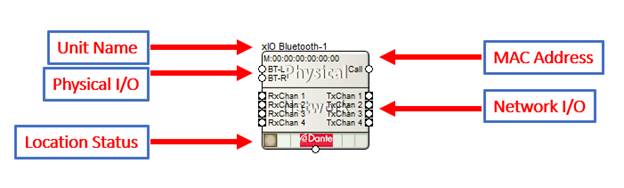
All of the following features are managed in the Unit Properties dialog. To access the Unit Properties, Composer must be in Edit Mode. Right-click on the unit module in the Site View and choose “Unit Properties...”
Unit Properties
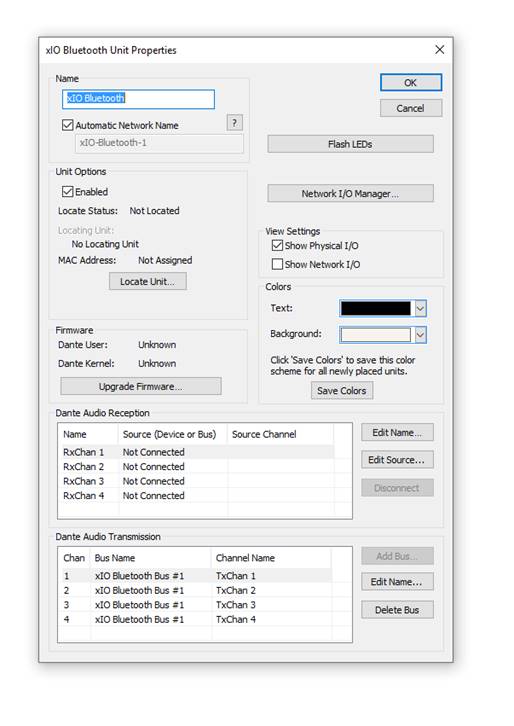
-
Name- It is recommended to assign a unique unit name for each unit in the design based on the unit's purpose or location. Composer will always append a unique numeric identifier to this name.
-
Network Name- When Automatic Network Name is checked, the network name is auto-generated from the unit name. Network names cannot contain special characters or spaces and must be unique.
-
Enabled- When the enabled box is checked, the unit must be physically present on the network for a Push of the site file to the hardware. When the enabled box is unchecked, an X will appear on the unit module in the Site View, and the unit will not be required to be physically present for the Push of the site file.
-
Locate Unit...- Opens the 'Locate Hardware' dialog box to select the unit to connect to.
-
Upgrade Firmware...- Opens the Upgrade Firmware/Hardware Settings dialog.
-
Flash LEDs- Flashes the front panel LEDs of the unit.
-
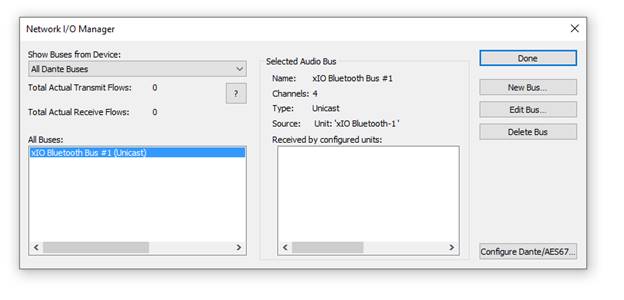
Network I/O Manager- Opens the Network I/O Manager dialog.
-
View Settings- When either Show Physical I/O or Show Network I/O check box is checked, the unit module in the Site View will show the corresponding connections.
-
Colors- The text color and background color for the unit module can be customized. To save custom color settings made here as defaults for future units, click the Save Colors button.
Properties Window
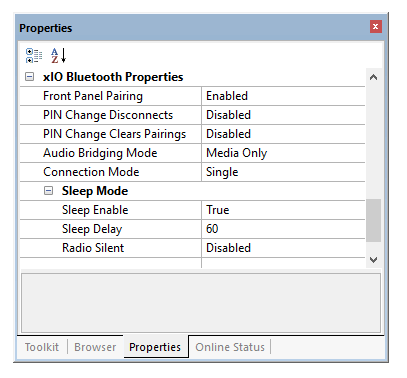
Selecting the xIO Bluetooth module in Site view with the Properties Window open will show the properties for that selection. Extensive properties are shown for a single unit. In addition to the “Site Design” and “Unit Properties” sections, the following properties that are specific to the xIO Bluetooth will be shown:
-
Front Panel Pairing –Specifies if the front panel pairing and disconnect functionality is enabled.
-
PIN Change Disconnects –Specifies that when the PIN changes, any current Bluetooth connection should disconnect.
-
PIN Change Clears Pairings –Specifies that when the PIN changes, all pairings should be cleared, and a connected device will be disconnected.
-
Audio Bridging Mode –Specifies if Bluetooth connection should media playback (A2DP), phones calls (HFP), or both.
-
Connection Mode –Specifies if connection mode is single or multi. For single, pairing a device disconnects any currently connected device and erases all previous pairing information. The currently paired device is allowed to disconnect and reconnect when in range. For Multi, previously paired devices are remembered up to the hardware limit. Previously paired devices are allowed to reconnect when in range.
-
Sleep Mode
-
-Sleep Enable –Specifies if the sleep mode is enabled.
-
Sleep Delay –Specifies the number of seconds (1 – 600) of idle mode to wait before entering sleep mode.
-
Radio Silent –If Radio Silent is enabled, and there is no device currently connected, going into sleep mode will cause the Bluetooth radio to turn off in addition to turning off the LEDs.
Intelligent Module
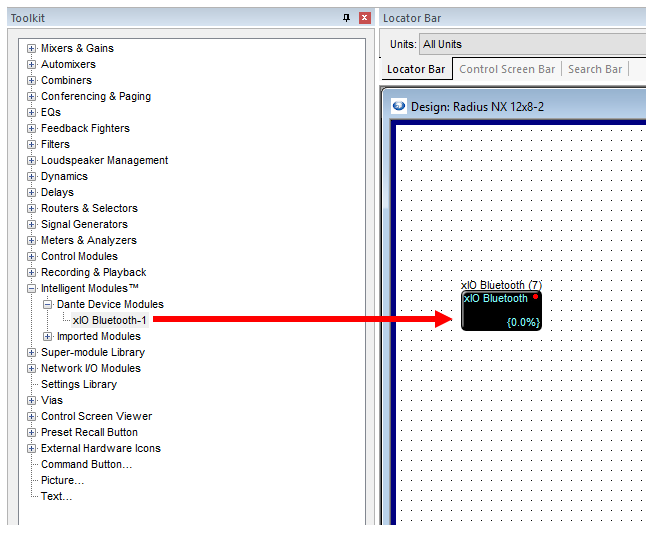
For complete control of the xIO Bluetooth, an Intelligent Module must be dragged into the Design View of a DSP that is in the Site File.
General
-
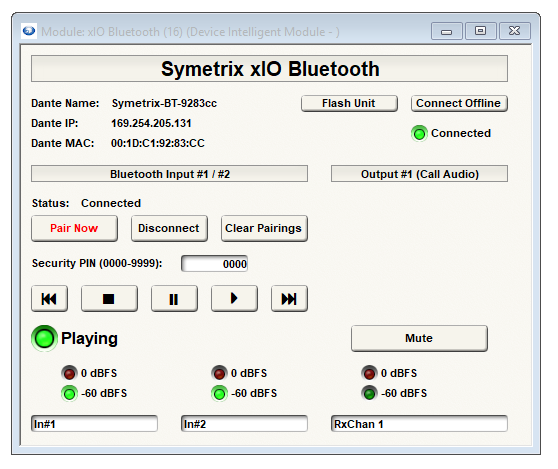
Dante Name -Auto-populated when hardware is located in Site View.
-
Dante IP -Auto-populated when hardware is located in Site View.
-
Dante MAC -Auto-populated when hardware is located in Site View.
-
Flash Unit -Flashes the device’s physical LEDs to assist in visual identification.
-
Connect Offline -Click this button to have Composer connect to the device offline. The Control IP is required, as well as making Composer aware of which of the computer’s network interfaces to use for communication to the device. SeeSetting Intelligent Module Optionssection.
-
Connected LED -Illuminates when connected, whether online or offline.
Bluetooth Input #1/#2
-
Status –Displays whether a Bluetooth endpoint is currently connected.
-
Pair Now Button –Enable Bluetooth pairing.
-
Disconnect Button –Disconnects the current pairing.
-
Clear Pairings –Erases all previous pairing information.
-
Security PIN (0000-9999) –Enter the Bluetooth PIN (also storable as a Preset)
-
Transport Controls –Controls playback on the connected device.
-
Playing LED –Indicated if streaming is occurring.
-
Level LEDs –Shows if signal is present as well as clipping.
Output #1 (Call Audio)
-
Mute –Mutes the call audio signal on Dante Receive Channel 1.
-
Level LEDs– Shows if signal is present as well as clipping.
Ultimo Limitations
-
Ultimo devices cannot be used in redundant mode. There is no secondary Dante port, the units are PoE, and the Ultimo chip does not support it.
-
Minimum latency is 1 mS.