Control Screens and Panels
Restrictions on Control Screens
- In general Control Screens will operate as SymVue Panels with a few minor exceptions. A list of Controls That Function Differently in SymVue is provided.
- A Push Design to Hardware (F4) is required to ensure that the SymVue panels and DSP parameters in the hardware are in sync. You should do this immediately before or immediately after exporting to SymVue and the SymVue Export Wizard has an option to do this automatically for you.
Update Speed
- SymVue is designed to be very fast and provide "real time" control and feedback. Changes made to controls generally take effect in < 50 mS and propagate to other panels within 100 mS. However, very complex Control Screens may slow this down.
- The actual operational speed is dependent on several factors such as the number of controls on a Control Screen/SymVue Panel and the number of total SymVue instances running in a site. For best results, limit the number of controls on a given panel. It is preferable to have more panels with fewer controls each than vice versa.
- Frequency response graphs are the most intensive controls to use. The more filter bands shown on the graph, the slower it can become. The worst case is the 24-band Feedback Fighter. If at all possible, avoid showing frequency response graphs on SymVue panels if speed becomes an issue.
- As the loading increases, the system will not cease to work. Rather it may slow down gradually, with updating taking longer to propagate. Generally this is not noticeable on a single SymVue instance unless very complex graphs are present. With simpler Control Screens without graphs, there should be no noticeable slowdown with fewer than 5 total SymVue instances.
Multi-user
- Multiple instances of SymVue may run on any given PC. Any particular PC may support up to 32 SymVue instances, each of which can have multiple panels. Multiple instances allows for fast switching using Alt-Tab or other Windows features.
- In a site with multiple PCs, each may run SymVue Panels. There is no hard site-wide limitation on how many PCs may be present, but operation may slow as the number of PCs running SymVue increases.
Expected Operation If Hardware Not Present
If hardware is not present, the user may move controls (such as a fader) on the SymVue Panel, but those controls will not actually be controlling anything. If a fader includes a numerical readout (e.g. dB for a gain fader), the readout and fader will not track when off-line. The user can navigate panels, use security, etc. Note that there is no direct indication of on-line/off-line status.
Expected Operation If Site File Not Downloaded
If the Site File is not present, the panel will likely operate as if the hardware is not on-line (see above). However, some control connections may be valid from a previous download. In that case, the Panel object(s) will actually address hardware parameters. However, other Panel objects may not be addressing the correct hardware equivalents. This can lead to unexpected or even damaging results. This situation should be avoided!
Some Controls Which Can't Be Exported
- There is a small list of Controls That Cannot Be Exported to SymVue. Some controls will have limited operations.
- Faders that are linked in Composer may not link when operated via SymVue (e.g. channel faders in mixers that have the Link button turned on). However, linked operation is available if manual controller assignment is used. Simply assign both linked controls the same control number and check the "Enable Controls Number Linking" setting for both controls. If automatic assignment has already taken place, edit the existing auto-assigned controller definition as described above. Note that his can even link totally different control types such as an EQ Frequency fader and a Gain fader.
Navigation - Control Screen Viewer Buttons
- Control Screen viewer buttons function identically on Composer Control Screens and SymVue Panels. They are the primary means of navigating between Screens/Panels. Add these buttons as required to navigate between screens.
- The user can return to the home panel via the System menu "Go to Home Panel" command.
Note: This option is not available for SymVue panels running in full-screen mode.
Logout Buttons
- When designing or editing a Control Screen in Composer, a special button will be available in the Toolkit called "Logout". Placing this button on a Control Screen will allow a user to logout from SymVue security by clicking the button on the SymVue Panel. Upon logging out, the user will see a logo screen with a login button and will not be able to navigate to other panels until he or she logs back in.
- The user can also use the System menu "Logout" command. Note: This option is not available for SymVue panels running in full-screen mode.
Exit Buttons
- When designing or editing a Control Screen in Composer, a special button will be available in the Toolkit called "Exit". Placing this button on a Control Screen will allow a user to exit from the SymVue application by clicking the button on the SymVue Panel.
- The user can also use the System menu "Close (Alt+F4)" command or click the red "X" button in the Windows title bar, upper right. Note: This option is not available for SymVue panels running in full-screen mode.
Getting the Most Performance from SymVue Graphics
Here are a few tips to help to get the most out of SymVue graphics.
- A faster PC will provide better operation. The minimal system requirements are just that – minimums. A reasonably modern PC should provide ample performance for most uses, but extremely complex panels may require faster PC’s for best performance. A faster main processor, more memory and a better graphics processor are all helpful.
- Smaller controls tend to draw faster than huge ones.
- Overlapping controls or images should be avoided.
- Large background images and pictures slow down operation.
- Controls which continually update such as meters, gauges, and text with time display consume more bandwidth than static controls such as faders and buttons.
- Actual operational speed is also affected by the number of controls the hardware is processing. As more SymVue panels simultaneously talk to the same hardware, operation may slow down.
Control Aligning and Spacing
When more than one control is selected in a control screen, the right click menu has a sub-menu “Align/Space Evenly”.
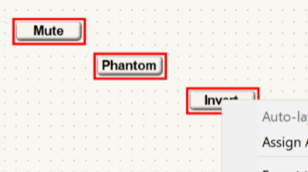
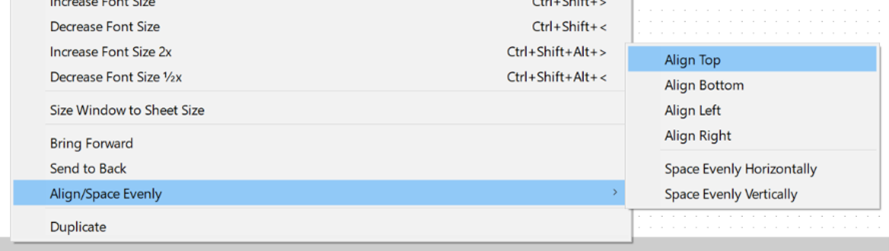
It provides options to align the controls to top, bottom, left, or right. If three or more controls are selected, there are additional options to space the controls evenly horizontally or vertically.
This is a fast way to align and beautify control in control screens.
Space evenly is designed to make the distance between controls the same either in the vertical or horizontal axis. The extremes of the selected controls are calculated to determine the overall space the controls should take up. Then the combined height or width is calculated for all selected controls. The difference is calculated either positive or negative. Then this overlap or extra space is divided evenly between all controls while retaining the overall order.
If Snap is enabled, all final positions will be on the closest grid for these operations after completion.
For space evenly operations, the difference between control span and width is quantized to the snap spacing. If the difference can’t be evenly divided between controls, it is rounded so that it is. For overlapped controls, this will cause the span of the controls to increase in order to maintain even spacing. Otherwise it will cause the span to contract. If snap is disabled, the same thing will happen to a 1 pixel quantization to maintain even spacing.