Launching SymVue
After installing the software, use one of the following methods to launch the software:
Double-click the icon of an exported SymVue file:

From the Start Menu:
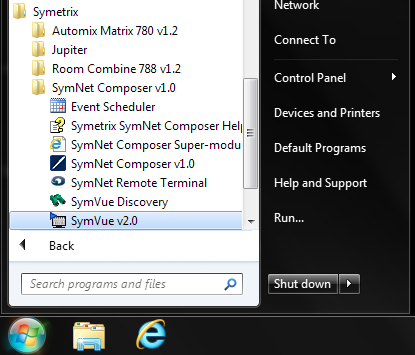
Note: Directly launching the application will require the user to manually choose a .svx file to open from the File menu within SymVue.
From the final page of the SymVue Export Wizard:
On the final page of the SymVue Export Wizard (Export Options), there is an option to "Launch SymVue Now on this PC". If the box is checked, and all of the previous pages have been correctly configured, clicking the Finish button at the bottom of the wizard will launch SymVue with the file that has just been created.
It is also possible to have SymVue start automatically on machine startup when a user logs in. The Start menu - or more correctly the Start->(All) Programs->Startup sub menu - is the easiest, quickest and safest way to do it. The following action will configure auto-start for the user logged in when these steps are performed:
- Click Start -> All Programs, right-click on Startup and select Open.
- Place a SymVue file in this window. The application will now launch automatically with this file each time that particular user has logged in.
It is also possible to have SymVue start automatically upon boot up of the machine. To configure this, please consult your Windows documentation, or visit Microsoft's support pages.
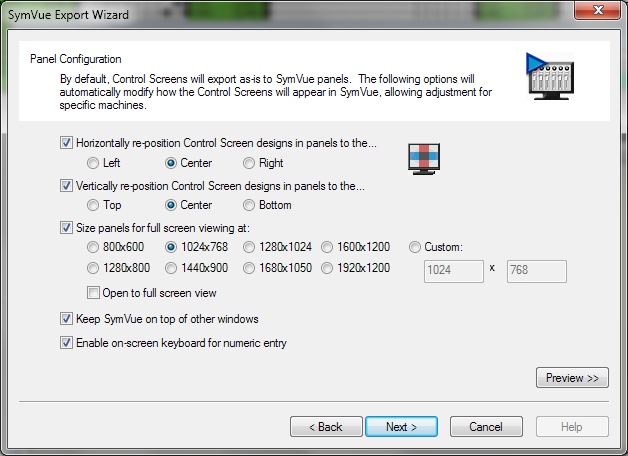 Additionally, SymVue can be configured to open in full screen mode. On the Panel Configuration page in the SymVue Export Wizard, start by checking the box marked "Size panels for full screen viewing at:". Once this box is checked, the options below it become active. Next, check the box marked "Open to full screen view". When the wizard is completed and finished, the configured .svx file will open in full screen mode.