Command Button
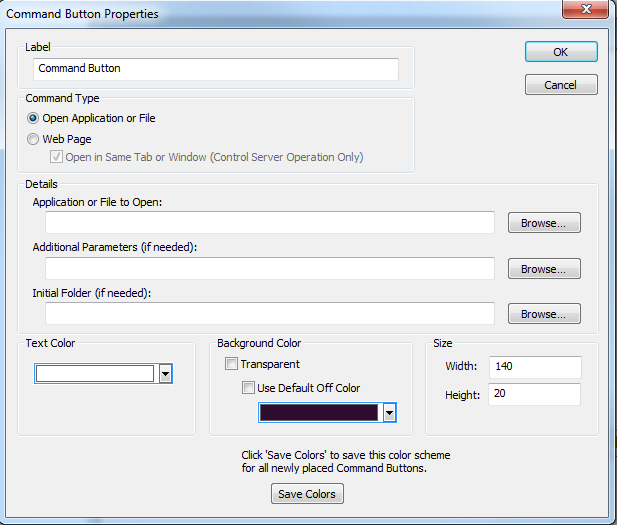
Using a Command Button placed in a Site, Design, Control Screen or exported to a SymVue Panel, it is possible to launch external programs or files provided the item to be launched is present at the Command path specified in the Command Button Properties. The most obvious use for this is to open an Event Scheduler Launch file from a SymVue panel on a client's PC. Changing the Command Type to Web Page allows the button to open a web browser directed to the URL entered in the Command Button Properties.
A user-specified name for the Command Button may be entered in the Label section.
Open Application or File
Application or File to Open is the path for the item to be launched. Enter a path manually or click the Browse... button to specify the item to be launched.
Additional Parameters is where you enter a specific location of a file you'd like to open.
Initial Folder is where you enter the folder that contains the file you are referencing. For example, if you have a batch file that references other files in a folder, list the folder that contains these items here.
Note that Command Buttons that use the Application or File to Open functions will not export to the T Series touchscreens.
Web Page
Web Page (URL) to Open is the address of the web page to be opened by the button.
Note that Command Buttons that use the Web Page function will not export to the T Series touchscreens.
Text Color
The Text Color on the button can be adjusted and the Background Color made transparent or opaque in a user-specified color.
Background Color
Check the Transparent check box to make the command button transparent. Checking this will disable the options to either use the Default Off Color or Change the Background Color.
Check the Use Default Off Color check box to use the default tan color.
Press the Change Background Color to choose a specific color for the button.
Size
The Size of the button may be adjusted numerically by manually specifying the Width and Height or graphically by selecting the button and using the shift+arrow keys.
Save Colors
To save your color settings made here as defaults for future Command Buttons, click the Save Colors button.