Introduction
Introduction: Useful Troubleshooting Information
There are many tools that can help both users and developers to ascertain problematic areas for troubleshooting. Though they can ultimately be quite complex, in their simplest form they are often very easy to use. A few of these are listed below.
Msinfo32
This handy little tool displays a comprehensive view of your hardware, system components and software environment in a simple GUI. It could be helpful in relaying information about your system that might be useful to a Technical Support Staff person. It also already exists on your Windows computer and there is nothing to download.
1. From Start, choose Help And Support.
2. Under the Pick A Task heading on the Help And Support Center page, click Tools.
3. On the Tools page, select My Computer Information in the Tools column.
4. On the My Computer Information page, select any of the links to view a graphical report of your system (View Advanced System Information is the most inclusive, and you can choose what you will look at).
OR
Start -> Run... type "msinfo32" and press ENTER
Once the System Information window is open, there are a myriad of places one can look and see all kinds of things related to the system. Of particular interest, under the Components tree would be Network and Ports. One can save a file including all of the computer information (click File, choose Save and name the .nfo file to be stored in a memorable location) or just certain areas of interest. For example, with the Components/Network tree expanded, click the Adapter subcategory to display the information. With Adapter highlighted, click File at the top and choose Export from the list of options.
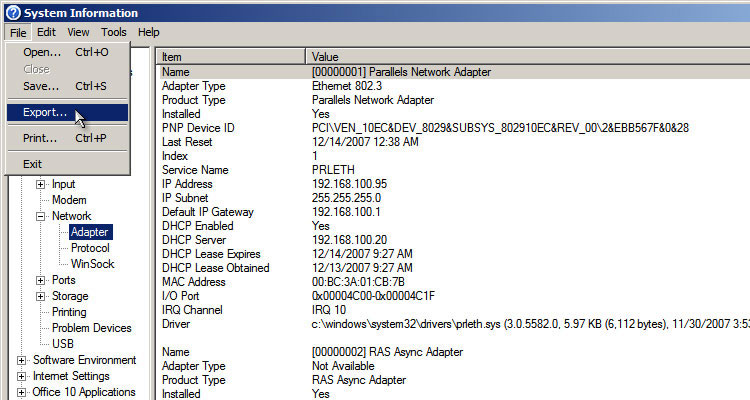
Now, all of the information pertaining to the Ethernet adapter for this machine can be stored as a text file and e-mailed to Symetrix Technical support. It’s one more piece of the puzzle that can potentially help us help you.
Two other noteworthy tools that do similar things to msinfo32 are listed below. The differences are: 1) they need to be downloaded, installed and ran 2) the GUIs are much nicer and 3) they generally supply even more detailed information, particularly concerning network settings and activity. More information about each of them and downloads can be found at the links below...
TCPView
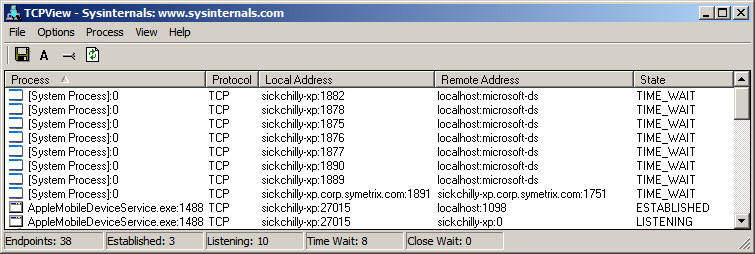
http://www.microsoft.com/technet/sysinternals/utilities/tcpview
Windows® Network Monitor Driver and Task Manager
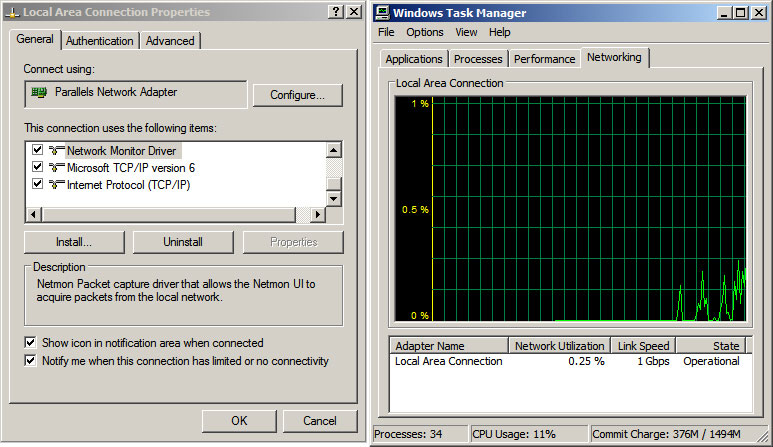
Windows Network Monitor Driver (available from your Windows Installation media) adds a networking tab to the Windows Task Manager to display network traffic.