System Manager
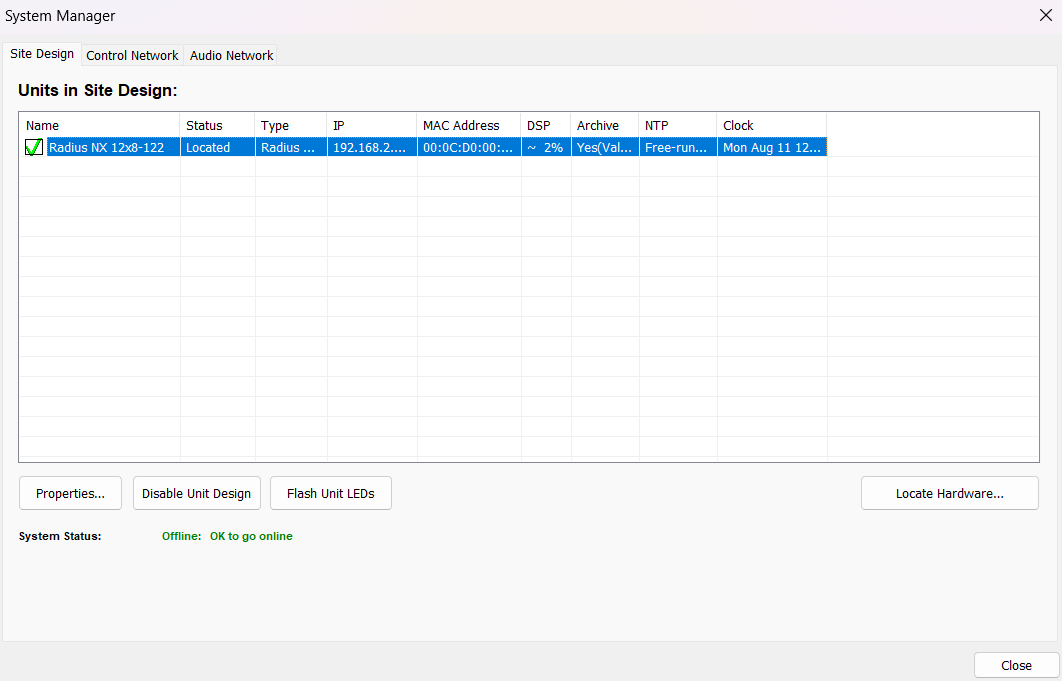
The System Manager manages all aspects of the hardware represented in your Site Design and on your networks. It is divided into three tabs:
- Site Design
- Control Network
- Audio Network
Site Design Tab
The Site Design tab lists all units defined in your Site File. Their location status and various other data points are displayed in columns.
- Location Status Icon - Icon showing if the unit ahs been located or not
- Name - Name of the unit
- Status - Status of the UNit
- Type - Unit type
- IP - IP Address of unit
- MAC Address - MAC Address of unit
- DSP % - DSP utilization of the unit in the design
- Archive - Displays if the device is configured for Archving (Yes/No) and if so, if the Archive is Valid or Invalid
- NTP - NTP status of the unit
- Clock - Current lcock on the unit
The following buttons are shown.
- Properties - Opens the Unit Properties dialog. This is the same dialog accessed by right-clicking on a unit and allows adjustment of the name, IP address, I/O card and external control input configuration, NTP server, event server and archive options, module display color, module text color.
- Disable Design Unit - Allows you to disable the units selectively for going on-line.
- Flash Unit LEDs - Flashes the LEDs on the front of the unit, helpful for verifying the location of physical hardware.
- Locate Hardware - Launches the Locate Hardware interface.
At the bottom, the System Status field shows whether the system is offline or online and provides the current connection status.
Control Network Tab
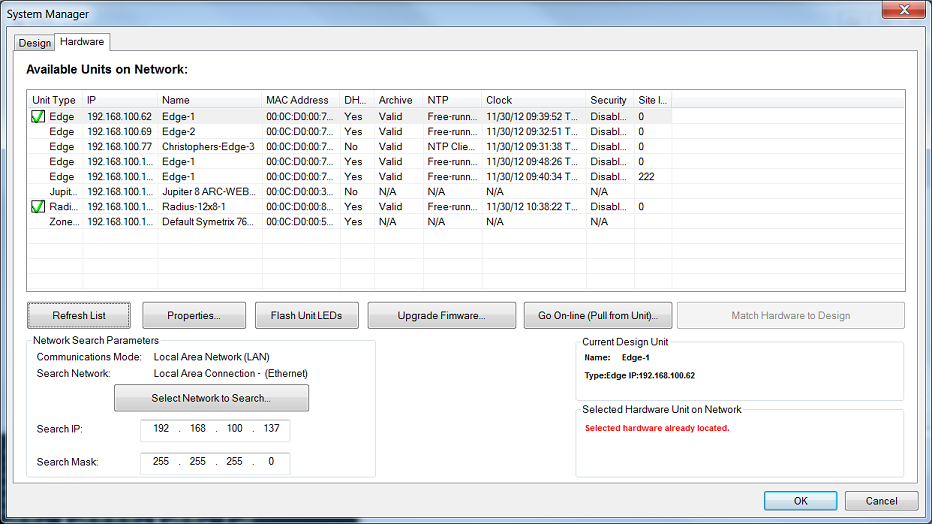
The Control Network tab lists all hardware units currently responding on your control network. This list is independent of your Site File and represents what is actively detected.
Columns include:
- Unit Type – Hardware model.
- IP – The unit’s current control IP address.
- Name – The device name as reported over the network.
- MAC Address – The hardware MAC address.
- DHCP – Indicates if the unit is using DHCP or a static IP.
- Archive – Archive status.
- NTP – NTP status.
- Clock – Current unit time.
- Security – Indicates if device security is enabled.
- Site… – Displays related site file or association.
The following buttons are shown:
-
Refresh List – Scans the network again and updates the list.
-
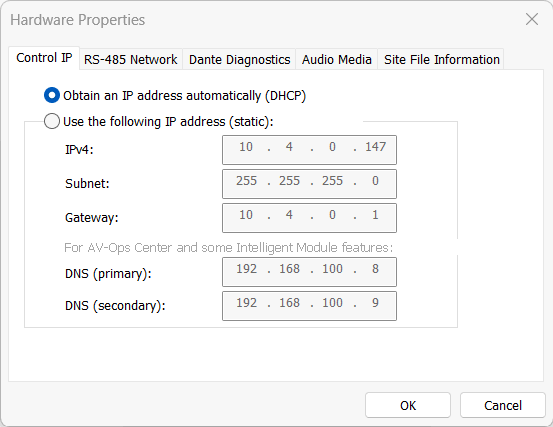
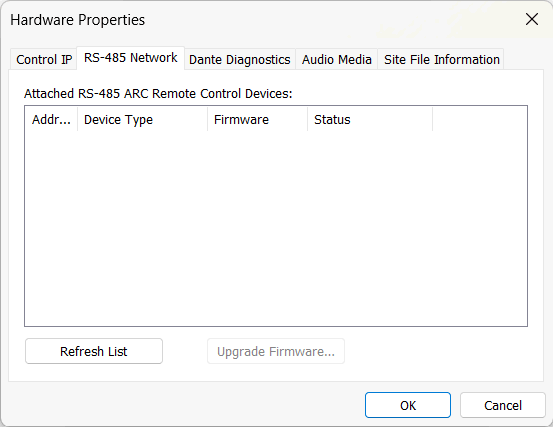
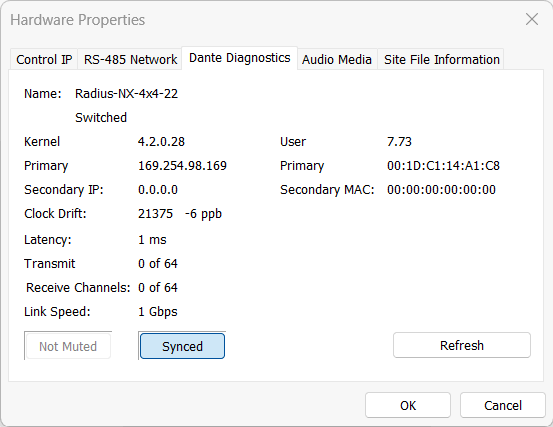
Properties – Opens the Hardware Properties dialog for the selected unit. Here you can adjust IP settings (DHCP or static), view and update attached RS-485 remote firmware, and view Dante Diagnostics.
-
- Control IP
- Control IP
-
- Choose DHCP or Static IP
-
RS-485 Network
-
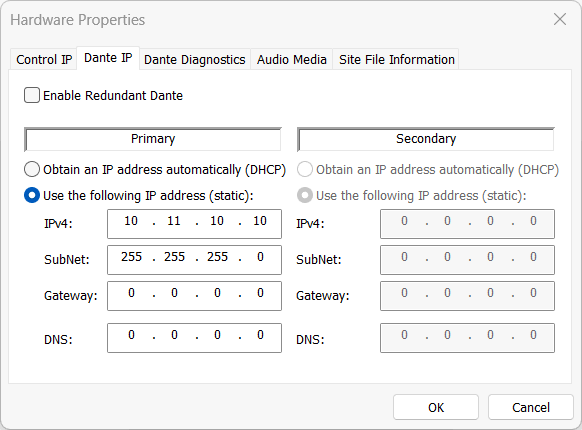
Dante IP (only shown on Server D100)
-
Dante Diagnostics
-
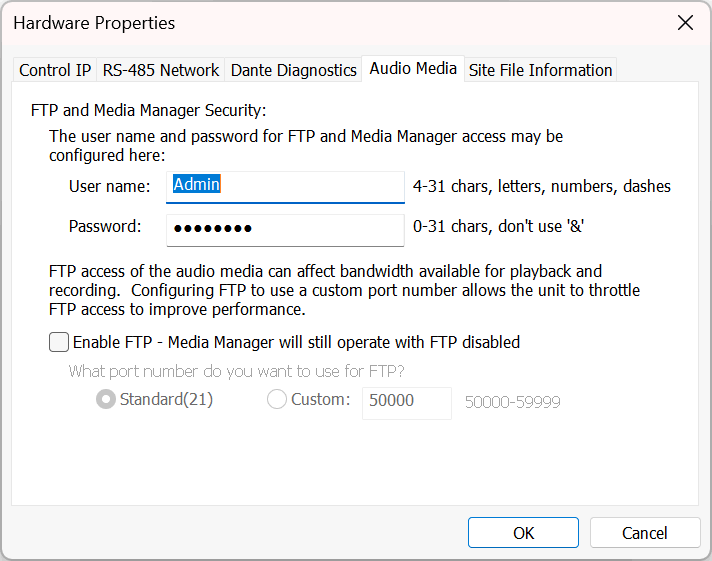
Audio Media (Only shown for D100 and Radius NX)
-
- FTP and Media Manager Login Information - Configure the user name and password for Media Manager. On Radius NX, this login info can also be used for FTP access to the media files.
- Enable FTP - (only shown on Radius NX) Enables FTP access to the media files. This is unencrypted FTP, so it is not as secure as the encrypted SFTP used for all other file transfers between Composer and the Radius NX or D100 (site file push/pull and firmware upgrade). Only enable this if it is truly needed. This setting is stored in the site file and takes effect on push. It defaults to disabled in new site files. Existing site files will need to manually disable in their sites.
-
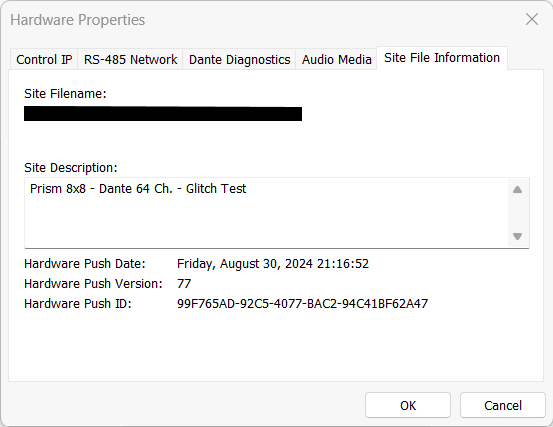
Site File Information
- Flash Unit LEDs – Flashes the front-panel LEDs for locating hardware.
- Upgrade Firmware – Launches the Upgrade Firmware interface.
- Go Online (Pull from Unit) – Opens the Pull Site File From Hardware wizard.
- Match Hardware to Design – If you have more than one NIC on your computer, you may need to manually select the NIC (network) you are using to interface with the Symetrix hardware. Click the Select Network to Search button to select a NIC. This will fill in the Search IP and Search Mask fields for you. You may also enter them manually to search custom address spaces.
AUDIO NETWORK TAB
The Audio Network tab displays devices on the audio network, typically Dante devices. You can choose to view xIO Hardware Only or Show All Hardware.
Columns include:
- Name – Name of the unit.
- Firmware Status – Indicates whether the device firmware is up-to-date.
- MAC Address – The device MAC address.
- IP – The audio network IP address.
- Type – Device type or model.
- User Firmware – Version of user-loadable Composer firmware.
- Dante Firmware – Version of Dante firmware.
The following buttons are shown:
- Refresh List – Refreshes the network and repopulates the Available Units list with hardware found.
- Flash Unit LEDs – Flashes the LEDs on the front of the unit, helpful for verifying the location of physical hardware.
- Upgrade Selected xIO – Upgrades firmware on the selected xIO device.
- Upgrade All xIO – Upgrades firmware on all detected xIO devices.
- STOP UPGRADING – Cancels any in-progress upgrades.
Audio Network Search Parameters allow you to select the network interface for the audio network scan and manually set the Search IP and Search Mask.