Control Commands
(GS2) Get Control with Control Number
(GSB2) Get Control Block with Control Number
(GSB3) Get Control Block with Control Number
(CS) Control Set
Use this command to move a control position to a new absolute value. The command must specify the control number and the new control position. The syntax of the command is:
CS \
Where \
If the command is accepted, the device will respond with the string:
ACK\
If the command is interpreted but fails for any reason the device will respond with the string:
NAK\
A typical reason for failure is that the specified control number does not exist.
(CSQ) Control Set Quick
Use this command to move a control position to a new absolute value quicker than using the CS command. The CS command may take up to 40ms before responding with an ACK because the unit is verifying that the specified \
The syntax of the command is:
CSQ \
Where \
The device will respond with the string whether it recognizes the control number or not:
ACK\
(CC) Change Control
Use this command to move a control to a new relative value. This command will increment or decrement a control by a specified amount. The command must specify the control number, whether it should be moved by increment or decrement, and the amount to change by. The syntax of the command is:
CC \
Where \
If the command is accepted, the device will respond with the string:
ACK\
If the command is interpreted but fails for any reason the device will respond with the string:
NAK\
If the device responds at all with ACK, or NAK, you are talking to the DSP. It is possible that you may be operating at the wrong baud rate if a NAK is returned. Another typical reason for failure, or a NAK return, is that the specified control number does not exist.
(GS) Get Control
This command will return the control position (value) associated with a specific control number. The command must specify the control number. The syntax of the command is:
GS \
Where\
If the command is accepted, the unit will respond with the string:
\
Where control position is a 16-bit number in decimal (0-65535).
If the command is interpreted but fails for any reason the unit will respond with the string:
NAK\
A typical reason for failure is that the specified control number does not exist.
If the value being requested is a button that only has two states, the returned values will be either 0 or 65535, regardless of the actual value sent to the control. For example, assume control number 1 controls a mute button. If you send
CS 1 754 \
and then
GS 1 \
the response will be
0\
not
754\
More generally, if the parameter you are controlling has granularity coarser than the 16-bit values used, the returned values will be quantized to the granularity of the parameter. Controls where you might observe this effect are buttons as mentioned above and input selectors.
If the same control number is controlling multiple parameters in Symetrix, only one acknowledgement value is returned from the system.
(GS2) Get Control with Control Number
This command will return the control number with control position (value) associated with it together in the same string. This command is provided at the request of third-party control programmers, including AMX/Crestron programmers, to make it easier to interpret and parse returned control positions. The command must specify the control number. The syntax of the command is:
GS2 \
Where\
If the command is accepted, the unit will respond with the string:
\
Where control position is a 16-bit number in decimal (65535).
For example, sending the command
GS2 368 \
Will return the response in the format below when the parameter value is 47114:
368 47114 \
If the command is interpreted but fails for any reason the unit will respond with the string:
NAK\
A typical reason for failure is that the specified control number does not exist.
(GPR) Get Preset
This command will return the last preset that was loaded. The syntax of the command is:
GPR\
If the command is accepted, the unit will respond with the string:
\
The\
If the command is interpreted but fails for any reason the unit will respond with the string:
NAK\
(GSB) Get Control Block
This command will return the control position (value) of a specific range of consecutive control numbers. The command must specify the starting control number and the number of consecutive controls to return. The syntax of the command is:
GSB \
Where\
If the command is accepted, the device will respond with the string:
\
\
\
...
\
Where\
If the command is interpreted but fails for any reason the device will respond with the string:
NAK\
A typical reason for failure is that the requested block size is larger than 256. For more information and tips on reading back control numbers, see the GS command.
Example command sent:
GSB 9 3\
Example Response:
32321\
00256\
00003\
(GSB2) Get Control Block with Control Number
This command will return the control number with control position (value) associated with it for a specific range
of consecutive control numbers. The command is very similar to GSB described above, but the return string may be easier to process in some systems. The command must specify the starting control number and the number of consecutive controls to return. The syntax of the command is:
GSB2 \
Where\
If the command is accepted, the device will respond with the string:
#\
#\
#\
...
#\
Where\
as -0001).
If the command is interpreted but fails for any reason the device will respond with the string:
NAK\
A typical reason for failure is that the requested block size is larger than 256. For more information and tips on reading back control numbers, see the GS command.
Example command sent:
GSB2 9 3\
Example Response:
#00009=32321\
#00010=00256\
#00011=00003\
(GSB3) Get Control Block with Control Number
This command will echo the command and then return the control number with control position (value) associated with it for a specific range of consecutive control numbers. The command is very similar to GSB2 described above, but the return string includes the original command followed by the GSB2-style response. The syntax of the command is:
GSB3 \
Where\
If the command is accepted, the unit will respond with the string:
GSB3 \
#\
#\
#\
Where\
If the command is interpreted but fails for any reason the unit will respond with the string:
NAK\
A typical reason for failure is that the requested block size is larger than 256.
Example command sent:
GSB3 140 3\
GSB3 00140 00003\
00140=00000\
00141=65535\
00142=32768\
(LP) Load Preset
This command will load the specified preset (1-1000). The syntax of the command is:
LP \
Where\
If the command is accepted, the unit will respond with the string:
ACK\
If the command is interpreted but fails for any reason the unit will respond with the string:
NAK\
A typical reason for failure is that the specified preset has not been defined.
(FU) Flash Unit
This command momentarily flashes the front panel LEDs of the unit. This command can be used as a quick test to verify communications. The syntax of the command is:
FU [\
\
If the command is accepted, the LEDs will flash and the unit will respond with the string:
ACK\
If the command is interpreted but fails for any reason the unit will respond with the string:
NAK\
(SSYSS) Set System String
This command sets a system string such as a speed dial name or number. The syntax of the command is:
SSYSS \
Sets the string resource defined by the 5 parameters above to\
| Resource Number | Resource Name |
| 1000 | Speed dial number |
| 1001 | Speed dial name |
| 1004 | Number to dial (VoIP only) |
\
\
\
\
The following example sets the name of speed dial #3 on card A of unit 1 to 'Acme Inc.'
SSYSS 1.1001.2.0.0=Acme Inc.
This example sets the number of speed dial #20 on card D of unit 1 to '555-1234'
SSYSS 1.1000.19.3.0=555-1234
Below is an example of using the SSYSS command to dial telephony digits directly.
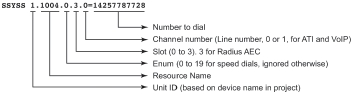
If the command is accepted, the unit will respond with the string:
ACK\
If the command is interpreted but fails for any reason the unit will respond with the string:
NAK\
As an example, consider a Radius AEC that is labeled as Radius AEC-1 as shown in the following figure. The "-1"� at the end of the unit name indicates this is unit ID 1.

To set the speed dial name and number of location 12, to "Conference Rm 1'� and "555-1234", respectively, use the following commands:
SSYSS 1.1001.11.3.0=Conference Rm 1\
SSYSS 1.1000.11.3.0=555-1234\
And to dial Speed Dial 12, use the following command assuming the speed dial 12 button has control number 112 assigned to it:
CS 112 65535\
To enter a number to dial directly by entering the digits 14257787728, send the command
SSYSS 1.1004.0.3.0=14257787728\
And to dial the digits, send the following command assuming the connect/disconnect has control number 140 assigned to it:
CS 140 65535\
Dialing VoIP Strings
When using the 1004 resource to dial strings with the VoIP interface, the maximum length phone number that may be directly dialed is 63 characters. Valid characters include 0-9, #, *, ., and letters (for SIP URI dialing). The digit pause character "," to generate 2 seconds of pause in a dialing string is not supported for the VoIP interface. Direct dial is not supported for the ATI card.
Playback Module Strings
The SYSS command can also be used to control the playback module on Radius NX. It again uses the following syntax:
SSYSS \
\
\
\
-
1 - Playback file time position (read/write)
-
2 - Playback file time remaining (read only)
-
3 - Playback status string (read only)
-
4 - Root folder name (read/write)
-
5 - Folder name (read/write)
-
6 - File Name (read/write)
-
7 - Playlist Name (read/write)
-
- "\
" if playlist is to be constructed from all files in or beneath the selected root and folder.
- "\
-
"\
" if the playlist feature is not used.
\
\
For example, to set the File name of the first playback module in the unit, the following can be used:
SSYSS 1.1011.6.255.0=FileName.wav
(GSYSS) Get System String
This command gets a system string such as a speed dial name or number. The syntax of the command is:
GSYSS \
Gets the string resource defined by the 5 parameters above. Supported values for \
| Resource Number | Resource Name |
| 1000 | Speed dial number |
| 1001 | Speed dial name |
| 1002 | Dialed number |
| 1003 | Caller ID |
| 1004 | Number to dial (VoIP only) |
| 1005 | Call status (VoIP only) |
| 1006 | Elapsed time in a call (VoIP only) |
\
\
\
\
For example:
GSYSS 1.1001.11.3.0\
Returns the name of speed dial #12 on unit 1, card D. No channel specification is necessary.
GSYSS 2.1003.0.3.1\
Returns the caller ID on unit 2 for line 2 on card D.
If the command is accepted, the unit will respond with string:
ACK\
If the command is interpreted but fails for any reason the unit will respond with the string:
NAK\
Other examples from an existing system are shown below:
GSYSS 1.1003.0.3.0\
Returns: 710 'Room 710' 4/15 7:15
GSYSS 1.1005.0.4.0\
Returns: In Call: 710
GSYSS 1.1006.0.3.0\
Returns: Time 0:00:35
Valid values of Resource Number 1005 are shown in the following table. The parameter \
| Telephony Interface | Status Message | Description |
| VoIP Interface | Busy: | The call appearance is busy. |
| Dialing: | The call appearance is being dialed. | |
| Hold: | The call appearance is in hold mode. | |
| Idle | The call appearance is in idle state. | |
| In Call: | The remote caller has answered and a call is connected. | |
| Remote Hold: | The remote caller has placed the call on hold. | |
| Ringing | The call appearance is ringing. | |
| Unavailable | The call appearance cannot connect. | |
| Analog Telephone Interface | Reset | The telephone line has been reset. |
| Ready | The line onhook and ready for a call. | |
| Outgoing Call | The line is dialing a call. | |
| Ringing | The line is actively ringing. | |
| Ring Silence | The line is quiet between active rings. | |
| Incoming Call | An incoming call has dialed the telephony interface. | |
| Disconnect | The call has been disconnected. | |
| In Use | The telephone line is already in a call - perhaps due to a shared line with another phone. | |
| No Line | There is no analog phone line connected. |
Pushing GSYSS String Values
To have changes in the GSYSS string values automatically sent to the control system, enable the option "Enable System String Pushing" under the Tools->Site Preferences menu and re-push the configuration file to the device. Afterwards, any changes in the values will be automatically sent to the control ports.