Text
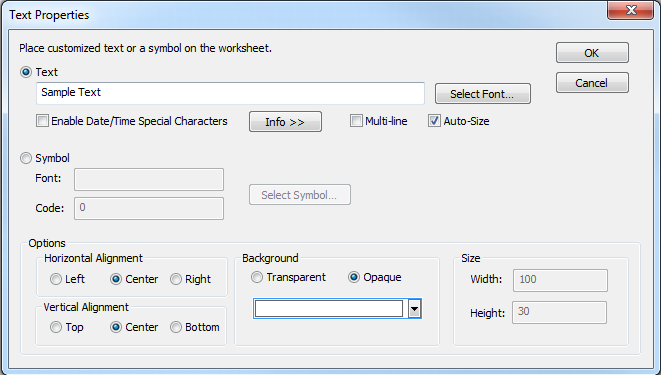
Use this to add free text or symbols to your design for documentation purposes. Adding a text block will bring up a dialog box that when the Text radio button is selected, allows entering the text, plus choosing its display characteristics. The text font, size, and color may be changed by clicking the Select Font… button. Text can be in a single line or multi-line boxes by selecting the Multi-line checkbox. The size of the text object can be made automatic by checking Auto-Size. If this turned off, the size may be specified numerically (or adjusted in the design using shift+arrow keys).
Selecting the Symbol radio button will allow the text block to use a symbol font instead of normal text. If the Font and Code are known, it may be entered manually, or it can be located by hitting the Select Symbol... button. This opens the Symbol Selector dialog to choose the desired symbol, including custom symbols.
Horizontal and Vertical Alignments can be specified for the text block.
The background can be set to either Transparent or Opaque. For Opaque, the color (white by default) may be changed by clicking the Select Background Color button.
The text object can also be used to create boxes, either outlines or filled with a solid color. These are often useful for grouping modules or controls in control screens. To do this, leave the text field blank and turn off Auto-Size. Then the box can be sized using shift+arrow keys.
Special Characters in Text Blocks
The current date and/or time can be displayed in a text block. If Enable Date/Time Special Characters is checked, certain characters appearing in the text string will be replaced with date/time information. This text will automatically update as the date/time changes.
The date/time will display in the same font as the rest of the text. The date/time information can be interspersed throughout other text allowing for custom display as required. All of the characters that are to be replaced with date/time information are immediately preceded by a percent sign. This means that any percent signs in existing text that immediately precedes one of the special characters will be replaced. To overcome this limitation, if required, place two percent signs in a row.
Details
Below is a list of the special characters that will be transformed into date/time information. This information can also be displayed by clicking the Info>> button in the Text Properties dialog box.
%a Abbreviated weekday name
%A Full weekday name
%b Abbreviated month name
%B Full month name
%c Date and time representation appropriate for locale
%d Day of month as decimal number (01 – 31)
%H Hour in 24-hour format (00 – 23)
%I Hour in 12-hour format (01 – 12)
%j Day of year as decimal number (001 – 366)
%m Month as decimal number (01 – 12)
%M Minute as decimal number (00 – 59)
%p Current locale’s A.M./P.M. indicator for 12-hour clock
%S Second as decimal number (00 – 59)
%U Week of year as decimal number, with Sunday as first day of week (00 – 53)
%w Weekday as decimal number (0 – 6; Sunday is 0)
%W Week of year as decimal number, with Monday as first day of week (00 – 53)
%x Date representation for current locale
%X Time representation for current locale
%y Year without century, as decimal number (00 – 99)
%Y Year with century, as decimal number
%z Time-zone name; no characters if time zone is unknown
%% Percent sign
Examples
- Entering the text "The time is %H:%M:%S" will display as "The time is hh:mm:ss", where hh, mm, and ss are replaced with the current time.
- Entering "%A is my favorite day of the week. Especially when it occurs in %B or is day %j of a year, which ends in %y" would display as "Thursday is my favorite day of the week. Especially when it occurs in September or is day 269 of a year, which ends in 02".