Control Server Administrator Login
The Administrator login for Control Server is where management of applications and their licenses, user accounts and permissions, and network configurations are made.
The default login credentials for the administrator account are:
Username:** Admin**
Password:** Password**
Note: If using Microsoft Edge for Control Server administration, it may be necessary to both specify the port at the end of the Control Server's IP address in the URL as well as adding an 's' to http. Example: https://192.168.1.50*:80 *Once you have tried to navigate to the former IP (it will fail), you may now enter the original IP normally (without the 's' and :80). Every time you clear your browser cache, this procedure will be necessary.
Main Menu
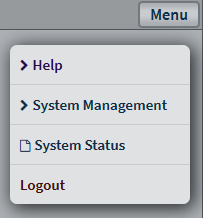
The main menu of the Control Server Web Administration is accessed via three vertical dots in the upper right-hand corner of the web page. Within the menu are the following options:
Help - Help dialogs for Control Server Administration.
System Management - Update the Control Server firmware, multiple Reset options, or Reboot the Control Server.
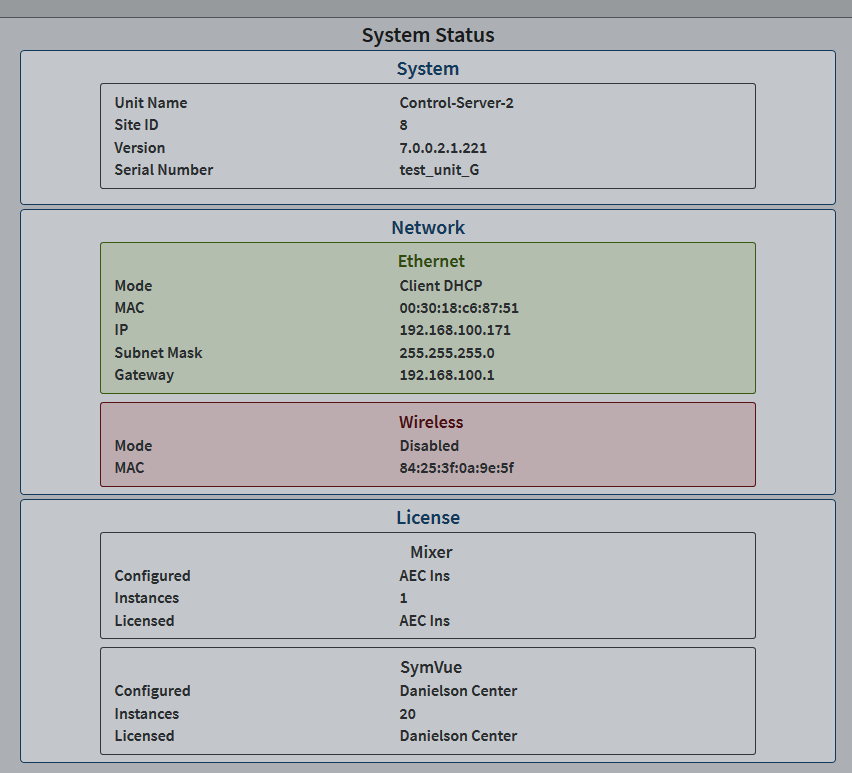
System Status - Quick overview of various settings of the Control Server, including System, Network, and App statuses.
Logout- Logs out of the Admin account and brings the user back to the login page.
Help
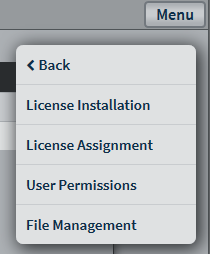
Each Help topic produces a pop-up dialog with information to assist in configuring the Control Server.
System Management
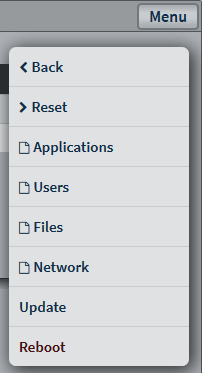
Reset - Produces a sub-menu of the various reset options for the Control Server.
Applications - Installation of new Licenses and assigning which configured Apps will use the available Licenses.
Users - Create/edit User accounts and which App configurations they have access to.
Network - Configuration of the Ethernet and Wireless interfaces of the Control Server.
Update- Begins the firmware update process for the Control Server. If a USB flash drive is inserted with the firmware file, the Control Server will automatically select the file found for the update. Otherwise, a dialog will prompt the user to select the file to be used to update the Control Server.
Reboot- Reboots the Control Server.
Reset
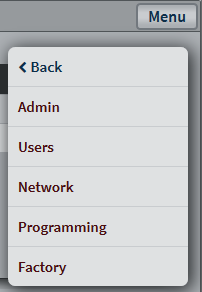
Admin- Resets all the information for the Admin account, including name, password, and logout time.
Users- Deletes all user accounts on the Control Server.
Network- Resets the network interfaces to default; Ethernet will be enabled with DHCP and Wireless will be disabled.
Programming - Deletes all information pushed to the Control Server from Composer. Including Site File and App configurations.
Factory - All-encompassing reset, returning the Control Server to the factory settings.
Applications
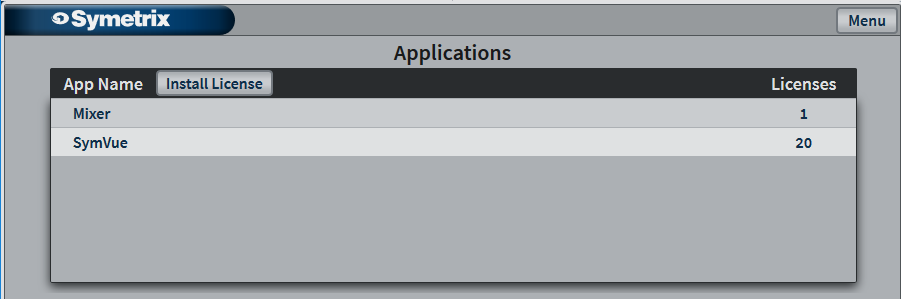
The Applications page consists of a list of all Apps available to the Control Server and the number of Licenses for each. As more Apps are introduced, the list will show the new Apps with 0 licenses.
Licensing Apps
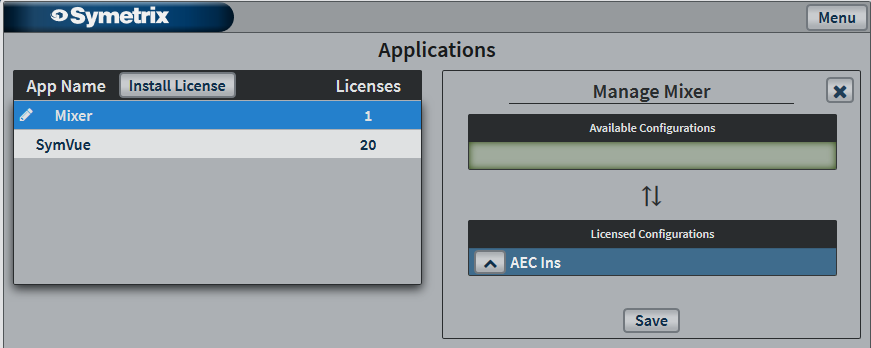
Once an App is selected, the menu shows all Available Configurations that have been created and pushed from Composer. The Available Configurations can then be dragged down into the Licensed Configurations panel for assignment to Users.
Note: There can be any number of Available Configurations, but you can not License more Configurations than the number of Licenses purchased per App.
Users
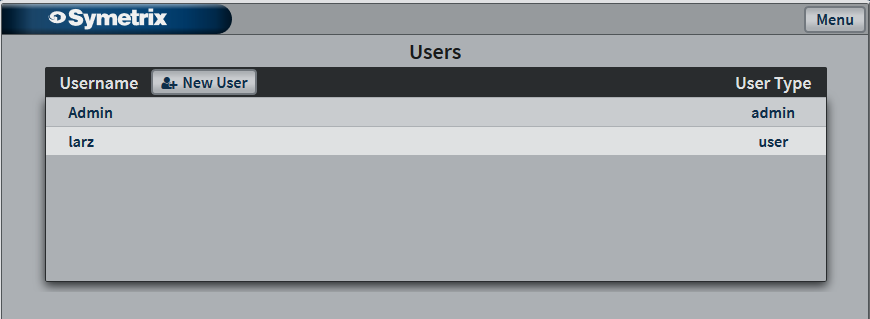
The Users page consists of a list of created users and their type.
New User- Creates a new User account.
New/Edit User
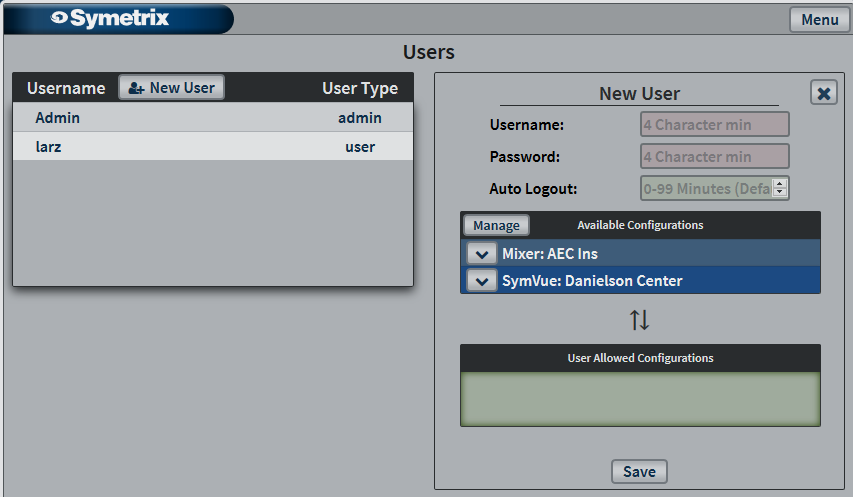
By either clicking the New User button or selecting an existing User, the User settings pane opens. These settings include Username, Password, Auto Logout time, and User Allowed Configurations.
Dragging an App from the Available Configurations box to the User Allowed Configurations box provides the User access to that application.
Delete- When editing an existing User, this button will delete the User account.
Files
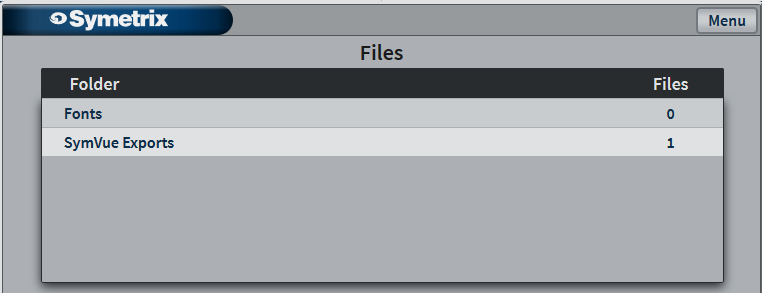
Fonts- Import custom fonts. You must first copy the contents of the Windows\Fonts folder to a folder that is not secured by Windows (i.e.. your desktop).
SymVue Exports- Lists the SymVue files that have been exported to Control Server.
Network
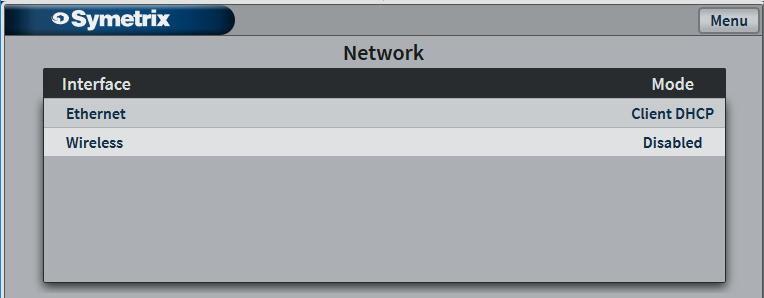
The Network page shows the status of the network interfaces. Select the desired network interface for configuration options.
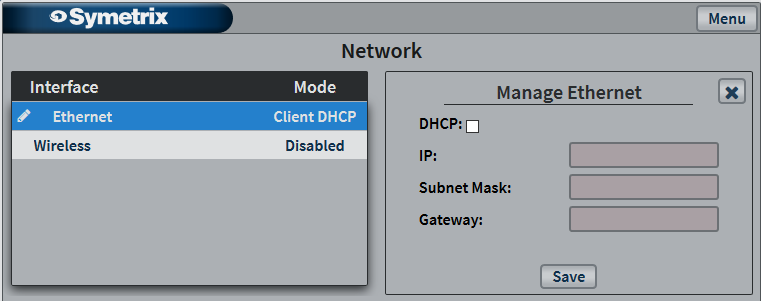
Ethernet Options:
DHCP Enable- Allows the Control Server's Ethernet settings to be set via DHCP if checked.
IP (available when DHCP Enable is unchecked)- Manually set the IP for the Control Server's Ethernet interface.
Subnet Mask (available when DHCP Enable is unchecked)- Manually set the Subnet Mask for the Control Server's Ethernet interface.
Gateway (available when DHCP Enable is unchecked)- Manually set the Gateway for the Control Server's Ethernet interface.
Note: It is highly recommended to reboot the Control Server after making changes to network settings to ensure proper functionality.
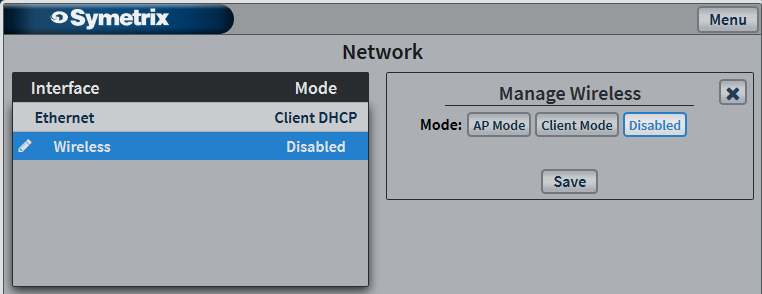
The Wireless network pane shows the modes available for the Wireless interface.
Disabled- Disables the wireless functionality of the Control Server.
Client Mode- The Control Server connects to an existing wireless network, allowing control of Apps from other devices on the network.
AP Mode- The Control Server's wireless interface creates an isolated wifi network for connecting devices for app control.
Client Mode
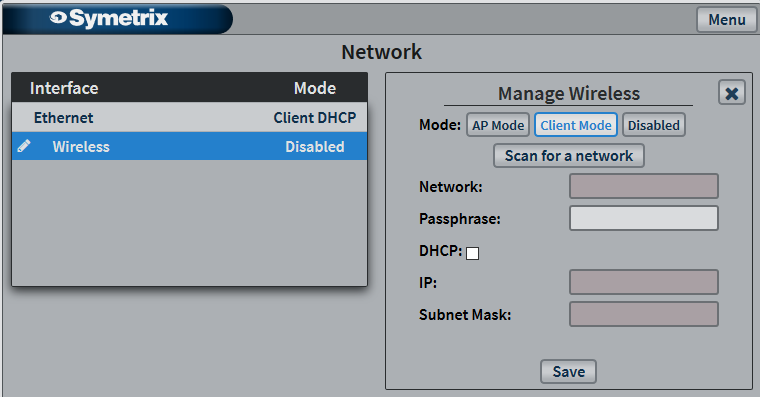
The Client Mode pane is where configuration to connect to an existing wireless network is made.
Network- Clicking in the field initiates scanning of wireless networks, the name of network chosen will then be displayed here.
Password- The password for the selected network.
DHCP Enable- Allow IP, Netmask, and Gateway to be provided by a DHCP server.
IP (available when DHCP Enable is unchecked)- Manually set the IP for the Control Server's Wireless interface.
Netmask (available when DHCP Enable is unchecked)- Manually set the Netmask for the Control Server's Wireless interface.
Gateway (available when DHCP Enable is unchecked)- Manually set the Gateway for the Control Server's Wireless interface.
Note: It is highly recommended to reboot the Control Server after making changes to network setting to ensure proper functionality.
AP Mode
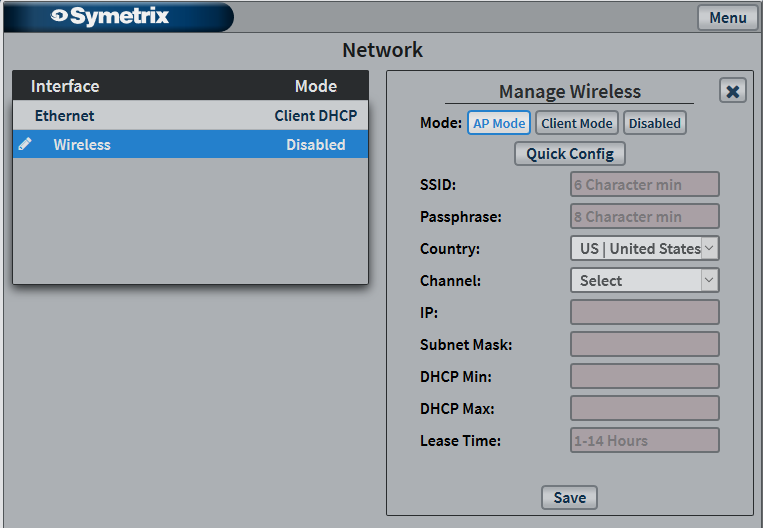
AP Mode of the Control Server's wireless interface allows for the setup of an isolated wifi network for enhanced web-based control for phones, tablets, and PC’s.
Quick Config- This button provides a quick and easy way to setup AP Mode, leaving only SSID, Password, and Channel to be manually set.
Note: It is highly recommended to reboot the Control Server after making changes to network setting to ensure proper functionality.
'
Update
This option enables updating the Control Server Firmware.
System Status
Provides a quick overview of the Control Server settings and status.