Numeric
Numeric readouts are often used to show a number value associated with a control. For example, they might be paired with a fader displaying the numeric value of the fader position and allowing the user to type in an exact value for the fader (see the Leader Follower page for the best way to do this). They can also be used stand alone on interfaces where parameters are usually entered by typing in an exact value, although they can be dragged to adjust. It should be noted that a Numeric can only be used for numbers. Data entry of any other type (e.g. a name or IP address), should use a “Label (Editable)” control.

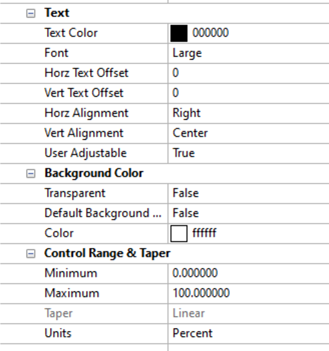
They have the following properties:
-
Text
-
Text Color - Specifies the Text Color
-
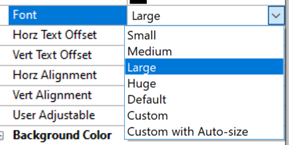
Font - Specifies to use a predefined, automatic or custom font for displayed text
-
Horz Offset - Specifies the number of pixels to shift the text horizontally within the numeric display border. Negative numbers shift it left; positive numbers shift it right.
-
Vert Offset - Specifies the number of pixels to shift the text vertically within the numeric display border. Negative numbers shift it up; positive numbers shift it down.
-
Horz Alignment - Specifies how the text is horizontally aligned: left, center or right. The alignment and offset work together; in most cases it is best to set the Alignment first, and then the Offset.
-
Vert Alignment- Specifies how the text is vertically aligned: top, center or bottom. The alignment and offset work together; in most cases it is best to set the Alignment first, and then the Offset.
-
User Adjustable - Specifies if the numeric can be user adjusted or is read-only. Read-only controls can still be adjusted by the script.
-
Background Color
-
Transparent - Specifies if the numeric background is transparent
-
Default Background (only shown if Transparent is False) - Specifies if the numeric should have the same background color as the Control View. When set to true, it automatically sets the Color property below it to the appropriate color. Alternately, this will be set to False if the Color property is manually changed.
-
Color (only shown if Transparent is False) - Specifies the numeric background color. If the Default Background property is set to true, this will be automatically set to the color of the Control View. Changing this will then change the Default Background property to False.
-
Control Range and Taper
-
Minimum - Specifies the lower limit of the control value. This will be reflected in the value that can be entered into the numeric and received by the script.
-
Maximum - Specifies the upper limit of the control value. This will be reflected in the value that can be entered into the numeric and received by the script.
-
Taper - Specifies the Taper for the control as log or linear. This affects the response when the control is dragged. Log Taper requires that both minimum and maximum values are greater than zero. This property will be greyed out unless this condition is met. For Numeric controls, this effects how the control moves when you click and drag the value with the mouse or use the up down keys to change value.
-
Default - Set the default for the control. See the default values section.
-
Units - Specifies the units associated with the numeric readout’s value. A variety of options are available to select applying the specified formatting and unit to the numeric value:
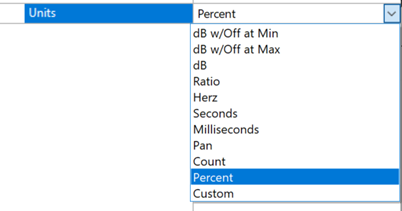 If "Custom" is selected, printf formatting syntax can be applied.