Fader
Faders allow direct control over a parameter. They can be configured in a variety of different ways to provide the exact control type and value range needed.
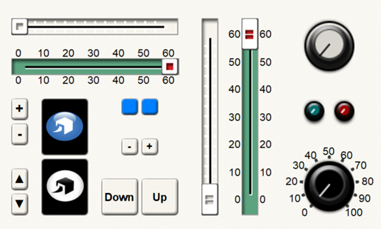
They have the following properties:
-
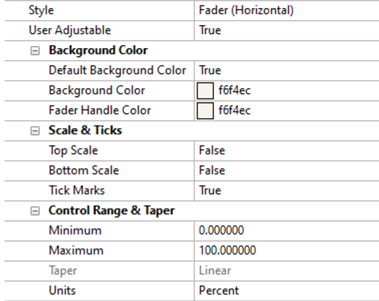
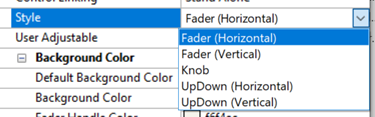
Style - Specifies the Style of the Fader being used. The selected style dictates which of the other properties that are shown.
-
User Adjustable - Specifies if the fader can be user adjusted or is read-only. Read-only controls can still be adjusted by the script.
-
Circular Mouse Operation (only shown for Knob Style) - Specifies if the knob can be operated by moving in a circular motion instead of a linear motion
-
Background Color
-
Transparent - Specifies if the Fader, Knob or Up/Down has a transparent background. Set to true to place on top of custom graphics.
-
Default Background - Specifies if the fader should have the same background color as the Control View. When set to true, it automatically sets the Color property below it. Alternately, this will be set to False if the color property is manually changed.
-
Background Color - Specifies the fader background color. If the Default Background property is set to true, this will be automatically set to the color of the Control View. Changing this will then change the Default Background to False.
-
Fader Handle Color (only shown for Vertical and Horizontal Fader Styles) - Specifies the fader handle color.
-
Button Pressed Color (only shown for UpDown Styles) - Specifies the color of the button when pressed
-
Knob Wiper Color (only shown for Knob Style) - Specifies the knob wiper color
-
Scale and Ticks (only shown for Fader Styles and Knob Style)
-
Top Scale/Left Scale (only shown for fader styles) - Specifies if the top or left fader scale is visible
-
Bottom Scale/Right Scale (only shown for fader styles) - Specifies if the bottom or right fader scale is visible
-
Knob Scale (only shown for knob style) - Specifies if the knob scale is visible
-
0 Pt. Only (only shown if at least one scale is present) - Specifies if only the “0” value should have a scale mark
-
Divisions (only shown if at least one fader scale is present) - Specifies the number of scale divisions
-
Scale Color (only shown if at least one fader scale is present) - Specifies the scale markings color
-
Tick Marks - Specifies if there should be tick marks on the control
-
UpDown Settings (only shown for UpDown Style)
-
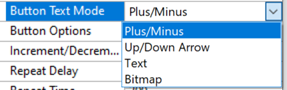
Button Text Mode - Specifies the information displayed on the UpDown button: plus/minus, up/down arrow, text or bitmap
-
Button Options - Specifies if there are both increment and decrement controls, just an increment control, or just a decrement control
-
Increment Text (only shown for Text mode) - Specifies the text for the increment button
-
Decrement Text (only shown for Text mode) - Specifies the text for the decrement button
-
Increment Button Bitmap File (only shown for Bitmap mode) - Specifies the custom image for the increment button. A resolution warning “!” may be shown if the file is too large relative to the button size. Try reducing the image dimensions.
-
Increment Button Pressed Bitmap File (only shown for Bitmap mode) - Specifies the custom image for the increment button
-
Decrement Button Bitmap File (only shown for Bitmap mode) - Specifies the custom image for the decrement button. A resolution warning “!” may be shown if the file is too large relative to the button size. Try reducing the image dimensions.
-
Decrement Button Pressed Bitmap File (only shown for Bitmap mode) - Specifies the custom image for the decrement button
-
Increment Decrement Amount - Specifies the amount to increment or decrement when pressed
-
Repeat Delay - Specifies the milliseconds initial delay before repeatedly changing the value.
-
Repeat Time - Specifies the milliseconds between each repeat of the value after the initial delay.
-
Control Range and Taper
-
Minimum - Specifies the lower limit of the control value. This will be reflected by the Scale displayed on the side of the fader and in the value received by the script.
-
Maximum - Specifies the upper limit of the control value. This will be reflected by the Scale displayed on the side of the fader and in the value received by the script.
-
Taper - Specifies the Taper for the control as log or linear. Log Taper requires that both minimum and maximum values are greater than zero. This property will be greyed out unless this condition is met. This will be reflected by the Scale displayed on the side of the fader and of course in the value received by the script.
-
Default - Set the default for the control. See the default values section.
-
Units - Specifies the units associated with the fader’s value. A variety of options are available to select:
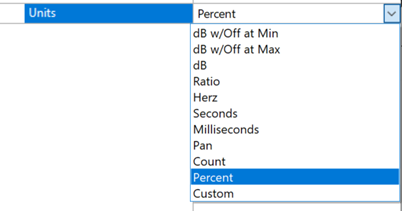 If "Custom" is selected, printf formatting syntax can be applied.
For faders, this property only affects the value shown in the status window at the bottom of the Design view screen
If "Custom" is selected, printf formatting syntax can be applied.
For faders, this property only affects the value shown in the status window at the bottom of the Design view screen