ARC-WEB Dialers
Supported iOS Display Resolutions
Edit ARC-WEB Dialer Volume Menu Dialog
Edit ARC-WEB Dialer Mute Menu Dialog
Edit ARC-WEB Dialer Preset Menu Dialog
The ARC-WEB Dialers for the Symetrix 2 Line VoIP Interface and Symetrix 2 Line Analog Telephone Interface cards are extensions of the current ARC-WEB.
Features
- A unique instance of the ARC-WEB Dialer may be enabled/disabled for each telephony interface.
- Each ARC-WEB Dialer instance controls two lines, two assignable volumes and mutes per line, 20 speed dial locations shared between lines, and up to 32 presets shared between lines.
- Each ARC-WEB Dialer instance may be protected with a unique username/password.
- Web App enabled, so ARC-WEB Dialers may be saved to your smart device’s home page for instant access appearing as a native app.
- Supported on the latest and most popular Windows and Mac OS X browsers as well as Android and iOS devices.
Supported Platforms
- Mobile Safari iOS version 6.0+
- Android version 4.1+
- Internet Explorer version 10.0+
- Chrome version 29+
- Safari version 6+: Mac OS X 10.7 or later
- Firefox version 36+
- Microsoft Edge
Supported iOS Display Resolutions
ARC-WEB and ARC-WEB Dialer will adjust to the device’s screen size and present a small screen (phone) or large screen (tablet / desktop) interface as appropriate. The minimum display size supported is 320x480 (640x960 Retina) pixels. It is recommended to save the ARC-WEB or ARC-WEB Dialer as a “web app” if using a smaller display device, particularly on those devices running iOS 8+, as the bottom navigation buttons may be obscured by the browser’s command bar.
Remote Control Manager
For each telephony interface in a site file, an entry will appear in the RS-485 section of the Remote Control Manager under the four ARC-WEB instances already listed. Any ARC-WEB Dialers created will be DISABLED until explicitly enabled by the user.
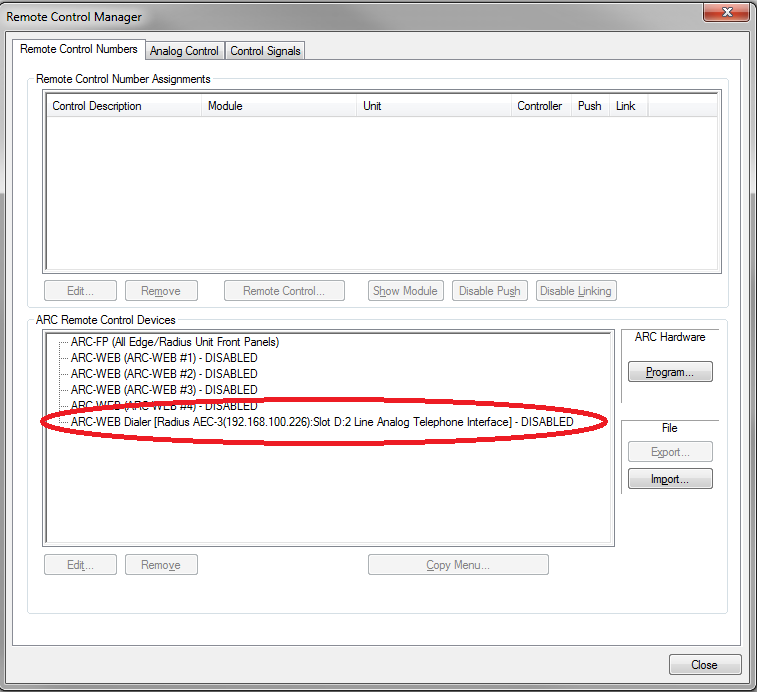
Edit ARC-WEB Dialer Dialog
Double-click on an ARC-WEB Dialer to open the Edit ARC-WEB Dialer dialog:
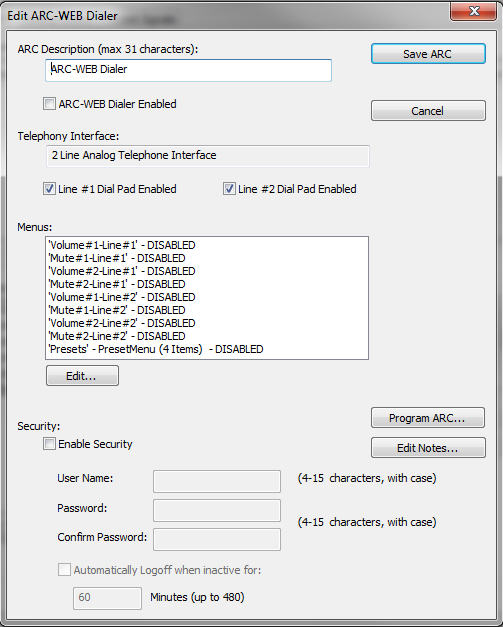
ARC Description (max 31 characters): User supplied text label of the ARC-WEB Dialer instance. This is displayed on the title bar of the interface and home page.
ARC-WEB Dialer Enabled (checkbox): Enables the ARC-WEB Dialer instance. It will not show up on the ARC-WEB Home Page unless explicitly enabled by the user.
Telephony Interface (non-editable display): Displays the Unit and Card the ARC-WEB Dialer instance is associated with.
Menus: A pre-configured ARC-WEB type menu structure that has two volumes and two mutes for each line, and a preset menu containing up to 32 presets just like an ARC-WEB. These menus show up as pre-configured pages, or panels, in the ARC-WEB Dialer interface.
Security: Security functions exactly like the ARC-WEB and like the ARC-WEB, each ARC-WEB Dialer can have its own unique username, password and inactivity logoff time.
Edit ARC-WEB Dialer Volume Menu Dialog
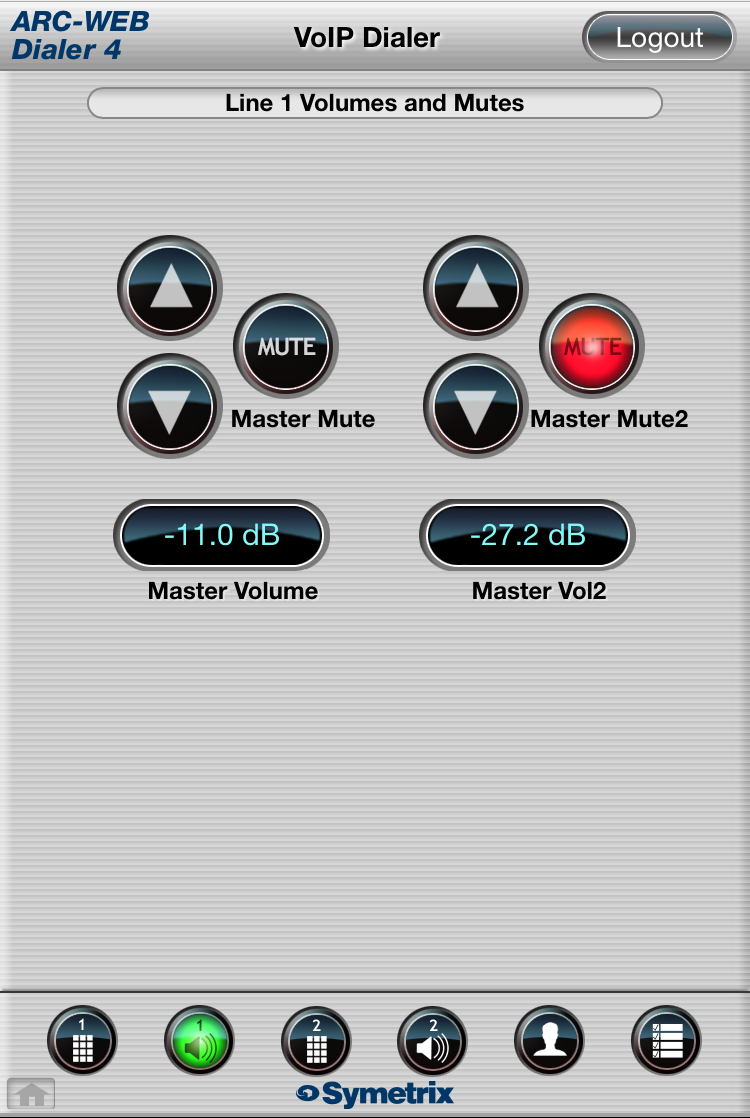
The Edit ARC-WEB Dialer Volume Menu dialog Enables and configures the four volume menus (2 per line) for the ARC-WEB Dialer instance. These volumes can control anything in your design and don’t necessarily need to be associated with the telephony interface.
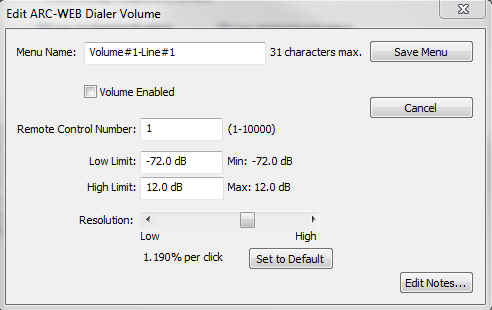
Menu Name (max 31 characters): User supplied text label that is placed below the volume level readouts.
Volume Enabled: Enables this particular volume menu. If not enabled, the Up and Down buttons, volume level readout, and text label for this particular volume menu are not shown in the interface.
Remote Control Number: Enter the Control Number for the parameter this volume menu is addressing.
Low / High: Enter the lower and upper range limits for the volume menu. Functions just like ARC-2e / ARC-WEB.
Resolution: Sets the amount of travel or value adjustment per click. Functions just like ARC-2e / ARC-WEB. Typically steps of 1.5 to 3.0 dB per click are pleasing to the ear. You can return the resolution to the default by clicking the Set to Default button. The default resolution is 3dB.
Edit ARC-WEB Dialer Mute Menu Dialog
The Edit ARC-WEB Dialer Mute Menu dialog Enables and configures the four mute menus (2 per line) for the ARC-WEB Dialer instance. These mutes can control anything in your design and don’t necessarily need to be associated with the telephony interface.
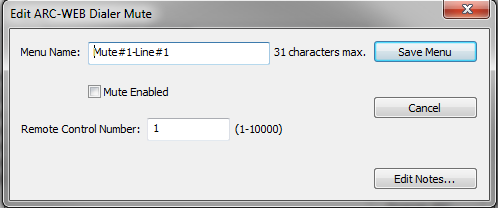
Menu Name (max 31 characters): User supplied text label that is placed below the mute buttons.
Mute Enabled: Enables this particular mute menu. If not enabled, the mute buttons and text label for this particular mute menu are not shown in the interface.
Remote Controller Number: Enter the Control Number for the parameter this mute menu is addressing.
Edit ARC-WEB Dialer Preset Menu Dialog
The Edit ARC-WEB Dialer Preset Menu dialog Enables and configures the preset menu (containing up to 32 presets) for the ARC-WEB Dialer instance. The presets are shared between the 2 lines.
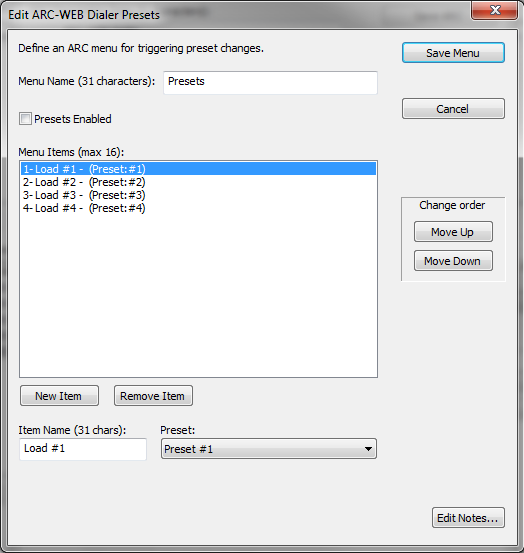
Menu Name (max 31 characters): User supplied text label. This is for reference only and is not shown in the ARC-WEB Dialer interface.
Preset Enabled: Enables this particular preset menu. If not enabled, the preset recall buttons and label banner for this particular preset menu are not shown in the interface.
Menu Items / Change Order / New Item / Remove Item / Preset: All of this functions exactly like the ARC-WEB.
Item Name (max 31 characters): This is the user supplied text label that is placed on the corresponding preset recall button.
ARC-WEB Dialer User Interface
URL Format for Direct Access of Individual Instances
Accessing ARC-WEB Pages
Once the ARC-WEB Dialers have been configured and the site file has been pushed to the Symetrix unit, you can access the ARC-WEB page by entering in the IP address of the Symetrix unit in your browser's URL. Example:
http://192.168.100.135/
URL Format for Direct Access of Individual Instances
A particular ARC-WEB or ARC-WEB dialer instance may be directly access using a custom URL. Assuming the same base URL as above, the URL to access an ARC-WEB would look like this:
http://192.168.100.135/arcweb.html?instance=aw1
Change the 1 to a 2, 3, or 4 as appropriate.
For a dialer, the URL would look like this:
http://192.168.100.135/dialer.html?instance=d1
Change the 1 to a 2, 3, or 4 as appropriate.
These URL strings can also be obtained by navigating to the desired instance and noting the URL in the browser’s address bar.
Home Page
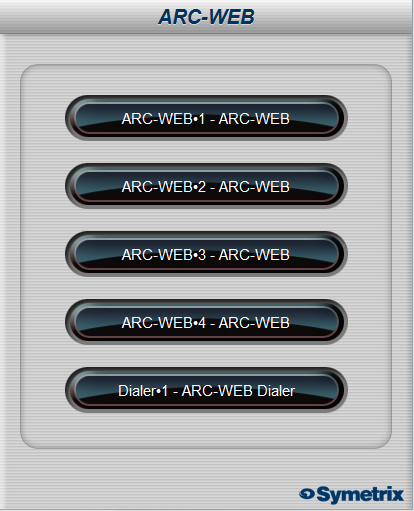
The home page displays all enabled instances of ARC-WEB and ARC-WEB Dialer.
*Login Page*
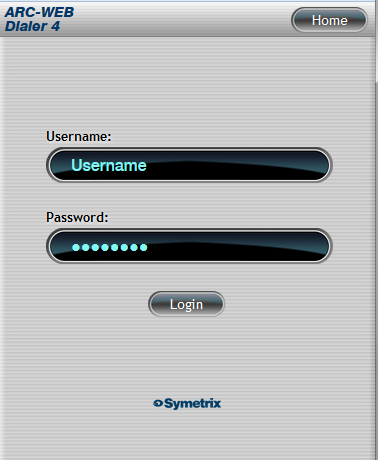
If an ARC-WEB or ARC-WEB Dialer has security enabled, the user will be directed to the login page after selecting that ARC-WEB or ARC-WEB Dialer from the home page.
ARC-WEB Dialer Default Page
For an ARC-WEB Dialer, the default page is the Line 1 Dialer. You can start on a different page by using a custom URL, by adding “&page=xyz”. The choices for “xyz” are “dp1” for Line 1 Dialer, “dp2” for Line 2 Dialer, “vol1” for Line 1 Volume, “vol2” for Line 2 Volume, “sd” for Speed Dial, and “pre” for presets. So for example, to start on the Presets page for dialer #4, the URL would be:
http://192.168.100.135/dialer.html?instance=d4&page=pre
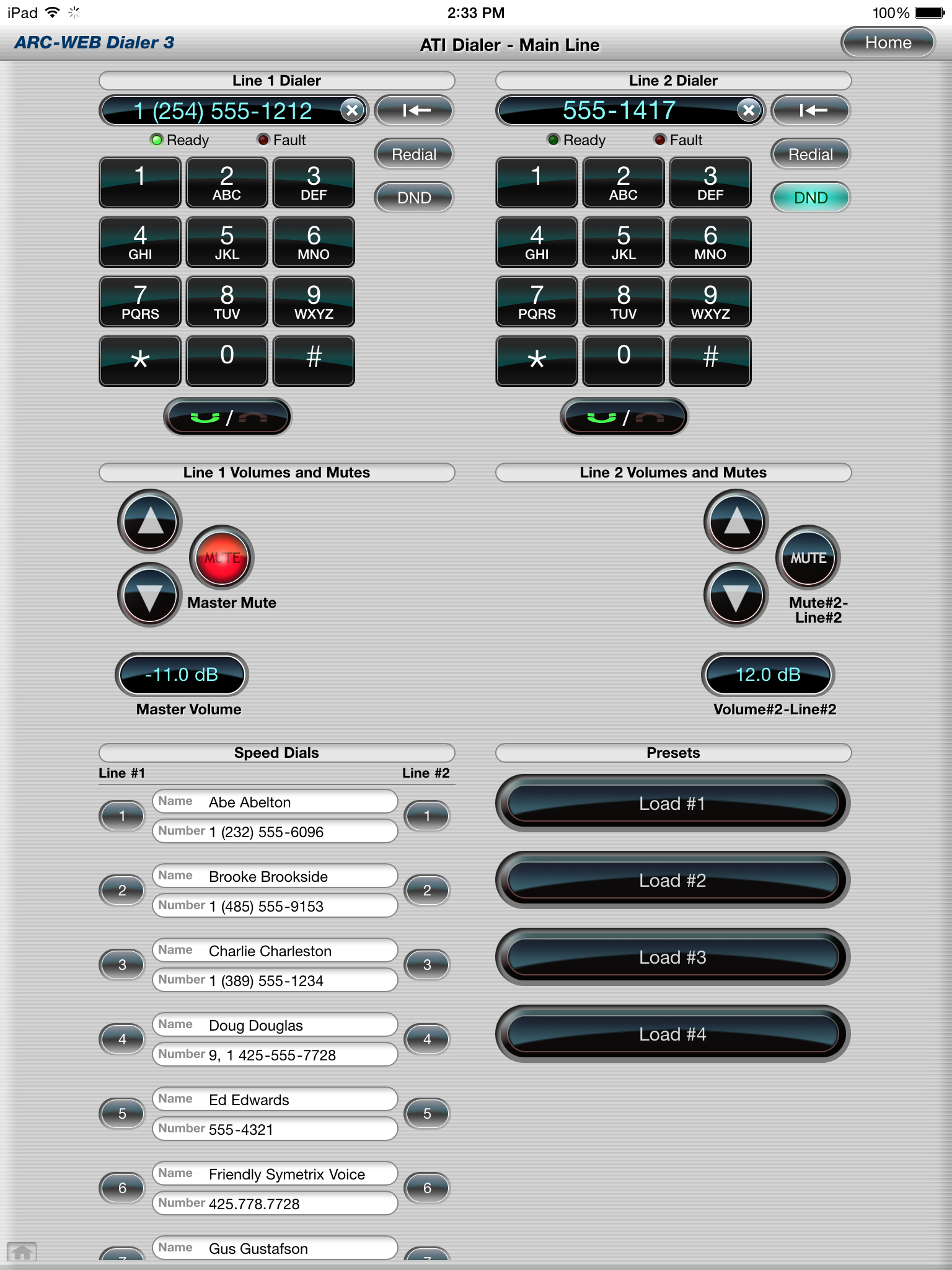
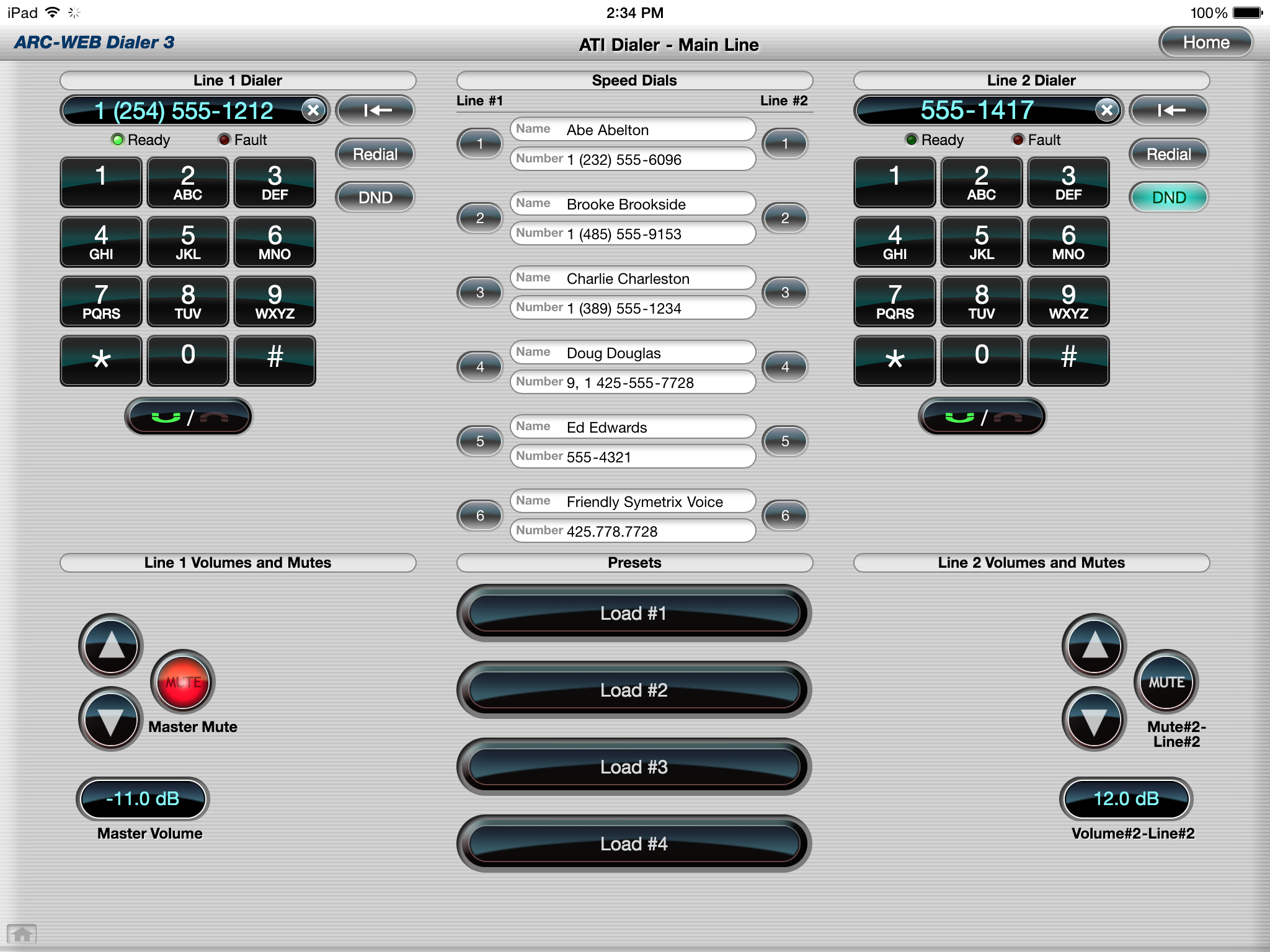
- ATI Line Dialer
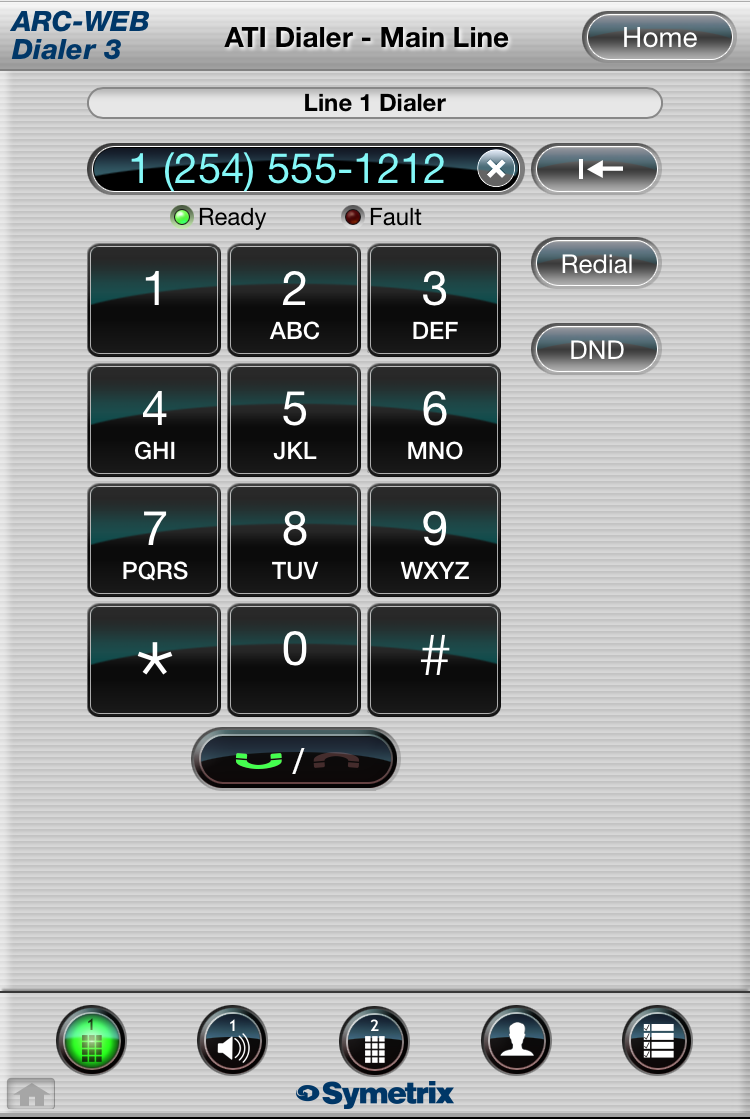
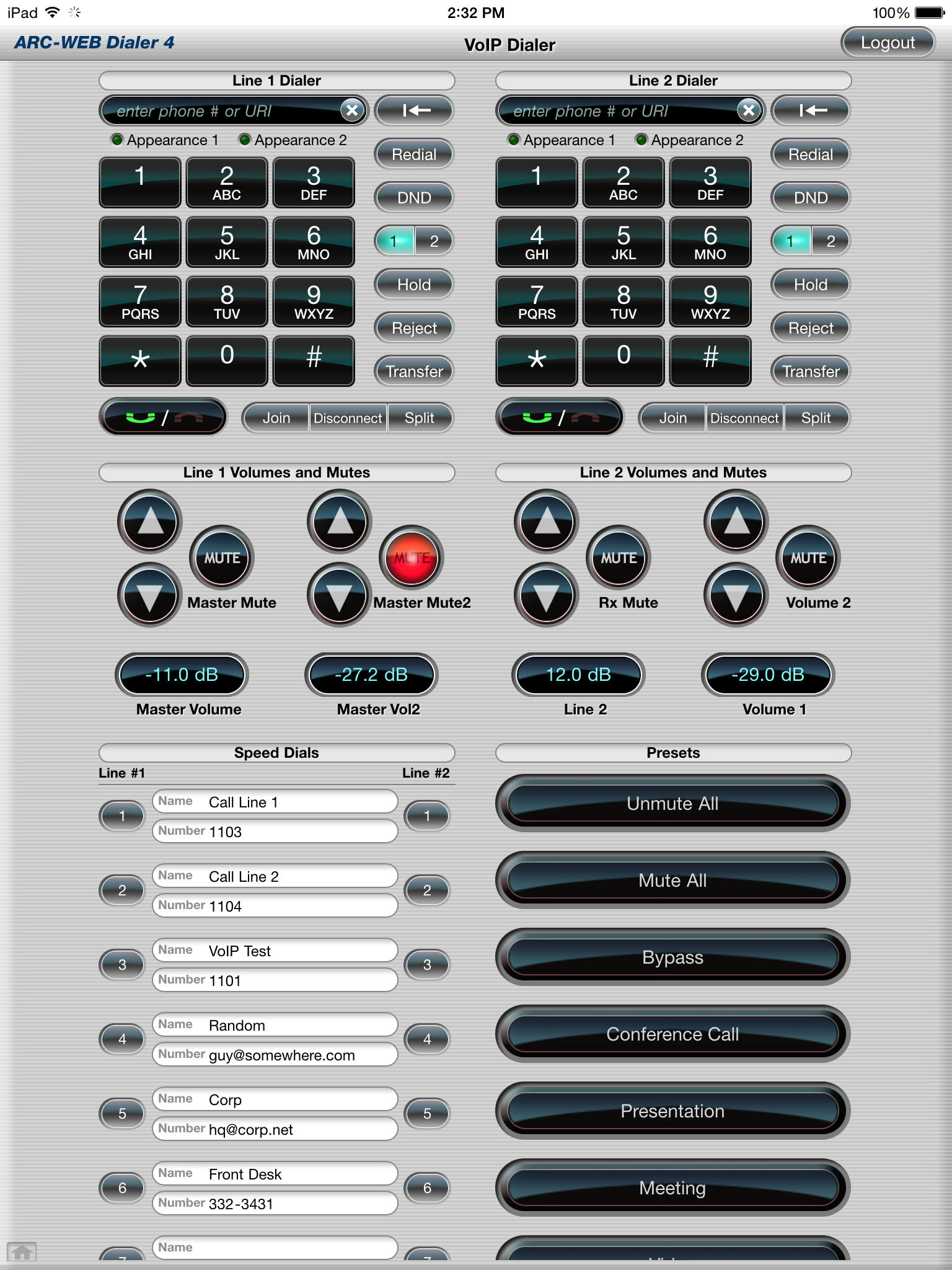
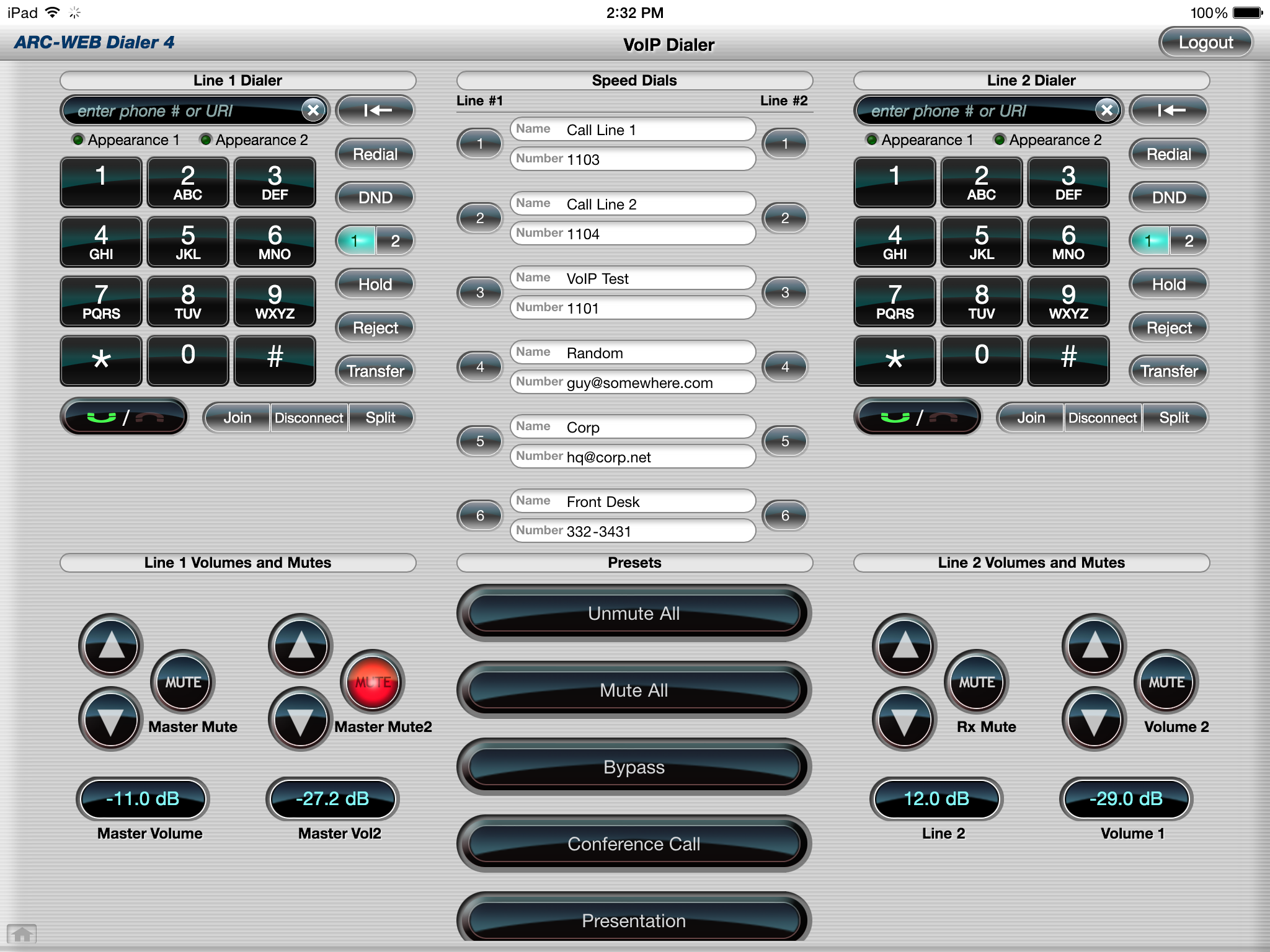
- VoIP Line Dialer
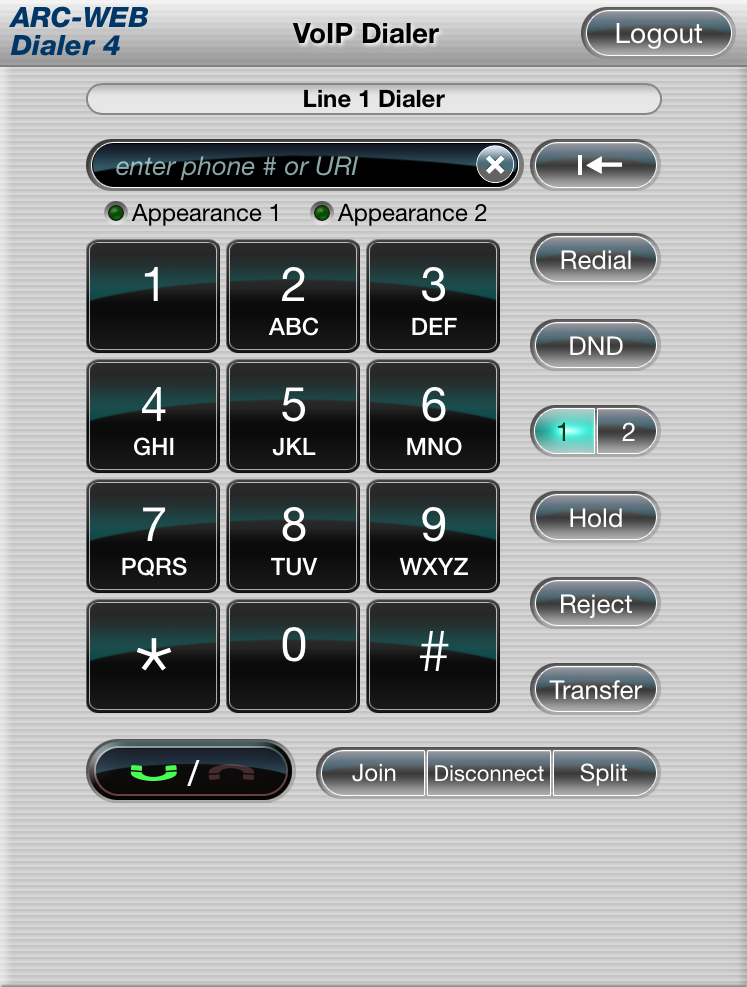
- Line Volumes and Mutes
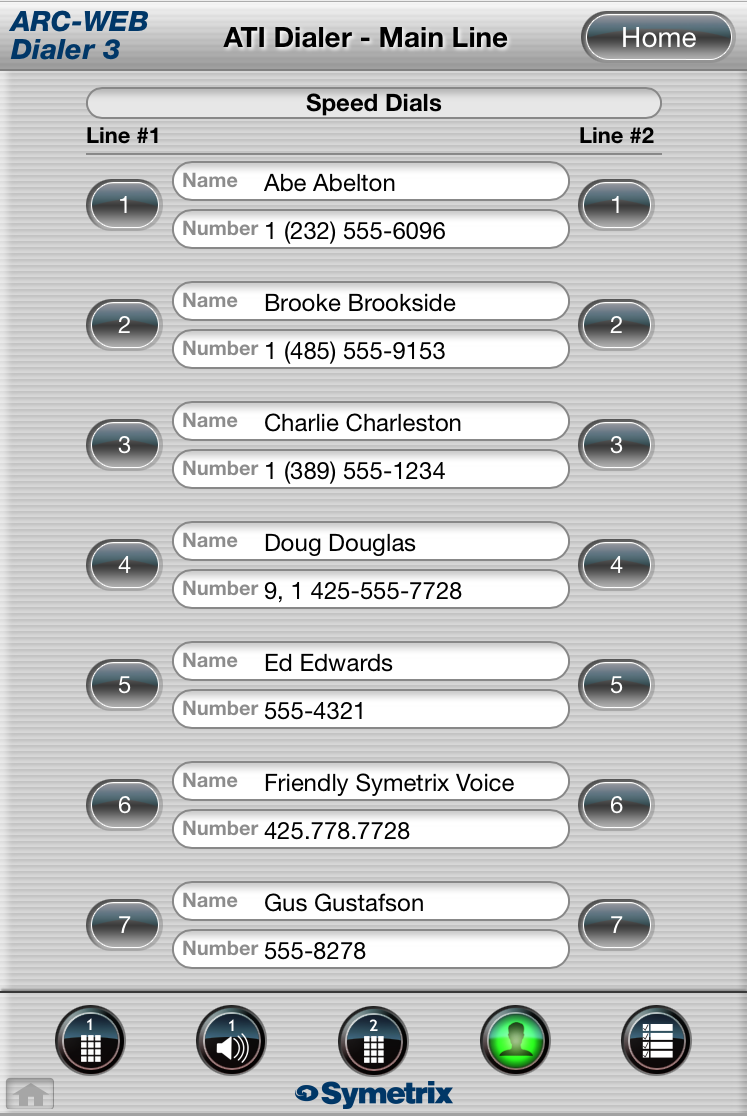
- Speed Dials - The buttons on the left send the speed dial number to line 1. The buttons on the right send the speed dial number to line 2. You can scroll through the speed dials the by swiping up or down.
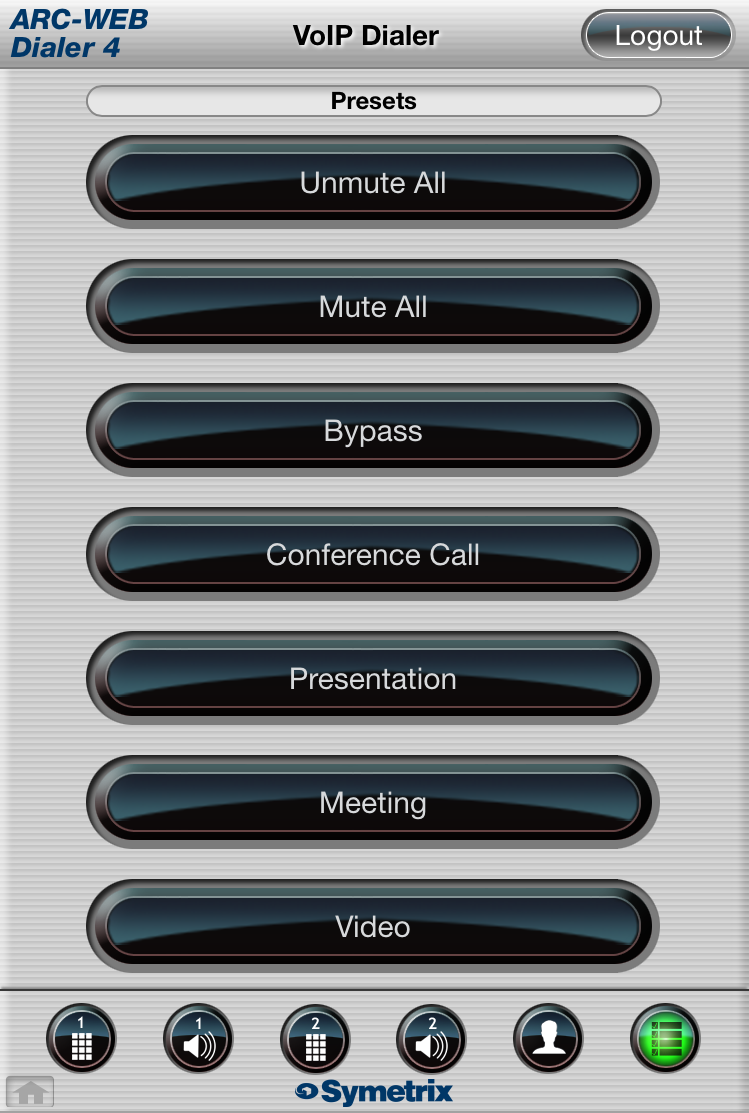
- Presets - If you have more presets than will fit on the screen, you can scroll them by swiping up or down.
iPad Display
Here are screen shots of what the dialers look like with the iPad's larger screen size:
ATI Dialer - Vertical
ATI Dialer - Horizontal
VoIP Dialer - Vertical
VoIP Dialer - Horizontal
*ARC-WEB as a Web App*
Click here for instructions on adding a shortcut to ARC-WEB on your home screen.