Playback¶
Media Manager and Eject Media Buttons
Control Screen and SymVue Operation
Hardware/Format Requirements
Compatibility
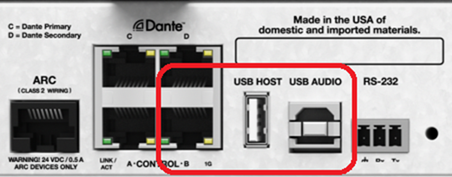
The Radius NX and the Server D100 are the two DSP model families that support recording and playback. The Radius NX utilizes an attached USB drive connected the "USB Host" port, while the Server D100 uses the dedicated internal media SSD. This feature is not available on other DSP hardware, and thus will not be visible within the Toolkit in Composer for those units.
Channel Count
Radius NX supports 8 channels of playback. This can be from a single module or split across multiple modules.
Server D100 supports 32 channels of playback in its base configuration. This can be upgraded to 64 or 128 channels of playback via an optional license configured in AV-Ops Center. This can be from a single module or split across multiple modules.
File Formats Supported
WAV is currently the only file format supported. Multi-channel WAV files are playable, however the channels passed are based on the Playback Module output count.
For example:
-
8 Channel .WAV file with a 2 channel Playback module: Only input channels 1 and 2 of the file are passed. No mixing or summing of audio is done.
-
2 Channel .WAV file (stereo) with an 8 Channel Playback module: Only outputs 1 and 2 of the module pass audio. No distribution of audio to other outputs will be done.
Sample Rates
Any sample rate from 8 kHz-48 kHz is supported by the audio playback module. For sample rates other than 48 kHz, sample rate conversion will be performed. Due to processing limitations, some artifacts may be audible when sample rate conversion is used, especially from lower sample rates (e.g., 8kHz converted to 48kHz). You may mitigate this by converting your files to 48kHz outside of Composer.
External USB Drive - Radius NX
For Radius NX, playback files are stored on an externally connected USB flash storage device and the available recording space is determined by capacity of the device present. The total and available space is indicated within the Recording module once placed into the design. Not all USB drives are created equal, and currently only a select few USB drives have been found to perform without issues. The drive that performs very well, is the SanDisk Ultra Fit USB 3.1 Flash Drive G46. If the recording feature is highly critical to your installation, please use this drive.
Internal Media SSD - Server D100
For Server D100, playback files are stored on the dedicated 500GB internal Media SSD device. The total and available space is indicated within the Recording module once placed into the design.
Composer Software
Recording modules are located within the Design View Toolkit under the section called “Recording & Playback”. Within this category you will find “Playback Modules”; under which you will find “Custom…”
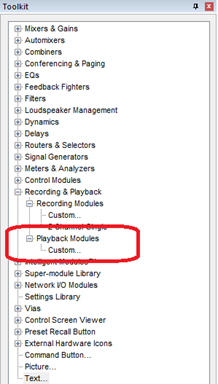
Double-clicking or dragging the “Custom...” item into the Design View will open the “Place Customized Audio Playback Module” dialog.
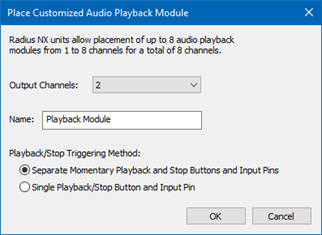
This dialog allows the adjustment of Input Channels, Name and Playback/Stop Triggering Method.
-
Output Channels - The channel count is selectable via Combo box from 1 to 8 channels on Radius NX. There is a maximum of EIGHT (8) channels per Radius NX that may be used for simultaneous playback within a design. 2 is the initial default. On server D100, the maximum channels per module is 128. By default the Server D100 supports 32 channels of playback but this can be upgraded with option software licenses. At design time, simply use the number of channels required by your design; composer will check that the required license is installed on the unit when pushing the Site, and present a warning if an additional license are needed.
-
Module Name - This sets the standard module label that appears above the module in the Design View. The user-entered name does not affect the default name when additional modules are placed. The default is always “Playback Module”.
-
Playback/Stop Triggering Method - This option allows you to configure the module with separate play and stop buttons or a single stop/play button.
· Separate Momentary Play and Stop Buttons and Input Pins - The default is separate buttons labeled STOP and PLAY, which allows for different individual signals to trigger starting and stopping Playback. Both button and control signal input pins are available for each function on the module in Design View. With separate controls, the separate “Playing” LED indicates the current state of playback by flashing, since the buttons are momentary and return to their resting state when depressed.
· Single Play/Stop Button and Input Pin-If a single control is needed to start and stop playback, such as with an ARC menu, logic control, etc., select the combined stop/play option. This creates a single, latching button and control signal input. The state of playback is directly controlled by the state of this control or input pin. When not playing, the button is labeled “STOPPED”. When playback is initiated, the label changes to “PLAYING” and the button will flash red along with the “Playing” LED.
 ¶
¶
¶
Multiple Modules
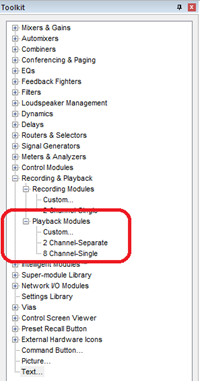
As Custom modules are configured and placed, those configurations are added to the Playback Modules section so they may be immediately placed later, but ONLY within the current Composer file.
NOTE: There is a limit of to the number of separate playback modules that may be placed within a device as described above. The total channel count may be allotted over multiple modules. When pushing online, if more than the supported number of modules are detected, or more than the total supported playback channels, a warning message is issued, and the push fails.
When attempting to paste a playback module into the wrong type of DSP, the module will be automatically deleted. If a playback module should somehow end up in the wrong type of DSP through an unanticipated edit, a warning message is issued, and the push fails.
Design and Module Views
Design View
In the Design View, the module has an output pin for each configured playback channel, and control pins dependent on the playback trigger mode configured. Triggering the module through control pins happens on the transition, not the state of the control, so momentary buttons works well for this purpose.
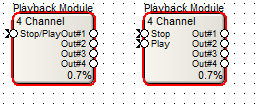
The module may be re-configured for a different channel count after being placed, by right clicking the module and selecting “Change Custom Module Size”.
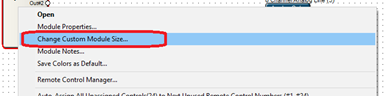
This opens the “Edit Customized Audio Playback Module” dialog, where you may change either the channel count or Play/Stop configuration. Note that this will not be added to the list of playback module configurations in the tool kit.
Double clicking on the module or choosing the “Open” menu item from the right click menu will open the module view.
Module View
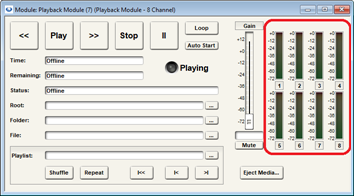
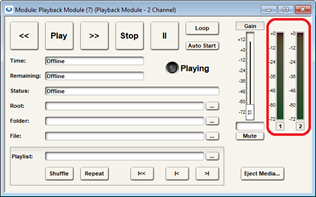
The Module View will be nearly identical no matter the channel count. As seen below, additional channels add meters for those channels, however transport and other controls remain unchanged.
8 Ch. module:
2 Ch. module
 ** **
** **
For modules with more than 8 channels (supported only on Server D100), only the first 8 channel meters will be shown. Additional meters may be added with external Meter modules if needed.
Playback Controls
Transport Controls
The transport controls are comprised of seven buttons, and behave as follows:
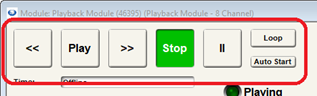
· Rewind (“<<”)
o When pressed, file time will rewind a set amount, or at an accelerating pace if held.
o If file is playing, audio rewinds and is audibly time compressed. File will continually restart once beginning is reached, regardless of the loop state or if playing a playlist.
o If file is paused, the time rewinds silently. File will stop completely once beginning is reached, regardless of the loop state or if playing a playlist.
o Rewind will not move to a different file.
· Play
o When pressed while Online, the Play button will latch, and immediately start playing the selected file from the beginning. Subsequent presses of the Play button will do nothing if audio is already playing. Note that if playback has been paused, the Play button will not work to unpause (pause must be hit again).
· Fast-forward (“>>”)
o When pressed, file time advances at a set pace, or an accelerating pace if held.
o If file is playing, audio advances and is audibly time compressed.
o If file is paused, audio advances silently.
o Whether playing or paused, once the end of the file is reached, playback will stop. If the Loop button is enabled, the time will wrap around to the beginning of the file. If playing with a playlist engaged, the next file will load and start playing, and time will then continue with the new file.
· Stop
o If playing, immediately stops playingand returns the time position to the beginning of the file.
o If paused, turns off the paused state and returns to the beginning of the file.
· Pause (“II”)
o If playing, immediately stops playback while retaining the time position and “playing state” shown by the latched “Play” button. Press again to unpause playback.
· Loop
o When engaged, when a file is playing and reaches its end time position, the file restarts at the beginning and continues playing.
o Only affects a single file
o State may be changed while offline.
· Auto Start
o If engaged, playback of the currently selected file or playlist will begin when a site file is first pushed, or upon power cycling with a valid site file pushed.
o If changed while online, the new value will only have an effect if the site file is configured to restore saved control values on push or power cycle.
Media Status Controls
The media status controls consist of the time, remaining, and status text fields as well as the playing state LED. They operate as follows:
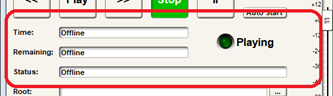
· Playing LED
o During playback, this LED flashes green. When paused or stopped, it is off. It is always off when offline.
· Time:
o When online, displays the current position in MM:SS or HH:MM:SS (if > 1 hour) format for the currently playing or paused file. Displays 00:00 if stopped.
o If offline, displays “offline”.
o While online, time may be edited by either double-clicking the Time field, or by selecting it and hitting 'Enter'. Typing in the new time and hitting 'Enter' will then make playback jump to the new time. Note that entering a time that is past the end of the file will be ignored.
· Remaining:
· When online, displays the time remaining in the playback of the current file in MM:SS or HH:MM:SS (if > 1 hour) format when playing or paused. It will always show the length of the file if stopped. While offline, displays “offline”. This field cannot be edited.Status Text
o When online, displays the current playback status. Typical messages will read:
§ "Stopped"
§ "Playing 'X.wav'"
§ "Paused 'X.wav'"
§ "Looping 'X.wav'"
Source File Controls
The source file controls consist of Root, Folder and File, and determine what source file will be played when not playing a playlist.
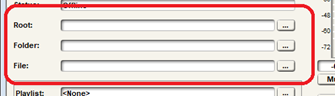
Control & Action
· Root
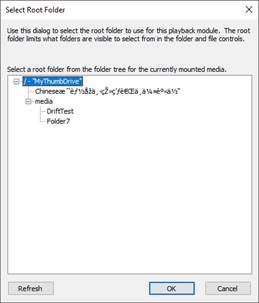
§ The highest level of a two-part folder identification. This allows for limiting the folders that can be visible and accessed in the folder control. By not allowing user access to this control, the designer can limit which folders are visible to any specific user. The user may manually type the root folder name which is relative to the root of the drive. By default, the root is “/”. The root folder may be a compound folder name with separating slash characters.
o “…” Button
§ Opens the Select Root Folder dialog, which allows the user to select a root folder from all available folders on the drive. A tree control is presented to allow selecting any folder or compound folder and setting it as the current root folder.
§
· Folder
§ The lower level of a two-part folder identification. The folder control allows the user to choose a folder to locate a file, or to select the folder containing the universe of files for an “All Files” playlist. The user may enter the root folder name manually and is concatenated with the root folder value. By default, the folder is “/”. The folder may be a compound folder name with separating slash characters.
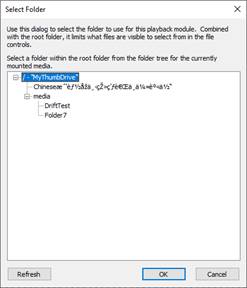
o “…” Button (Folder)
§ This button opens the Select Folder dialog, which allows the user to select a folder from the available folders visible from the from the selected root folder of the drive. A tree control is presented to allow selecting any folder or compound folder.
§
· File
§ The name of the file selected for playback, looped or not. The user may enter the file name manually. By default, the file value is empty.
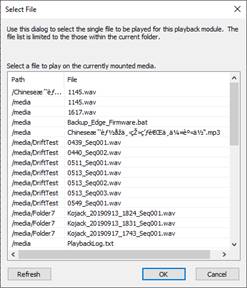
o “…” Button (File)
§ This button opens dialog which allows the user to select a file from a list of all files in the selected folder of the drive. The selected folder is a concatenation of the root and folder control values. The user is not allowed to navigate folders from this control.
§
Playlist Controls
The playlist controls are separated from the rest of the controls with a defining border, and include a playlist file name, shuffle, repeat and navigation buttons.
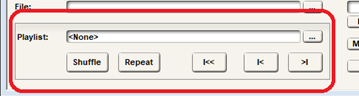
· Playlist:
o The name of the playlist file currently selected. The user can manually enter the name of the playlist or one of the two special file names: “\
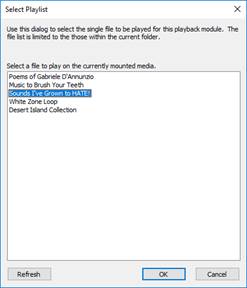
· “…” Button
o This button opens the Select Playlist dialog which includes all user created Playlist, ‘\
· Shuffle
o If stopped or offline, the shuffle button state affects what will happen when playback is started. When playback starts, a randomized playback order is constructed from the current playlist. If already playing, turning on Shuffle causes the current song to stop and the playlist to be re-randomized. Playback will then continue with the new starting song. If already playing and Shuffle is turned off, playback is not interrupted, and the next song played will be the next file in the non-randomized playlist. If the current song is listed more than once in the playlist, the first instance is assumed.
o If paused, turning on shuffle causes the playlist to be re-randomized. The first file in the newly randomized playlist will be loaded once unpaused. If paused and turning off shuffle, the current file and position is not changed. However, the next song played will be the song after the current song in the non-randomized playlist. If the current song is listed more than once in the playlist, the first instance is assumed.
o If “\
· Repeat
o Repeats the Playlist after the last file has been played. The state may be changed while offline.
· First (“I<<”)
o When playing and online, stops playing the current file and starts playing the first file in the current shuffled or non-shuffled playlist. The play list is not re-randomized if shuffle is on. If paused, repositions to the first file in the current shuffled or non-shuffled playlist from the start and maintains the paused state.
· Previous (“I<”)
o When playing and online, restarts playing the current file from the beginning. If playback is currently positioned within the first 2 seconds of the file, the previous file in the current shuffled or non-shuffled playlist will start playing from the beginning. If paused, repositions to the beginning of the current file. If already at the beginning of the file, this button positions to the start of the previous file in the shuffled or non-shuffled playlist and maintains the paused state. If already on the first file in the playlist, stops.
· Next (“>I”)
o When playing and online, begins playing the next file from the start in the current shuffled or non-shuffled playlist. If the last file, stops. If paused, repositions to the beginning of the next file in the shuffled or non-shuffled playlist from the start and maintains the paused state.
*Refresh buttons…
o For all “…” dialogs, the “Refresh” button is used to retrieve the latest Media information from the unit and repopulate the list or tree control.
Gain and Metering Controls
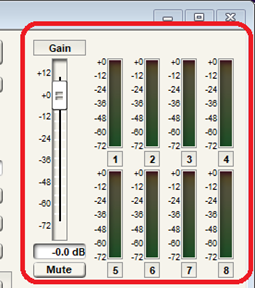
There is a single gain fader and mute control which affects all playback channels. There is a separate numbered meter for each channel configured. The meters are post-fader/post-mute.
Media Manager and Eject Media Buttons
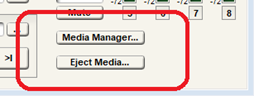
The “Media Manager…” button opens a Web based utility to manage the contents of the media of a located unit. You may also access the utility with the host unit’s IP address via a web browser.
The “Eject Media…” button unmounts the USB drive in the Host port. If media is loaded and online, the transport is stopped, the media is unmounted, and a message is shown in the status control.
Media Manager is a separate Help File entry. For more information, click on link.
Control Screen and SymVue Operation
Nearly all Playback controls can be copied to control screens and exported to SymVue. All non-static controls can be remote-controlled.
Limitations include both the Media Manager button and “…” buttons. These buttons only function within Composer or SymVue for PC and cannot be exported to either the T-5 or SymVue for Control Server.
*Note – On the T-5 only... All text fields for media navigation are ‘Read Only’ and cannot be edited. This include the Time, Remaining, Root, Folder and File fields.
Pushing/Pulling Online
Pushing
When pushing online, the design is analyzed for faults including the number of playback channels configured. Up to 8 playback modules per unit can be placed with a total channel out of up to 8 channels. If more are detected, a warning message is issued, and the push fails.
TODO: replace missing screenshot.
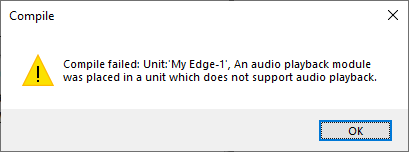
Composer does not allow placement of playback modules in units other than Radius NX units. Normally, it isn’t possible to place into a non-Radius NX unit, but if one is within the site file through an unanticipated edit, a warning message is issued, and the push fails.
 ¶
¶
Pulling
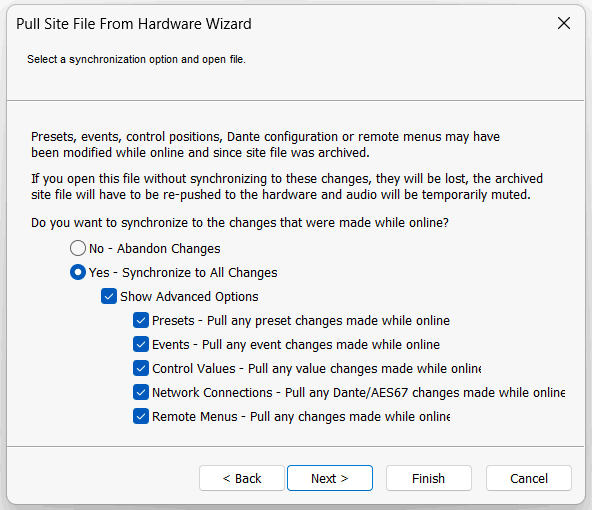
When Synchronizing to All Changes, ‘Control Values’ selection transfers values of the “Root”, “Folder”, “File” and “Playlist” to Composer, and are synced into the individual audio playback modules in the designs.
Network Access
The playback media can be accessed via FTP on host computer. See ‘Recording’ help entry for more information.
Issues and formatting
See ‘Recording’ help entry for more information.