Storing Presets
Right-click Directly On a Parameter
Right-click In a Blank Space of a Module
Right-click Directly On a Module
Right-click In a Blank Space of a Control Screen
There are several methods for storing parameters into Presets.
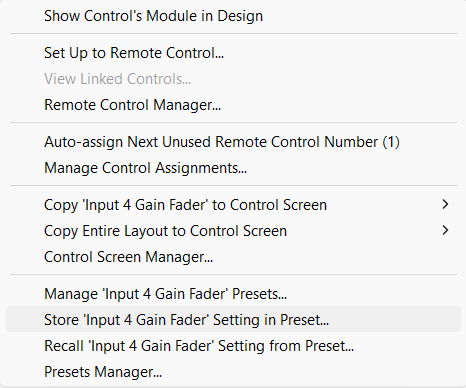
Right-click Directly On a Parameter:
When you right-click directly on a parameter, the contextual menu to the right is shown. Selecting “Store \
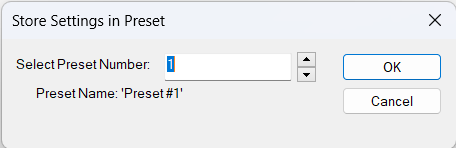
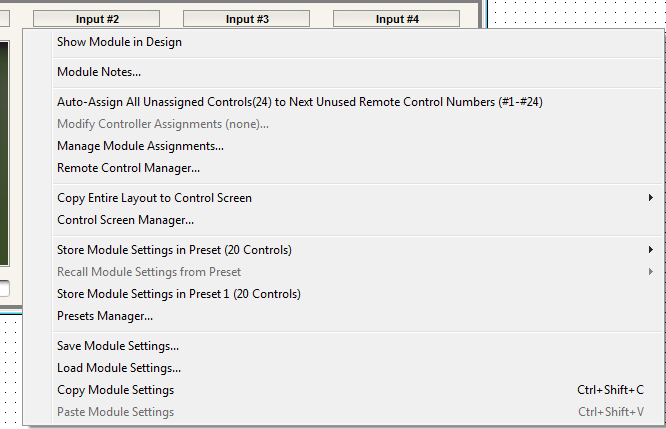
Right-click In a Blank Space of a Module:
When you right-click in the blank space of a Module, the contextual menu to the right is shown. From here you can:
-
Store Module Settings in Preset - This will store the clicked on module's settings into the Preset number designated by walking the sub-menu to a specific Preset location and selecting it. Some shortcuts accelerate this process. For example, to store to Preset #134, right-click the control and press ‘s134’. Note that Preset numbers must be entered as 3-digit numbers for this to work, so leading zeros may be required in some cases. For example, to store to Preset #5, right-click the control and press ‘s005’.
-
Store Module Settings in Preset # - This will store the clicked on module's settings into the Preset number shown. The Preset number shown will be the last Preset stored into, useful for jumping between Modules and Parameters and building a single Preset quickly. The shortcut key ‘i’ provides access to this menu item. Hence, any control can be stored in the last preset used just by right-clicking the control and pressing ‘i’.
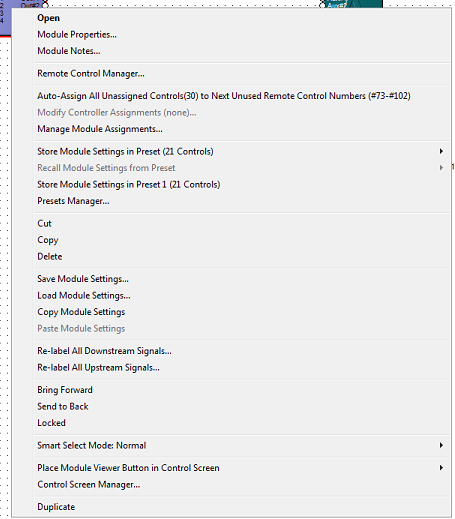
Right-click Directly On a Module:
When you right-click directly on a Module, the contextual menu to the right is shown. From here you can:
- Store Module Settings in Preset - This will store the clicked on module's settings into the Preset number designated by walking the sub-menu to a specific Preset location and selecting it. Some shortcuts accelerate this process. For example, to store to Preset #134, right-click the control and press ‘s134’. Note that Preset numbers must be entered as 3-digit numbers for this to work, so leading zeros may be required in some cases. For example, to store to Preset #5, right-click the control and press ‘s005’.
- Store Module Settings in Preset # - This will store the clicked on module's settings into the Preset number shown. The Preset number shown will be the last Preset stored into, useful for jumping between Modules and Parameters and building a single Preset quickly. The shortcut key ‘i’ provides access to this menu item. Hence, any control can be stored in the last preset used just by right-clicking the control and pressing ‘i’.
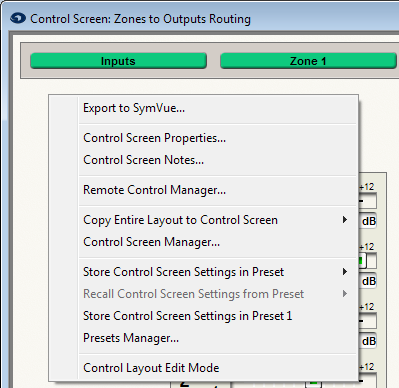
Right-click In a Blank Space of a Control Screen:
When you right-click in the blank space of a Control Screen, the contextual menu to the right is shown. From here you can:
- Store Control Screen Settings in Preset - This will store the Control Screen's parameter settings into the Preset number designated by walking the sub-menu to a specific Preset location and selecting it. Some shortcuts accelerate this process. For example, to store to Preset #134, right-click the control and press ‘s134’. Note that Preset numbers must be entered as 3-digit numbers for this to work, so leading zeros may be required in some cases. For example, to store to Preset #5, right-click the control and press ‘s005’.
- Store Control Screen Settings in Preset # - This will store the Control Screen's parameter settings into the Preset number shown. The Preset number shown will be the last Preset stored into, useful for jumping between Modules and Parameters and building a single Preset quickly. The shortcut key ‘i’ provides access to this menu item. Hence, any control can be stored in the last preset used just by right-clicking the control and pressing ‘i’.