Matrix Mixers in Control Screens
Overview
Matrix controls can be exported to control screens to customize the view for users using third-party control devices. Here's an example of all of the controls on an 8x8 matrix mixer exported to a control screen:
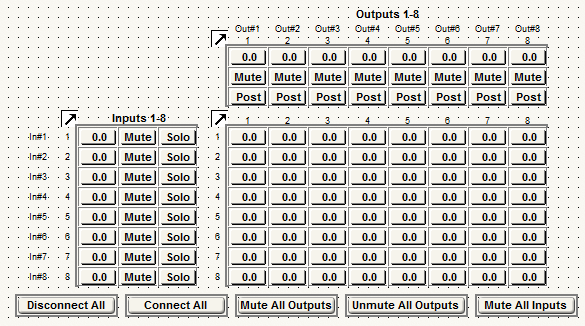
**Connect/Disconnect All, Mute/Unmute All Outputs, and Popup buttons cannot be exported to SymVue.**
*For more information on configuring control screens click here.
Matrix Input Properties
-
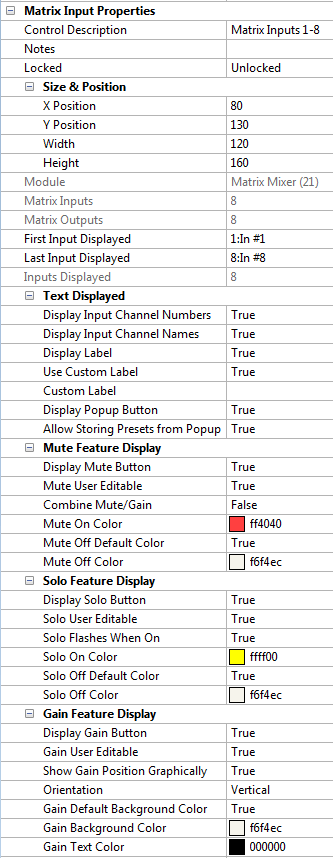
Control Description - Enter a custom description for the input controls.
-
Notes - Enter notes for the input controls.
-
Locked - Setting this option to 'Locked' will prevent the controls from being moved or resized when one or more are selected.
Size & Position
-
-X Position - Moves the input controls horizontally to the specified pixel location in the control screen. (Only moves by multiples of 10 if snap to grid is enabled)
-
Y Position - Moves the input controls vertically to the specified pixel location in the control screen. (Only moves by multiples of 10 if snap to grid is enabled)
-
Width - Adjusts the width of the input controls.
-
Height - Adjusts the height of the input controls.
-
Module - Displays the name of the module in the design view.
-
Matrix Inputs - Total number of inputs in the matrix mixer module.
-
Matrix Outputs - Total number of outputs in the matrix mixer module.
-
First Input Displayed - Choose the first input to be displayed.
-
Last Input Displayed - Choose the last input to be displayed.
-
Inputs Displayed - Total number of inputs displayed in the control screen.
Text Displayed
-
Display Input Channel Numbers - Set to True to display the input channel numbers to the left of the channel row.
-
Display Input Channel Names - Set to True to display the input channel label to the left of the channel row.
-
Display Label - Set to True to display the input channel label above the input channels.
-
Use Custom Label - Set to True to use a custom label. Hidden if Display Label is set to False.
-
Custom Label - Enter custom label here. Hidden if either Display Label or Use Custom Label are set to False.
-
Display Popup Button - Set to True to display the Popup button for the input controls.
-
-Allow Storing Presets from Popup - Allows for storing presets from within the Popup button's dialog. Hidden if Display Popup Button is set to False.
Mute Feature Display
-
Display Mute Button - Set to True to display the mute buttons for the inputs.
-
Mute User Editable - Set to True to allow users to click the mute buttons. Hidden if Display Mute Button is set to False.
-
Combine Mute/Gain - Set to True to combine the Mute and Gain. Display Gain must be set to True as well. Hidden if Display Mute Button is set to False.
-
Mute On Color - Choose the color of the mute button when on. Hidden if Display Mute Button is set to False.
-
Mute Off Default Color - Specifies if the mute button should have the background color of the control screen when off. Hidden if Display Mute Button is set to False.
-
Mute Off Color - Choose the color of the mute button when off. Hidden if Display Mute Button is set to False.
Solo Feature Display
-
Display Solo Button - Set to True to display the solo buttons for the inputs.
-
-Solo User Editable - Set to True to allow users to click the solo buttons. Hidden if Display Solo Button is set to False.
-
Solo Flashes When On - Set to True to have the solo buttons flash when on. Hidden if Display Solo Button is set to False.
-
Solo On Color - Choose the color of the solo buttons when on. Hidden if Display Solo Button is set to False.
-
Solo Off Default Color - Specifies if the solo button should have the background color of the control screen when off. Hidden if Display Solo Button is set to False.
-
Solo Off Color - Choose the color of the solo buttons when off. Hidden if Display Solo Button is set to False.
Gain Feature Display
-
Display Gain Button - Set to True to display the gain buttons for the inputs.
-
-Gain User Editable - Set to True to allow users to control the input gains. Hidden if Display Gain Button is set to False.
-
Show Gain Position Graphically - Set to True to have a graphical representation of the gains position within the button. Hidden if Display Gain Button is set to False.
-
-Orientation - Change the orientation of the graphical gain position between horizontal or vertical. Hidden if Display Gain Button or Show Gain Position Graphically are set to False.
-
Gain Default Background Color - Specifies if the gain control should have the background color of the control screen. Hidden if Display Gain Button is set to False.
-
Gain Background Color - Choose the color of the gain buttons. Hidden if Display Gain Button is set to False.
-
Gain Text Color - Choose the color of the text in the gain buttons. Hidden if Display Gain Button is set to False.
Matrix Grid Properties
-
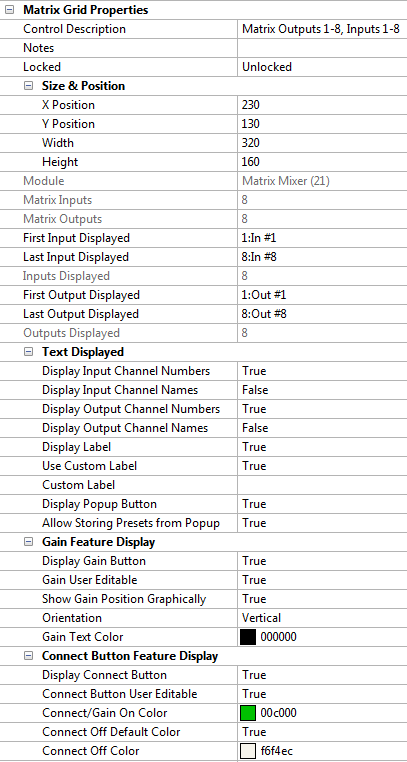
Control Description- Enter a custom description for the grid controls.
-
Notes- Enter notes for the grid controls.
-
Locked- Setting this option to 'Locked' will prevent the controls from being moved or resized when one or more are selected.
Size & Position
-
X Position- Moves the grid controls horizontally to the specified pixel location in the control screen. (Only moves by multiples of 10 if snap to grid is enabled)
-
Y Position- Moves the input controls vertically to the specified pixel location in the control screen. (Only moves by multiples of 10 if snap to grid is enabled)
-
Width- Adjusts the width of the grid controls.
-
Height- Adjusts the height of the input controls.
-
Module- Displays the name of the module in the design view.
-
Matrix Inputs- Total number of inputs in the matrix mixer module.
-
Matrix Outputs- Total number of outputs in the matrix mixer module.
-
First Input Displayed- Choose the first input to be displayed.
-
Last Input Displayed- Choose the last input to be displayed.
-
Inputs Displayed- Total number of inputs displayed in the control screen.
-
First Output Displayed- Choose the first output to be displayed.
-
Last Output Displayed- Choose the last output to be displayed.
-
Outputs Displayed- Total number of outputs displayed in the control screen.
Text Displayed
-
Display Input Channel Numbers - Set to True to display the input channel numbers to the left of the channel row.
-
Display Input Channel Names - Set to True to display the input channel label to the left of the channel row.
-
Display Output Channel Numbers - Set to True to display the output channel numbers above the channel column.
-
Display Output Channel Names - Set to True to display the output channel names above the channel column.
-
Display Label - Set to True to display the matrix label above the grid.
-
Use Custom Label - Set to True to use a custom label. Hidden if Display Label is set to False.
-
Custom Label - Enter custom label here. Hidden if either Display Label or Use Custom Label are set to False.
-
Display Popup Button - Set to True to display the Popup button for the grid.
-
-Allow Storing Presets from Popup - Allows for storing presets from within the Popup button's dialog. Hidden if Display Popup Button is set to False.
Gain Feature Display
-
Display Gain Button - Set to True to display the gain buttons for the grid.
-
-Gain User Editable - Set to True to allow users to control the crosspoint gains. Hidden if Display Gain Button is set to False.
-
Show Gain Position Graphically - Set to True to have a graphical representation of the gains position within the button. Hidden if Display Gain Button is set to False.
-
-Orientation - Change the orientation of the graphical gain position between horizontal or vertical. Hidden if Display Gain Button or Show Gain Position Graphically are set to False.
-
Gain Text Color - Choose the color of the text in the gain buttons. Hidden if Display Gain Button is set to False.
Connect Button Feature Display
-
Display Connect Button - Set to True to display the connect buttons for the grid.
-
-Connect Button User Editable - Set to True to allow users to control the grid connections. Hidden if Display Connect Button is set to False.
-
Connect/Gain On Color - Choose the color of the connect buttons when on. Hidden if Display Connect Button is set to False.
-
Connect Off Default Color - Specifies if the connect/gain button should have the background color of the control screen when disconnected. Hidden if Display Connect Button is set to False.
-
Connect Off Color - Choose the color of the connect buttons when off. Hidden if Display Connect Button is set to False.
Matrix Output Properties
-
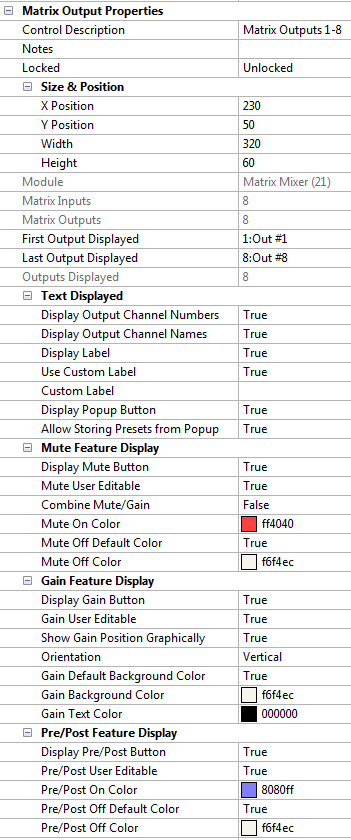
Control Description - Enter a custom description for the output controls.
-
Notes - Enter notes for the output controls.
-
Locked - Setting this option to 'Locked' will prevent the controls from being moved or resized when one or more are selected.
Size & Position
-
-X Position - Moves the output controls horizontally to the specified pixel location in the control screen. (Only moves by multiples of 10 if snap to grid is enabled)
-
Y Position - Moves the output controls vertically to the specified pixel location in the control screen. (Only moves by multiples of 10 if snap to grid is enabled)
-
Width - Adjusts the width of the output controls.
-
Height - Adjusts the height of the output controls.
-
Module - Displays the name of the module in the design view.
-
Matrix Inputs - Total number of outputs in the matrix mixer module.
-
Matrix Outputs - Total number of outputs in the matrix mixer module.
-
First Output Displayed - Choose the first output to be displayed.
-
Last Output Displayed - Choose the last output to be displayed.
-
Outputs Displayed - Total number of outputs displayed in the control screen.
Text Displayed
-
Display Output Channel Numbers - Set to True to display the output channel numbers above the channel column.
-
Display Output Channel Names - Set to True to display the output channel label above the channel column.
-
Display Label - Set to True to display the output channel label above the output channels.
-
Use Custom Label - Set to True to use a custom label. Hidden if Display Label is set to False.
-
Custom Label - Enter custom label here. Hidden if either Display Label or Use Custom Label are set to False.
-
Display Popup Button - Set to True to display the Popup button for the output controls.
-
-Allow Storing Presets from Popup - Allows for storing presets from within the Popup button's dialog. Hidden if Display Popup Button is set to False.
Mute Feature Display
-
Display Mute Button - Set to True to display the mute buttons for the outputs.
-
Mute User Editable - Set to True to allow users to click the mute buttons. Hidden if Display Mute Button is set to False.
-
Combine Mute/Gain - Set to True to combine the Mute and Gain. Display Gain must be set to True as well. Hidden if Display Mute Button is set to False.
-
Mute On Color - Choose the color of the mute button when on. Hidden if Display Mute Button is set to False.
-
Mute Off Default Color - Specifies if the mute button should have the background color of the control screen when off. Hidden if Display Mute Button is set to False.
-
Mute Off Color - Choose the color of the mute button when off. Hidden if Display Mute Button is set to False.
Gain Feature Display
-
Display Gain Button - Set to True to display the gain buttons for the outputs.
-
-Gain User Editable - Set to True to allow users to control the output gains. Hidden if Display Gain Button is set to False.
-
Show Gain Position Graphically - Set to True to have a graphical representation of the gains position within the button. Hidden if Display Gain Button is set to False.
-
-Orientation - Change the orientation of the graphical gain position between horizontal or vertical. Hidden if Display Gain Button or Show Gain Position Graphically are set to False.
-
Gain Default Background Color - Specifies if the gain control should have the background color of the control screen. Hidden if Display Gain Button is set to False.
-
Gain Background Color - Specifies the color of the gain background color. Hidden if Display Gain Button is set to False.
-
Gain Text Color - Choose the color of the text in the gain buttons. Hidden if Display Gain Button is set to False.
Pre/Post Feature Display
-
Display Pre/Post Button - Set to True to display the pre/post buttons for the outputs.
-
-Pre/Post User Editable - Set to True to allow users to click the pre/post buttons. Hidden if Display Pre/Post Button is set to False.
-
Pre/Post On Color - Choose the color of the pre/post buttons when on. Hidden if Display Pre/Post Button is set to False.
-
Pre/Post Off Default Color - Specifies if the pre/post button should have the background color of the control screen when off. Hidden if Display Pre/Post Button is set to False.
-
Pre/Post Off Color - Choose the color of the pre/post buttons when off. Hidden if Display Pre/Post Button is set to False.