Leader Follower
The Leader / Follower options of the common “Control Linking” property provide an easy way to link controls you wish to control the same functionality. This is most often used to have a numeric display the value for a fader, meter or knob.
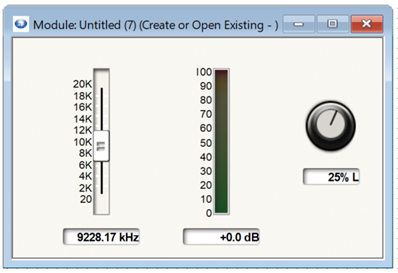
If you find yourself using script to set the same value on two controls, or to get the value from two controls to assign to the same variable, using Leader / Follower will probably give you the functionality you are after with less code.
Start by setting the “Control Linking” property as “Leader” for the main control the user will interact with. This will also be the control you will get and/or set the Leader control in your script. In the image above, the Fader, Meter and Knob are all configured as Leaders.
Then set the “Control Linking” property as “Follower” for any controls you want to display the same information as the Leader. As in the image above, an Intelligent Module can have multiple Leaders, so be sure to select the correct Leader for each Follower from the “Linked Leader Control drop down:
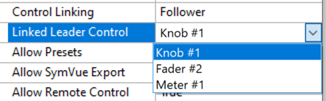
This is another reason it is important to use descriptive names for your controls.
The followers will now display the same value as the Leader. If the Leader is adjustable, the Follower can also be used to set the Value of the Leader. So, in the image above, the user can type in the Numeric controls to set the value of the corresponding Fader and Knob.
A Follower will automatically match the control “Units” of the Leader (e.g. percent) although this won’t be displayed in the Follower’s properties panel. You will have to manually set the follower to appropriate range; in most cases you will want the ranges to match between the Leader and Follower but there may be special cases where you choose to set them differently.