ARC-WEB as a Web App
For iOS and certain Android devices, the ARC-WEB is fully "web app" enabled. Users may save the ARC-WEBs to their Home Screen where ARC-WEB's icon appears alongside the user's other iOS apps. The ARC-WEB launches in full screen mode complete with custom splash screen, so it looks and feels like a native app.
How to Add ARC-WEB to the Home Screen
How to Add a Specific ARC-WEB Instance to the Home Screen
How to Add ARC-WEB to the Home Screen
-
After you have finished programming the ARC-WEB, launch ARC-WEB on your iOS device (iPad, iPhone or iPod Touch) by entering the unit's IP address into the device’s web browser:
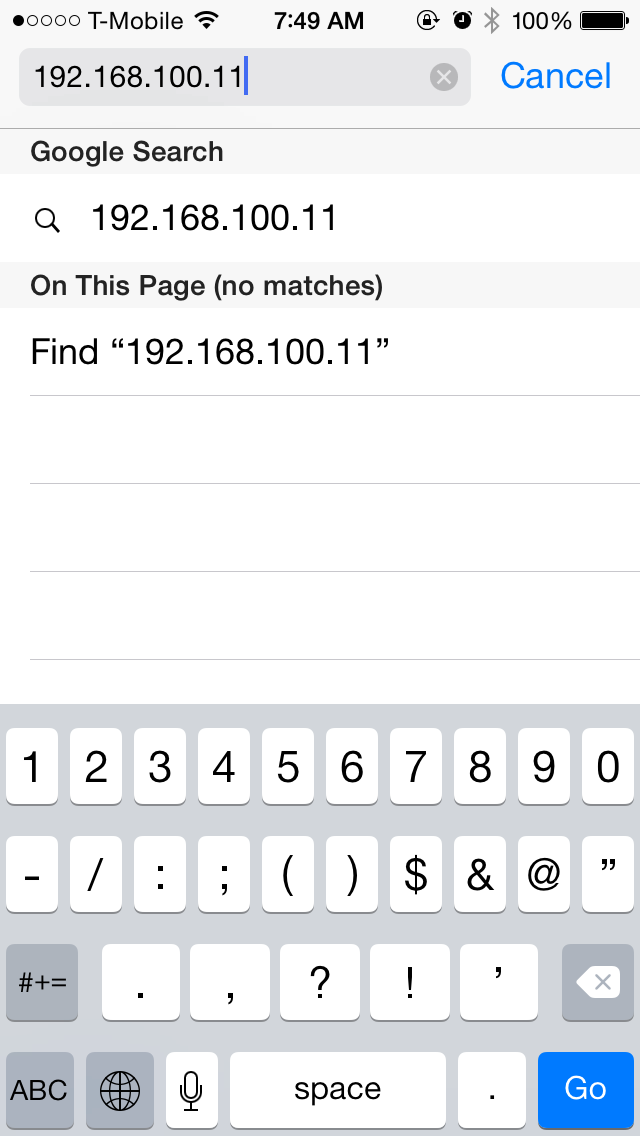
You can obtain the unit's IP address from the Unit module in the Site View or from the System Manager.
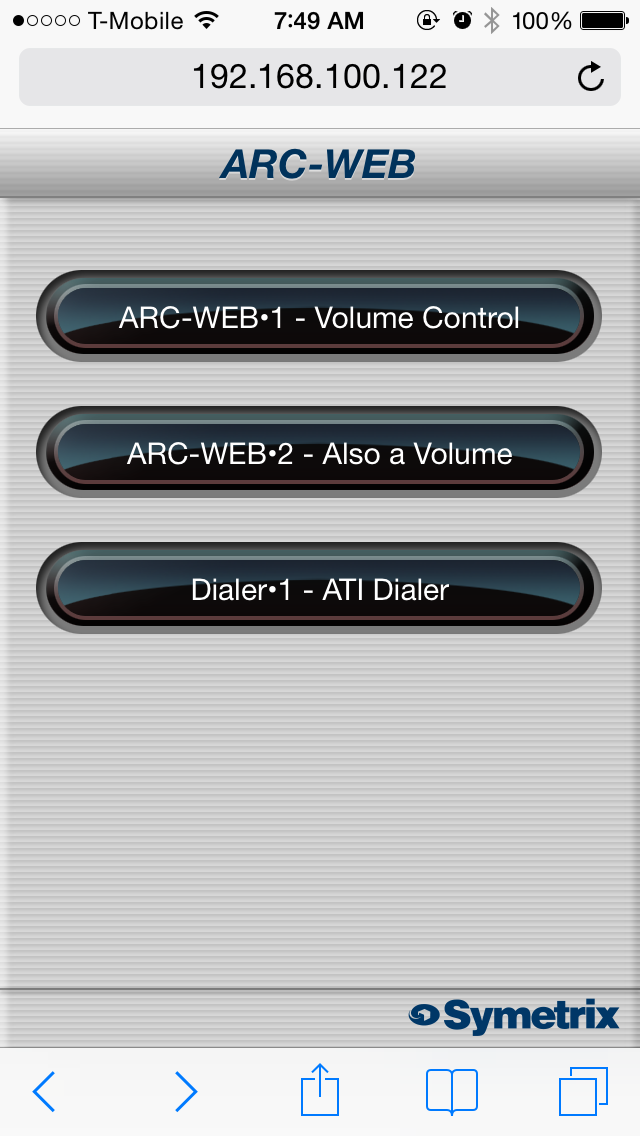
Make sure the unit and your mobile device are both connected to a common Wi-Fi enabled network. Generally, the mobile device will connect to a wireless access point over Wi-Fi and the unit will connect via Ethernet to that wireless access point or a common switch or router. Internet (WAN) communication is also possible if public access to the unit is enabled by your router or firewall. For information on this, search ‘port forwarding’ in our Knowledge Base at https://symetrixinc.com/knowledge/ or contact your IT department. 2. Next, we will add an icon to your device’s home screen. This example uses an iPhone, but the process is nearly identical on the iPad and iPod Touch. 3. Once ARC-WEB is loaded in your browser, tap the action button in the bottom middle of the phone’s screen.
-
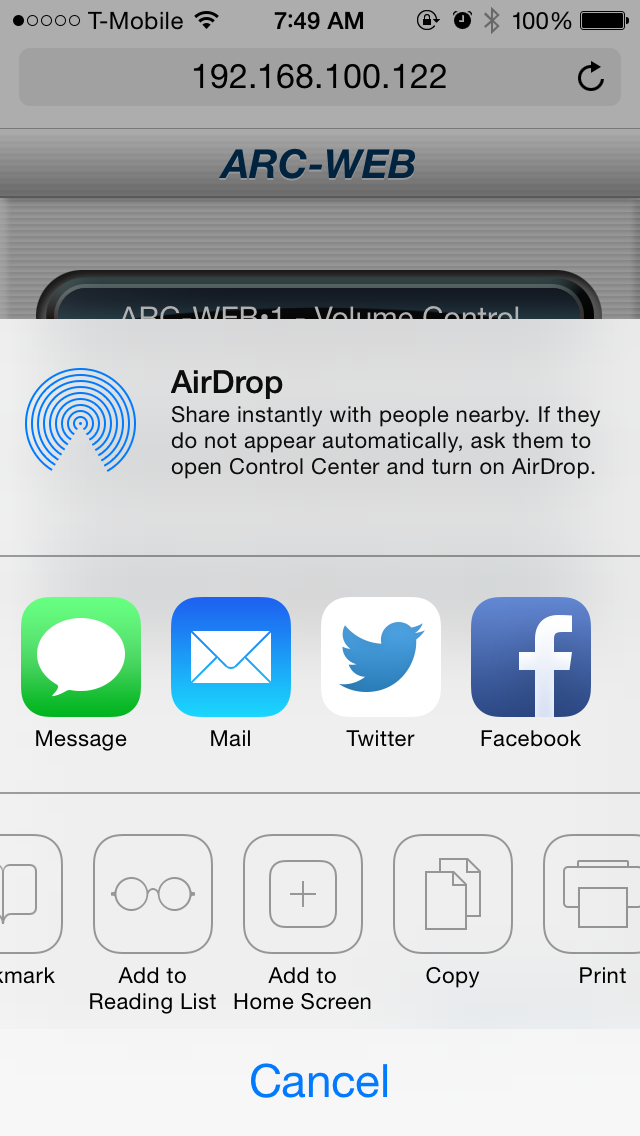
Then tap Add to Home Screen.
-
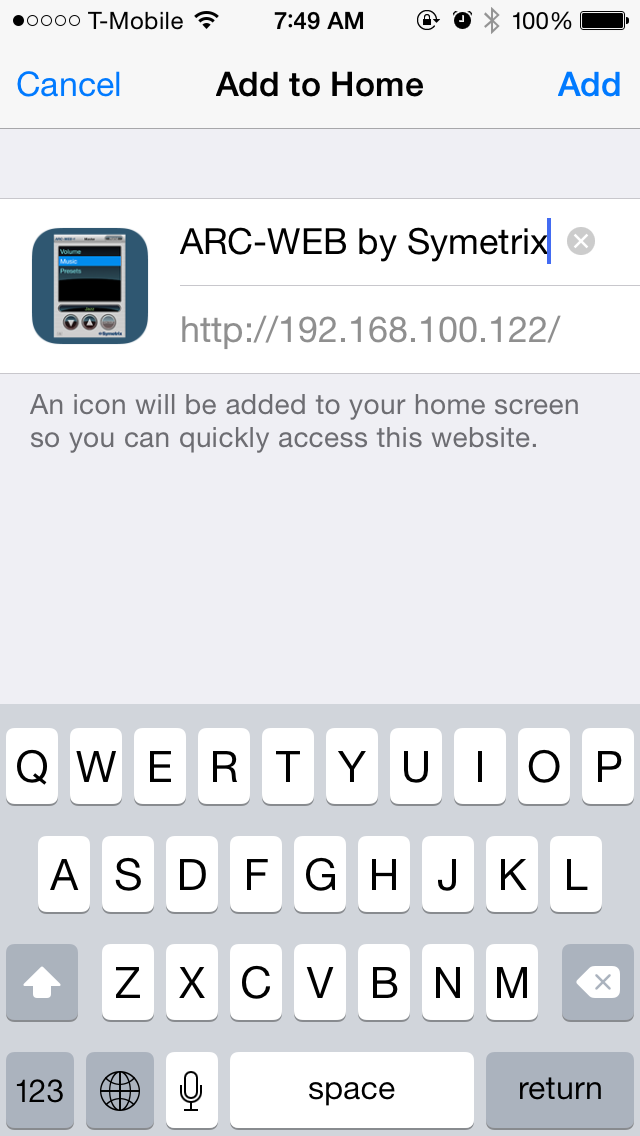
Now give your ARC-WEB a custom name if you wish, then tap the Add button.
-
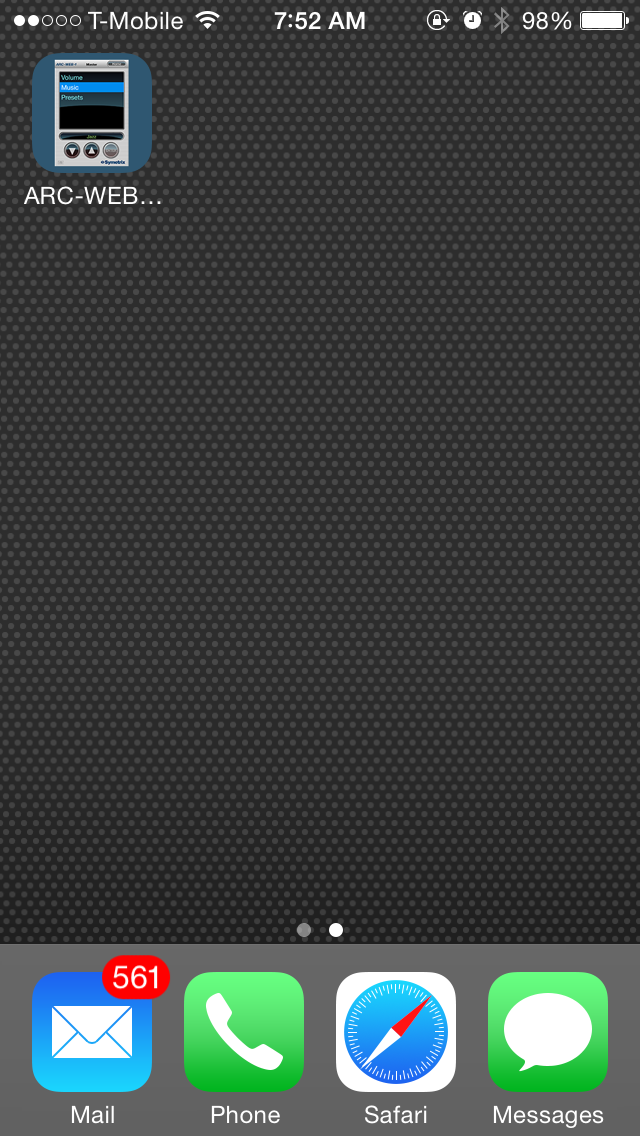
Locate and tap the ARC-WEB icon on your home screen and the ARC-WEB app will launch.
-
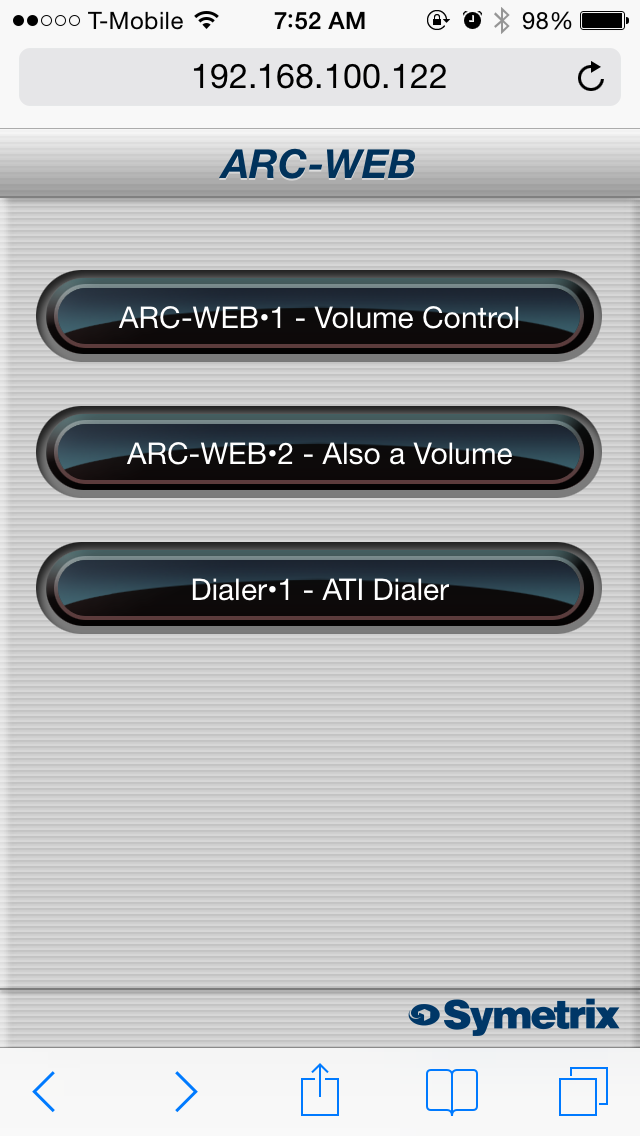
Then, select one of the ARC-WEB menus.
-
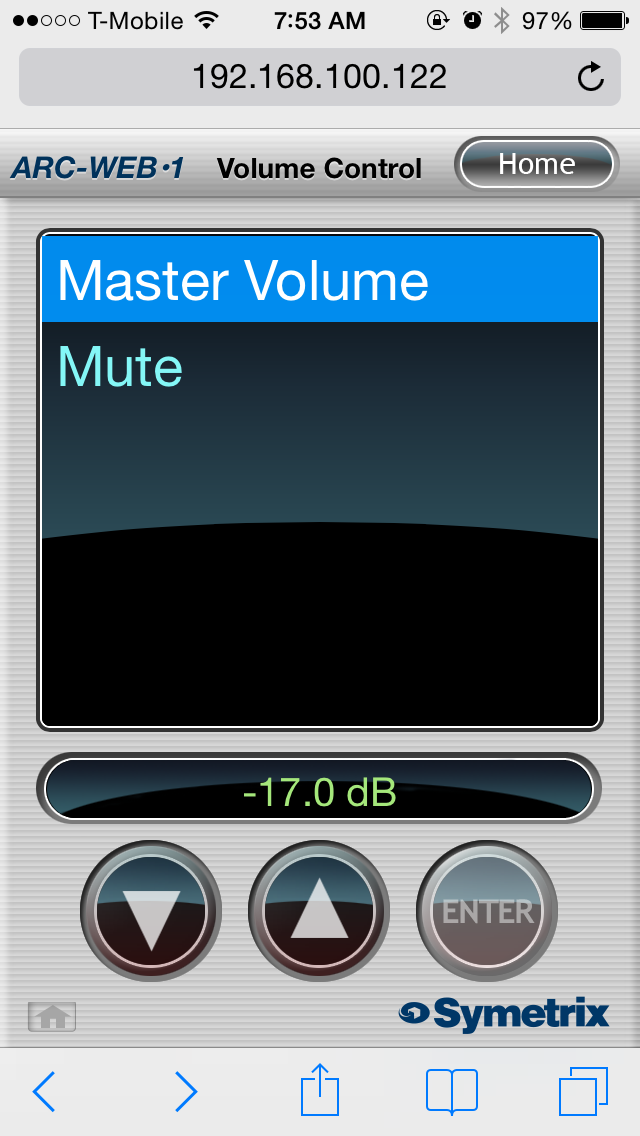
Now, start controlling! Simply select a menu from the drop-down and then use the UP and DOWN buttons to change volume, fire a preset, or turn a mute ‘on’ or ‘off’.
How to Add a Specific ARC-WEB Instance to the Home Screen
-
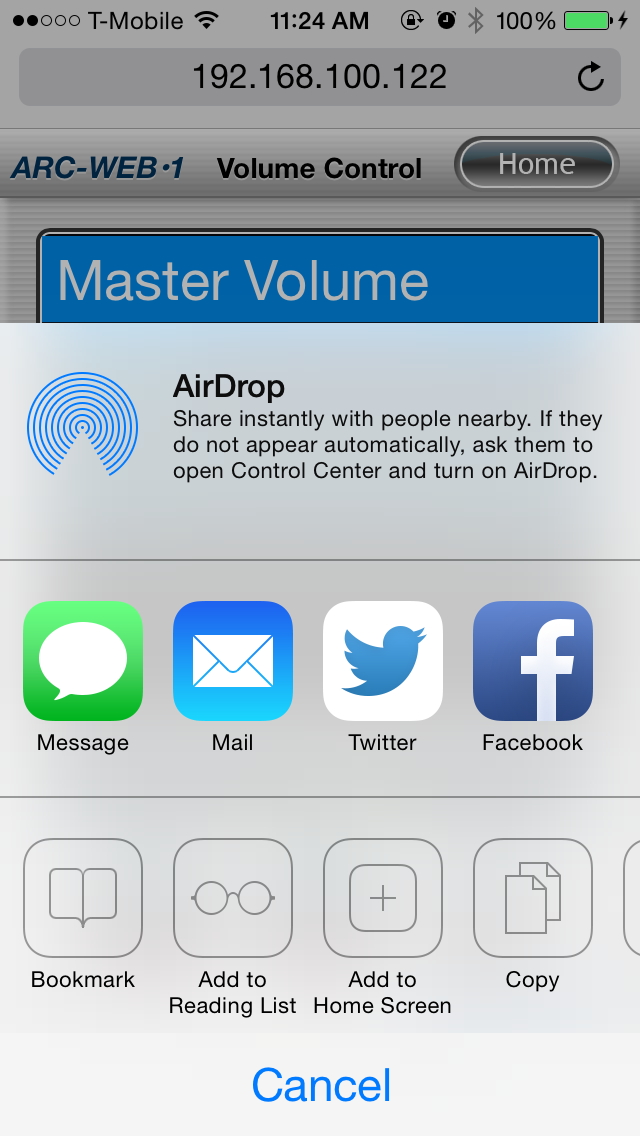
Once the ARC-WEB instance is loaded in your browser, tap the action button in the bottom middle of the phone’s screen.
-
Then tap Add to Home Screen.
-
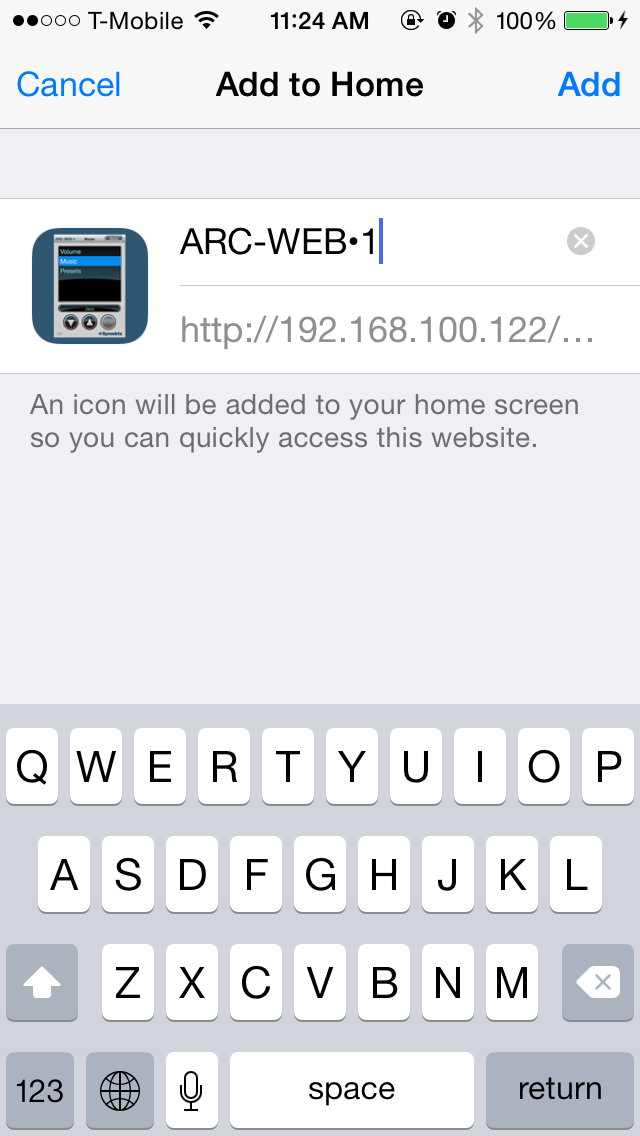
Now give your ARC-WEB a custom name if you wish, then tap the Add button.
-
Locate and tap the ARC-WEB icon on your home screen and the ARC-WEB app will launch.
-
Now, start controlling! Simply select a menu from the drop-down and then use the UP and DOWN buttons to change volume, fire a preset, or turn a mute ‘on’ or ‘off’.