Remote Control Manager
Overview
The Remote Control Manager allows you to configure DSP parameters currently available in the site file, control numbers, ARCs and other third party remotes, analog controls, and control signals.
All Controls
This tab displays all possible controls parameters in the site file.
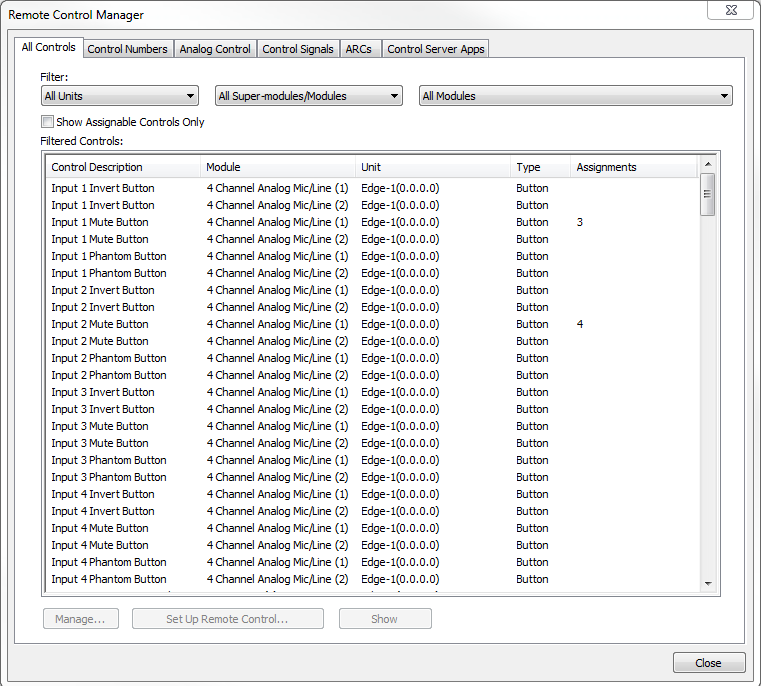
Filter:
-
Units -Choose to display all of the possible controls for one or all units in the site file.
-
Super-modules/Modules- Choose do display all super-modules and modules, or only super-modules, or only modules.
-
All Modules- Choose to display individual module control parameters.
Show Assignable Controls Only- Check this box to exclude any items that are not assignable controls (labels).
Filtered Controls -Lists all of the controls or all of the filtered controls.
Manage- Opens the Manage Remote Control Assignments dialog for the selected control to configure it for remote control and control signal assignments.
Setup Remote Control... -Assigns the currently selected Control Number to a new or already defined remote. See Set Up Remote Control for more information.
Show -Opens the controls module, highlighting it within the module view.
Control Numbers
Displays all of the RS-232/485 Control Numbers currently assigned to DSP parameters in your Site File.
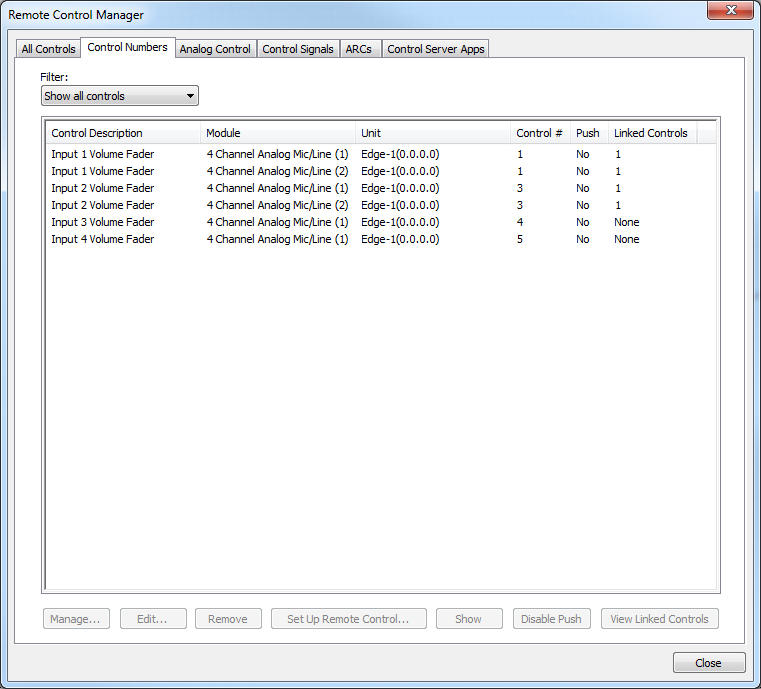
Filter- Filter the assigned controls by either: all controls, linked controls only, or unlinked controls only.
Manage- Opens the Manage Remote Control Assignments dialog for the selected control to configure it for remote control and control signal assignments.
Edit...- Edits the currently selected Control Number assignment.
Remove - Deletes the currently selected Control Number assignment.
Setup Remote Control...- Assigns the currently selected Control Number to a new or already defined remote. See Set Up Remote Control for more information.
Show - Opens the module containing the selected Control Number assignment and highlights it.
Enable/Disable Push - Enables or Disables the Control Push feature for the selected Control(s). The name of the button changes depending on the current setting, allowing it to be toggled. Multiple Controls can be selected using shift-click or control-click and all can be enabled/disabled at once.
View Linked Controls - When a linked control is selected, this button will open the View Linked Controls dialog, which will show a list of all controls linked to a control through duplicate control number assignments.
Analog Control
The Analog Control tab displays a list of all the Analog Control Inputs currently assigned to DSP parameters in your Site File. The Analog Control Inputs listed here are the ones physically located on the rear of the DSP.
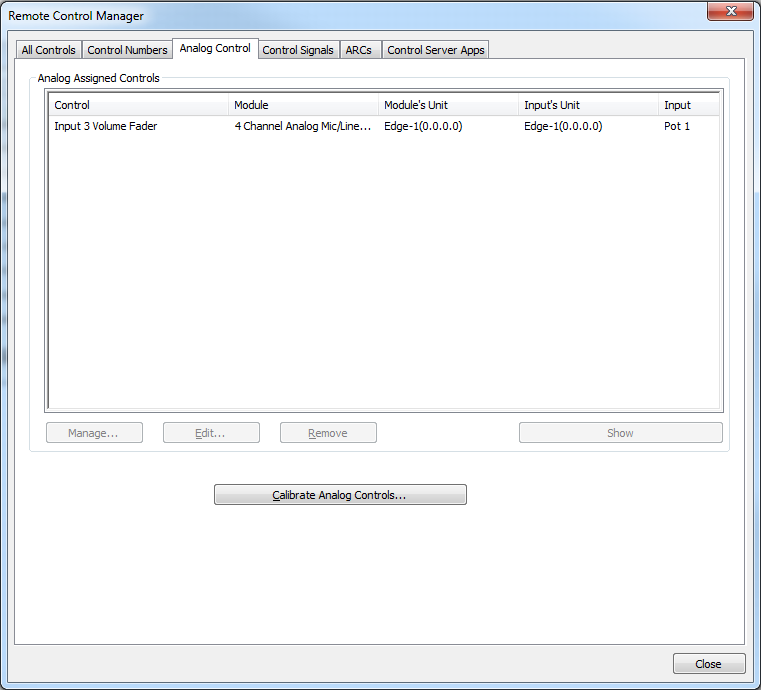
Manage - Opens the Manage Remote Control Assignments dialog for the selected control to configure it for remote control and control signal assignments.
Edit... - Edits the currently selected Control Number assignment.
Remove - Deletes the currently selected Control Number assignment.
Show - Opens the module containing the selected Control Number assignment and highlights it.
Calibrate Analog Controls...- Click this button to calibrate the analog controls.
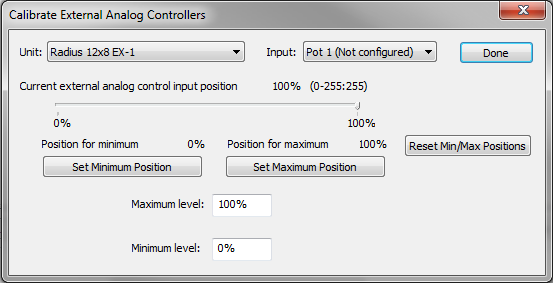
Unit- Select the DSP to calibrate from this drop down menu.
Input- Select which analog input to calibrate from this drop down menu.
Current external analog control input position- Between 0% and 100%.
Set Minimum Position- Set the minimum position for the analog control (between 0% and 100%).
Set Maximum Position- Set the maximum position for the analog control (between 0% and 100%).
Maximum Level- Set the maximum level of the calibration scale (between 0% and 100%).
Minimum Level - Set the minimum level of the calibration scale (between 0% and 100%).
Control Signals
The Control Signals tab displays a list of all the Control Signal outputs currently available in your Site File. Control Signals which are assigned or in use are listed in bold.
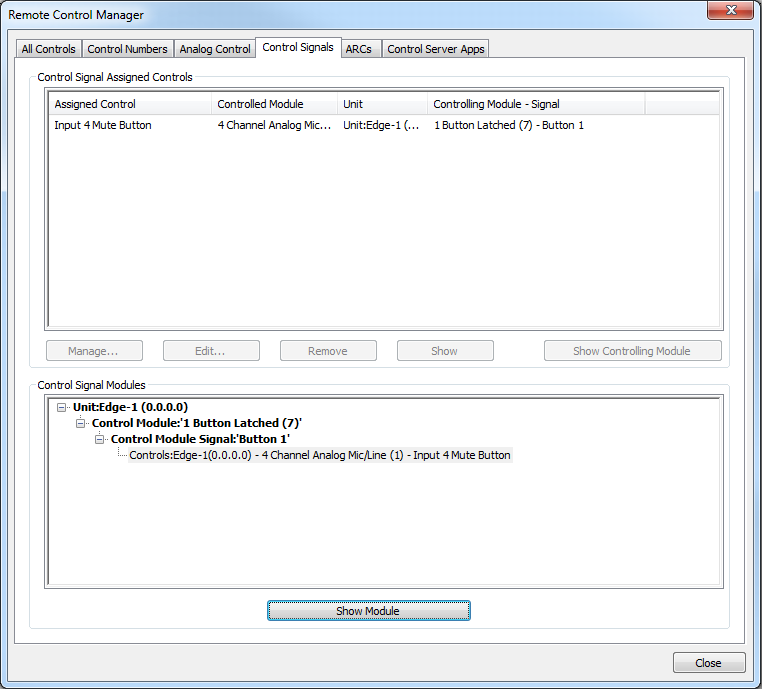
Manage- Opens the Manage Remote Control Assignments dialog for the selected control to configure it for remote control and control signal assignments.
Edit...- Edits the currently selected Control Number assignment.
Remove - Deletes the currently selected Control Number assignment.
Show - Opens the module containing the selected Control Number assignment and highlights it.
Show Controlling Module - Opens the controlling module in the design.
Show Module - Opens the selected module in the design.
ARCs
Displays all of the ARC's and their assigned control numbers.
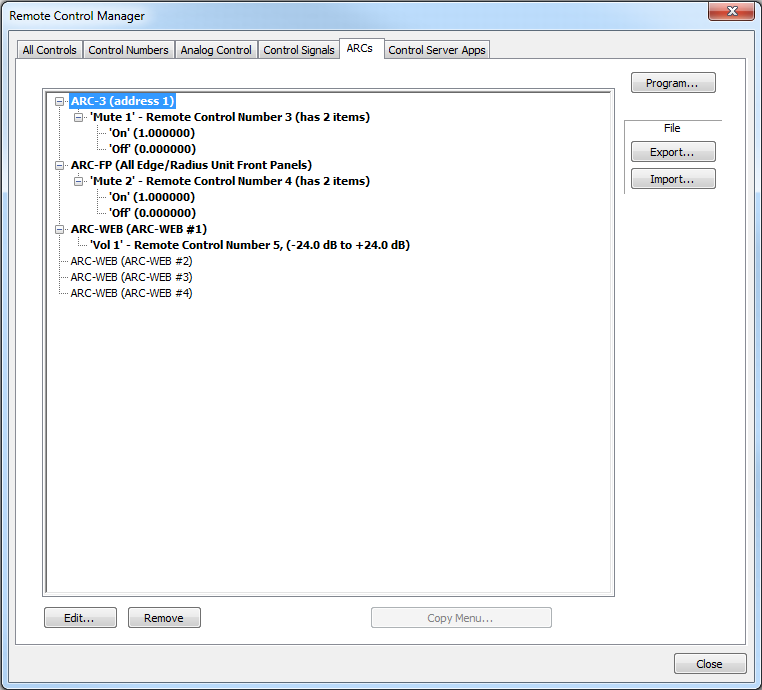
Edit... - Edits the currently selected ARC, Menu, Knob or Switch.
Remove/Clear - Deletes or clears the currently selected ARC or remote control assignment from within an ARC.
Copy Menu...- Copies the currently selected menu to another defined ARC. Only enabled for Menu ARCs (ARC-2e, ARC-WEB and ARC-FP).
Program...- Programs all defined ARC devices.
Export...- Brings up a standard Windows File Save As dialog allowing you to select a name and location for the exported ARC file.
Import...- Brings up a standard Windows File Open dialog allowing you to select an ARC file on disk to import into your Site File.
Control Server Apps
The Control Server Apps tab displays all configured Applications for each Control Server in a Site File.
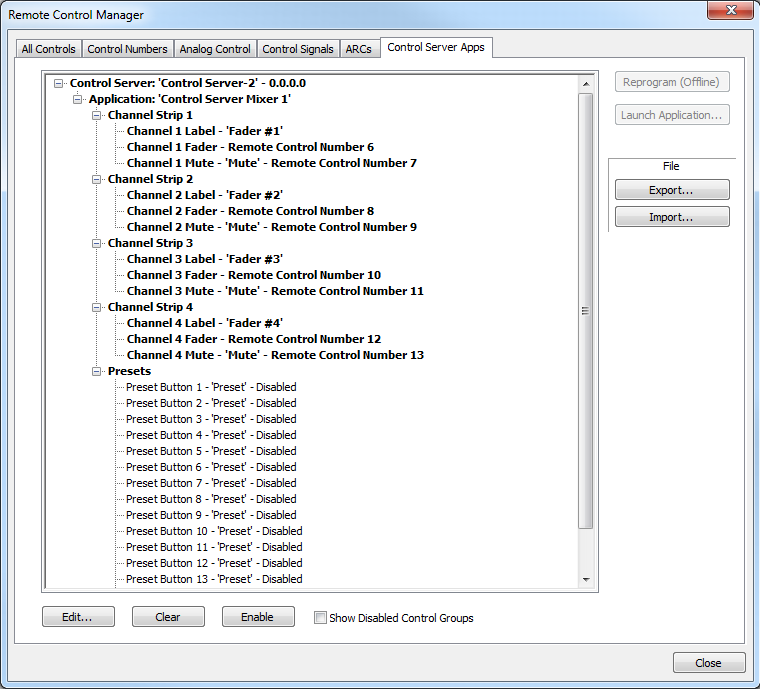
Edit...- Edits the currently selected item.
Clear- Clears the currently selected item of any user assigned parameters.
Enable/Disable- This button will enable or disable the current selected item. The name of the button changes depending on the current setting, allowing it to be toggled.
Show Disabled Control Groups- Shows disabled control groups for all applicable Apps.
Reprogram- Reprograms all defined Control Servers, must be online.
Launch Application...- Launches the application for the currently selected item.
Export...- Brings up a standard Windows File Save As dialog allowing you to select a name and location for the exported Control Server Apps file.
Import...- Brings up a standard Windows File Open dialog allowing you to select a Control Server Apps file on disk to import into your Site File.