Locate Hardware
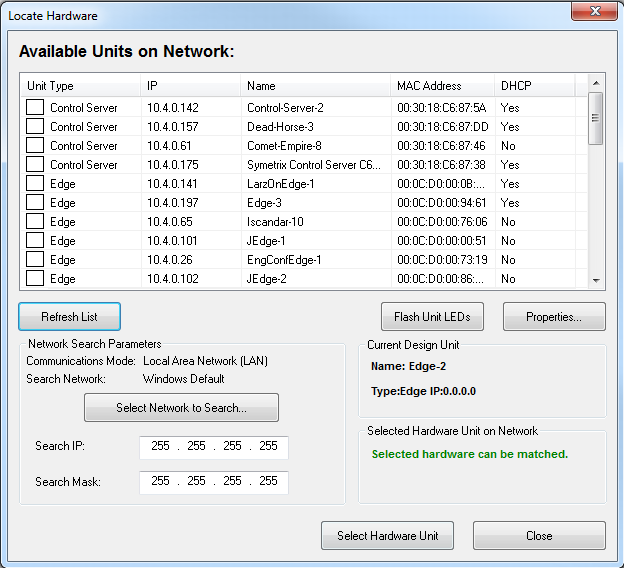 The Locate Hardware dialog allows you to match units in your Site File (software) with physical units on the network (hardware).
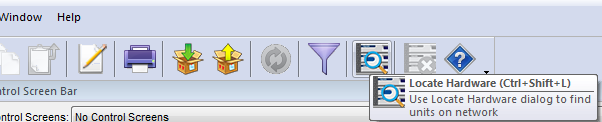
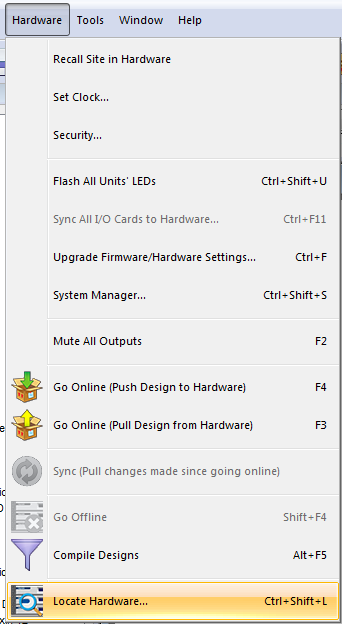
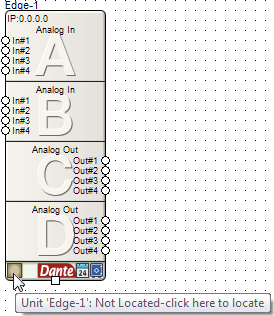
The Locate Hardware dialog can be accessed from the Hardware Menu or by clicking the Locate Hardware icon in the Tool Bar or on a particular unit as well as right-clicking on a unit module and selecting Locate Hardware.
Toolbar:
Hardware Menu:
Unit Module:
Accessing the locate hardware function by any of these methods brings up the Locate Hardware dialog. When the Locate Hardware dialog loads, it scans your network to find available units. You can refresh (re-scan the network manually) by clicking the Refresh List button.
If you have more than one NIC on your computer, you may need to manually select the NIC (network) you are using to interface with the Symetrix hardware. Click the Select Network to Search button to select a NIC. This will fill in the Search IP and Search Mask fields for you. You may also enter them manually to search custom address spaces.
To ensure you are locating the correct hardware, you can Flash Unit LEDs.
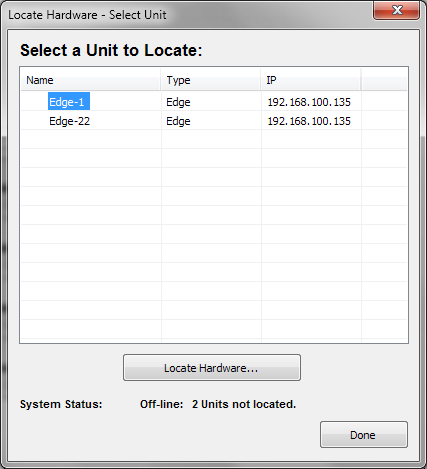
If you have more than one unit in your design and you choose Locate Hardware from the Hardware Menu or click on the Locate Hardware Tool Bar icon, you will get the Locate Hardware - Select Unit dialog allowing you to select which unit you want to locate. Then, the Locate Hardware dialog above will be shown.
Locating Dante devices
In order to locate Dante devices within a Site File, a Symetrix Dante-enabled DSP must be present and located. The same methods of initiating the Locate Hardware routine mentioned above can be used for Dante devices. Unlike when locating DSP units, when locating Dante devices, the Locate Hardware dialog will only populate with units matching the type to be located.
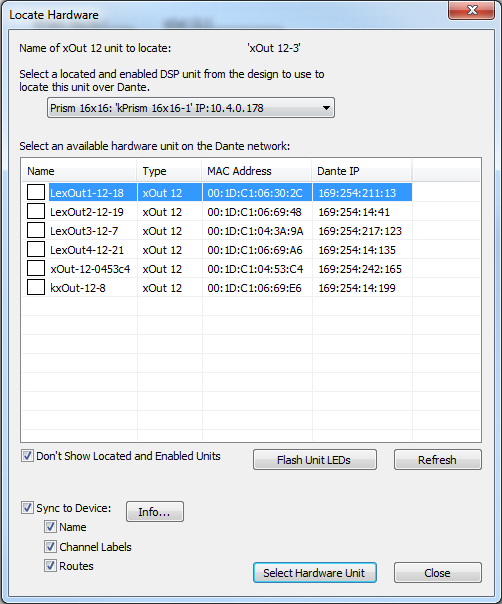
Locating Device- This dropdown produces a list of all located and enabled DSP within the site to use for locating Dante devices.
Flash Unit LEDs- Flashes the selected Dante device's LEDs. Composer can only flash Dante devices that support this feature.
Refresh- Refreshes the list of units found by the host unit.
Sync to Device- These check-boxes allow for syncing the design to the device's Dante configuration data. This can be done whether 'Configure Network Audio' is enabled or not in the Site Preferences.
Select Hardware Unit- Selects the currently selected unit as the located unit.
With Sync to Device selected, the following dialog will appear after pressing the Select Hardware Unit button:
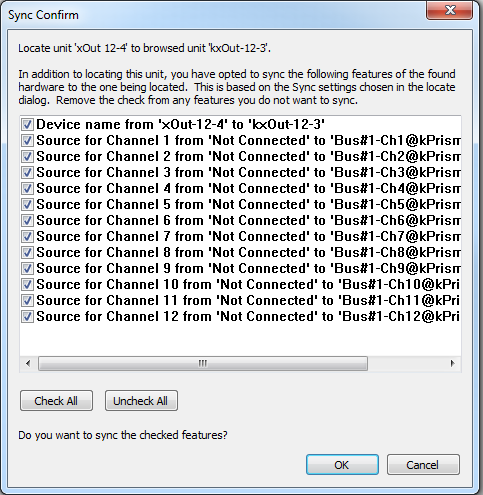
Remove checks from any unwanted sync features.